Skip to content
Documentation for Themes
  • Home
  • Support
  • Theme Docs

Autrics

  • Autrics Shortcodes
  • ElementsKit Header Footer Builder
  • General information
  • Image Source
  • Introduction and quick start guide.
  • LICENSE ACTIVATION
  • Slug Change
  • Theme Customizer
  • Translation
  • Version History (Changelog)
  • Visual Page Builder

BasCart

  • Advanced Slider Editing
  • Bascart Multivendor Settings
  • Common Error
  • CSS Customization
  • General Information
  • Guide Size for global products
  • Header Footer Builder
  • Image Source
  • Instagram Feed
  • Introduction and quick start guide.
  • Optimization Settings
  • Remove Popup Modal
  • Support Desk
  • Theme Customizer
  • Variation Swatches Settings
  • Visual Page Builder
  • WooCommerce Lucky Wheel Settings
  • WooCommerce Products
  • WooCommerce with ShopEngine

Bizxpo

  • General Information
  • Introduction and quick start guide.
  • License
  • RTL Settings
  • Support Desk
  • Theme Customizer
  • Update required pro plugins
  • Visual Page Builder

BuildBench

  • CSS Customization
  • General Information
  • Introduction and quick start guide.
  • Slug Change
  • Support Desk
  • Theme Customizer
  • Version History (Changelog) 
  • Visual Page Builder

Cafesio

  • Cafesio Header Footer
  • General Information
  • Home Page Edit with Elementor
  • Introduction and quick start guide.
  • License
  • Multi-Vendor Settings
  • Optimization Settings
  • RTL Settings
  • Support Desk
  • Theme Settings
  • Update Required Pro Plugins
  • Visual Page Builder

Courselog

  • BuddyPress
  • Courselog Slug Change
  • Courselog Widgets
  • Courselog with Eventin
  • Courselog with WooCommarce
  • Elementskit Header/Footer Builder
  • General Information
  • How to use Courselog Theme with Tutor LMS
  • Instructor Profile
  • Introduction and Quick Start Guide
  • LearnPress LMS
  • Login, Register & Share
  • Support
  • Theme Customizer
  • Visual Page Builder
  • Zoom Module

Cuinare

  • Common Error
  • CSS Customization
  • General Information
  • Image Source
  • Introduction and quick start guide.
  • Support Desk
  • Theme Customizer
  • Updates
  • Visual Page Builder

Deliciko

  • Common Error
  • CSS Customization
  • General Information
  • Image Source
  • Introduction and quick start guide
  • Support Desk
  • Theme Customizer
  • Updates
  • Visual Page Builder

Digiqole

  • Codestar Framework Migration
  • Common Error
  • Covid-19 Plugin
  • CSS Customization
  • Facebook Video
  • General Information
  • Image Source
  • Introduction and quick start guide.
  • License Activation
  • Live Score Setup For Sports Niche
  • Optimization Settings
  • Support Desk
  • Theme Customizer
  • Visual Page Builder

Dineora

  • General Information
  • How to Customize Colors and Fonts in Dineora
  • How to Customize the banner
  • How to Customize the Header and Footer
  • How to Quick Start with Dineora
  • Support Desk

EventPlace

  • Common Error
  • Credits
  • CSS Customization
  • Event Management
  • General Information
  • Image Source
  • Introduction and quick start guide.
  • Multivendor Event
  • Support Desk
  • Theme Customizer
  • Updates
  • Visual Page Builder

Exhibz

  • Codestar Framework Migration
  • Common Error
  • Countdown Text Change
  • General Information
  • How to Quick Start with Exhibz
  • Icon Settings
  • License Activation
  • Optimizations Settings
  • Slug Change
  • Support Desk
  • Theme Customizer
  • Visual Page Builder
  • Eventin Events
    • Create Event
    • Event Location
    • Event Schedule
    • Event Single Page With ELEMENTOR
    • Event Speaker & Organizer
    • General Settings
    • Recurring Events
    • Zoom Module

General

  • Education Theme FAQ
  • Minimal requirements

Geobin

  • Credits
  • General information
  • Geobin Elementor Widgets
  • Introduction and quick start guide.
  • Services Slug changes
  • Theme Customizer
  • Visual Page Builder

Gloreya

  • Common Error
  • General Information
  • Introduction and quick start guide
  • Support Desk
  • Theme Customizer
  • Updates
  • Visual Page Builder

Induxo

  • Common Error
  • General Information
  • Introduction and quick start guide
  • Support Desk
  • Theme Customizer
  • Updates
  • Visual Page Builder

Instive

  • CodeStar Migration
  • CSS Customization
  • General Information
  • Home 7
  • Image Source
  • Instive License Activation
  • Introduction and quick start guide
  • Services
  • Slug Change
  • Support Desk
  • Theme Customizer
  • Version History (Changelog)
  • Visual Page Builder

Inzox

  • Common Error
  • General Information
  • Introduction and quick start guide
  • Support Desk
  • Theme Customizer
  • Updates
  • Visual Page Builder

News247

  • Common Error
  • General Information
  • Introduction and quick start guide
  • Support Desk
  • Updates
  • Visual Page Builder

Newseqo

  • General Information
  • Introduction and quick start guide.
  • License
  • Newseqo Header & Footer(Free)
  • Newseqo Header & Footer(Pro)
  • Newseqo Widgets
  • Support Desk
  • Theme Customizer
  • Visual Page Builder

Privsa

  • CSS Customization
  • General Information
  • Image Source
  • Introduction and quick start guide
  • License Activation
  • Slug Change
  • Support Desk
  • Theme Customizer
  • Version History (Changelog)
  • Visual Page Builder

Qoxag

  • AMP Settings
  • Common Error
  • CSS Customization
  • Dark Mode Support
  • Facebook Video
  • General Information
  • Gutenberg PostX
  • Image Source
  • Instagram Feed
  • Introduction and quick start guide.
  • Live Score Setup For Sports Niche
  • Optimization Settings
  • Popup Modal Settings
  • RTL Support
  • Support Desk
  • Theme Customizer
  • Visual Page Builder
  • WooCommerce Products
  • WooCommerce Support

Turitor

  • Common Error
  • Create Event
  • Create Instructor
  • CSS Customization
  • General Information
  • Image Source 
  • Introduction and quick start guide.
  • Learndash LMS
  • Learnpress LMS
  • License Activation
  • Slug Change
  • Support Desk
  • Theme Customizer
  • Tutor LMS
  • Version History (Changelog) 
  • Visual Page Builder
  • Zoom Settings

Tymic

  • Displaying Google Map
  • General Information
  • How to customize Header & Footer
  • How to Import Demo Data
  • Introduction and Quick Start Guide
  • Setting Up an Appointment Schedule
  • Support Desk
View Categories
  • Home
  • Docs
  • Courselog
  • Elementskit Header/Footer Builder

Elementskit Header/Footer Builder

Adding a section #

If you want to add a new section header section, you need to: 

  1. Navigate to ‘Pages’ in your WordPress Dashboard. 
  2. Select ‘Add New Pages 
  3. Now select ‘Edit with Elementor’ on the top of the page. 

You should see a ‘+’ sign at the very middle of the page. 
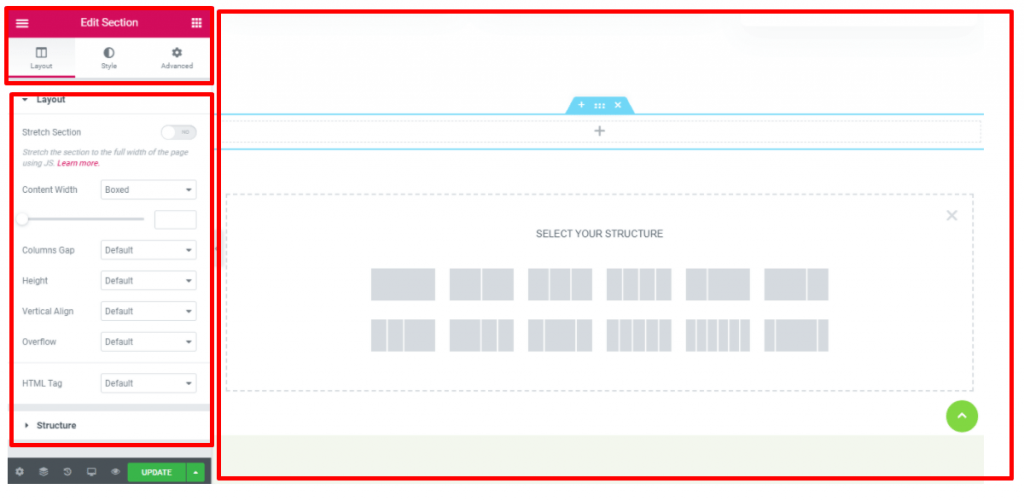
Adding a Section
Adding a Section
  1. Click on the ‘+’ sign. 
  2. Then select the structure. 

After you select the layout structure, you will have a new section added to your page. 

Elementskit Header #

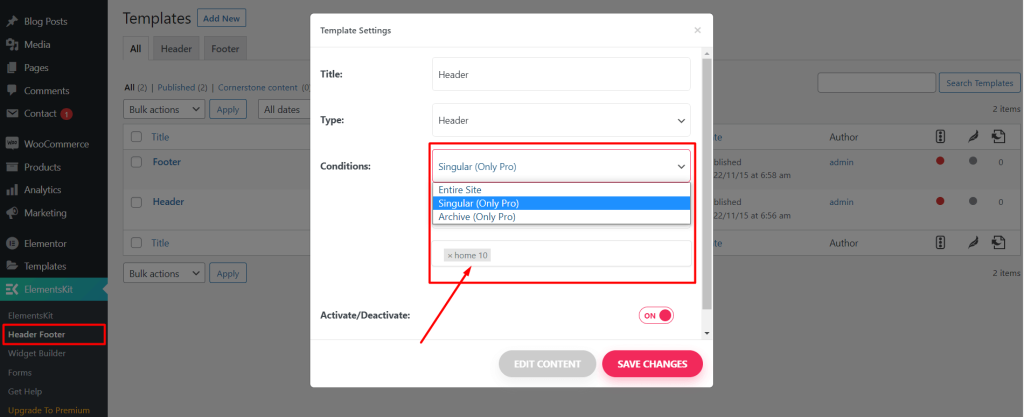
Note: Specific Header/ Footer
If you want to select a specific header/footer for specific pages, you have to purchase the Elementskit pro plugin.
Header Logo #

In order to work with the header element with ElementsKit, you need to: 

  1. Go to ‘ElementsKit’ in the WordPress Dashboard Menu. 
  2. Then go to the ‘Header Footer’ section. 
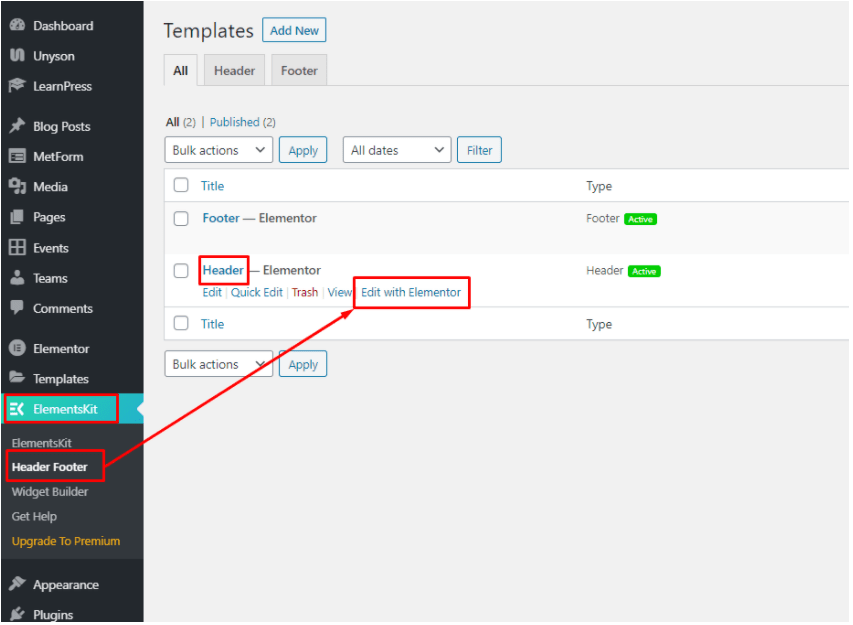
Changing the Header Logo

  1. You’ll find, under the templates section, the header and footer options. 
  2. Under the ‘Header’ option you will need to choose ‘Edit with Elementor’. 

You will now be able to change the header logo with optimal controlling ability. 
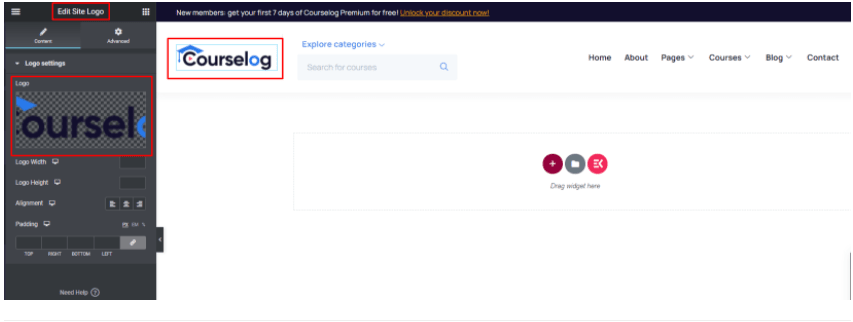
Changing Header Properties

Edit Header Content #

You can also edit the header menu, search fields, and other content from the header edit panel.
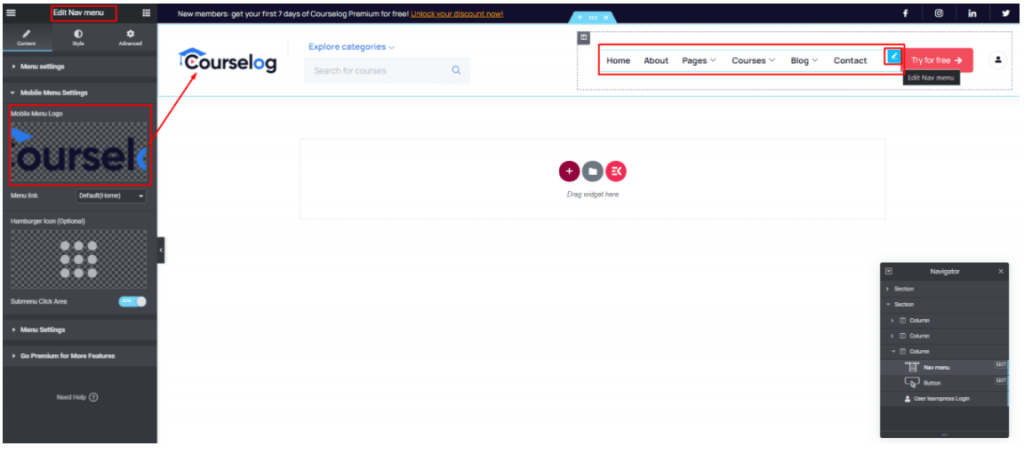
Editing the Header Menu

Try for Free Button #

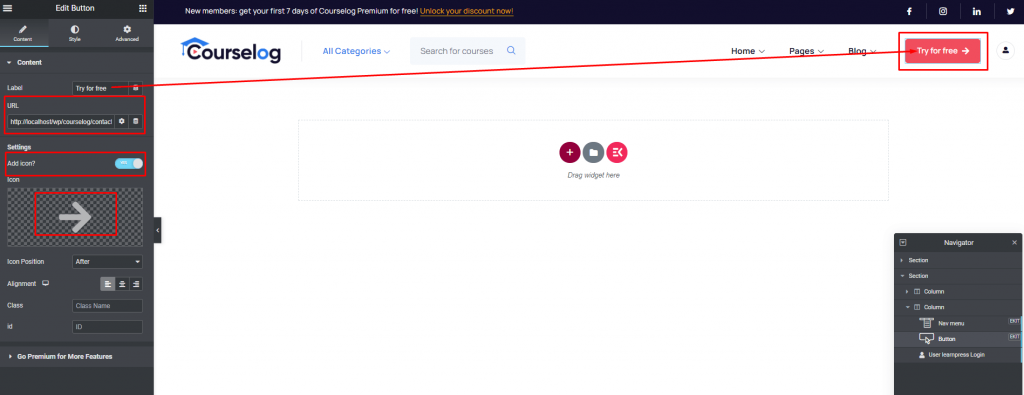
Here is your header “Try For Free” button settings.
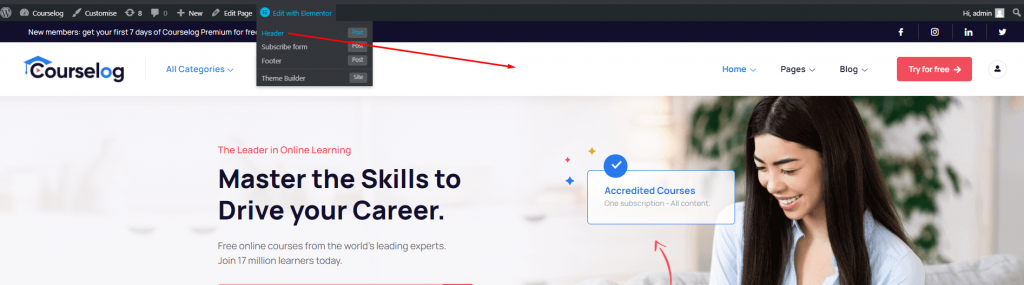
Go to your header settings and open the header with Elementor. Now edit the try for free button and change your button link, label, icon etc.
Changing the Menu Settings  #

If you want to change the menu settings, then you can do it in the following way: 

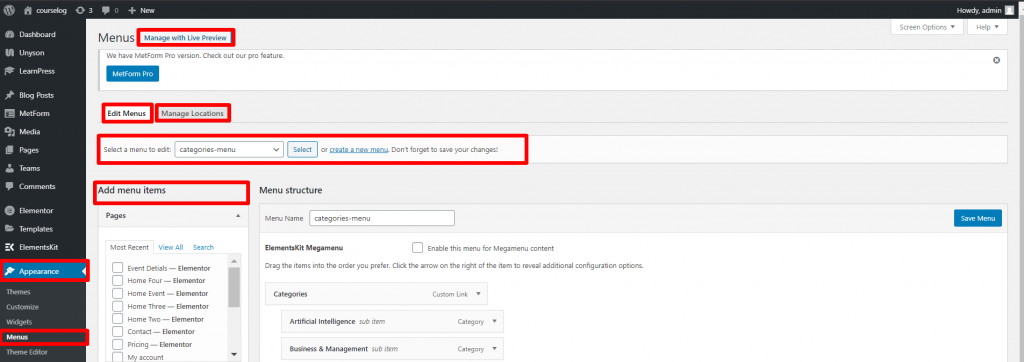
  1. Go to ‘Appearance’  in your WordPress Dashboard. 
  2. Then select ‘Menus’

3. Select ‘Manage with Live Preview’ 

After that, you will find the following ‘Live Preview’ page. 

Under the ‘Menus’ tab, you have the option to change all the available menus in your live page. You can select each menu and change the options. You have the option to create a new menu as well. 

Working with the Menu Options  #

There are two ways you can work with the Menu options. 

  1. Use ElementsKit to Customize the Menu

You can use ElementsKit to Customize the Menu. You can use the header creation steps as a guide to creating custom menus. 

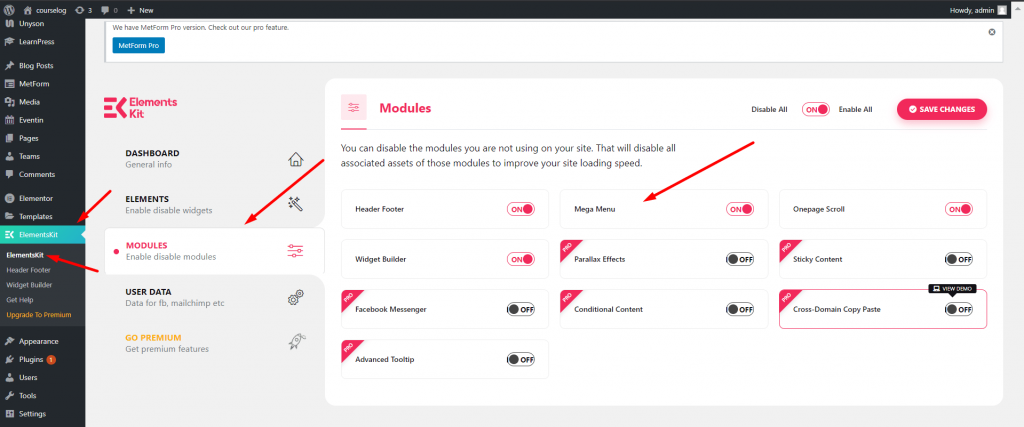
First of all, you will need to : 

  1. Go to ‘ElementsKit’ 
  2. Navigate to ‘Modules’ 
ElementsKit Settings

Make sure the ‘Mega Menu’ option is ‘On’. 

Now, with Courselog, you will get some default header settings. We will choose the default header. So, choose to ‘Edit with Elementor’. 
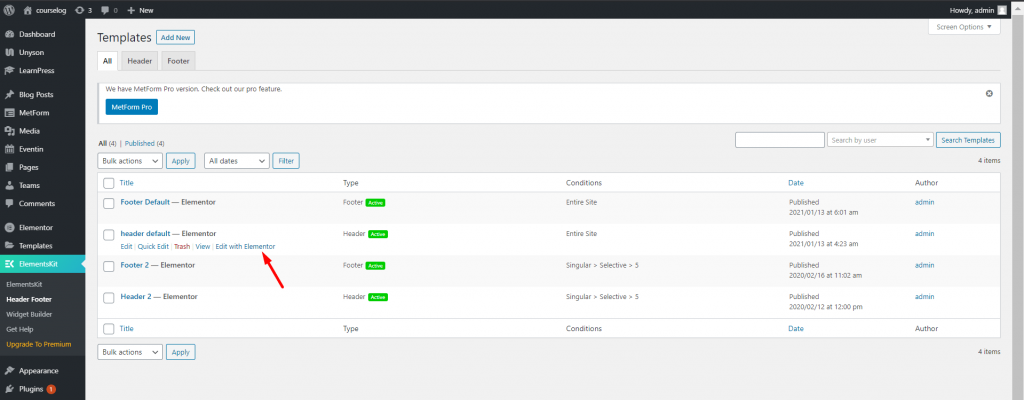
Editing the Main Header

Once you choose it, you will find the ElementsKit option on the live page. 
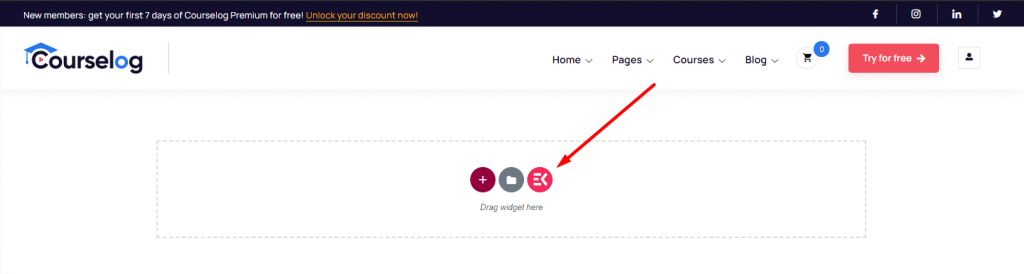
Choosing ElementsKit

Once you choose ElementsKit, you will have the following options.
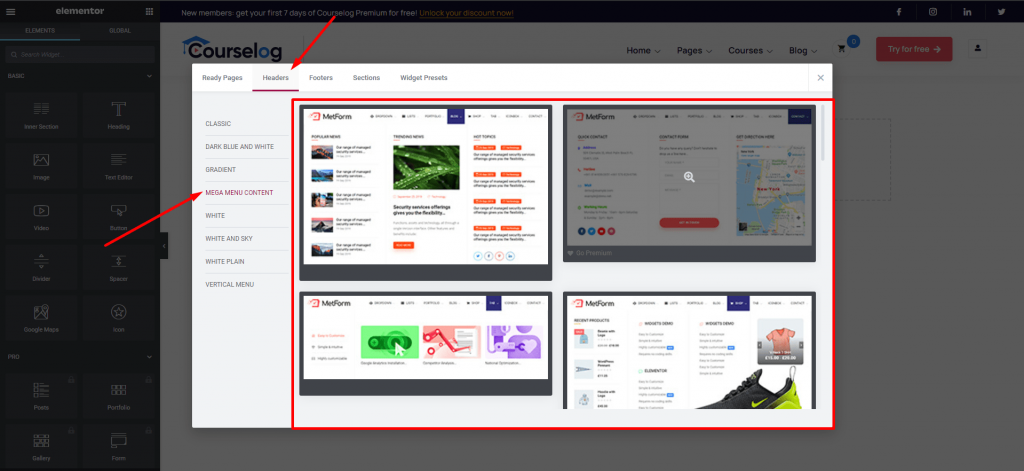
Customizing Menu with ElementsKit

If you: 

  1. Go to Header
  2. And choose Mega Menu Content

You will be able to work with the in-built menu content.  

Header Mega Menu #

For editing mega menu, navigate to Dashboard> Appearence> Menus and Select your menus.
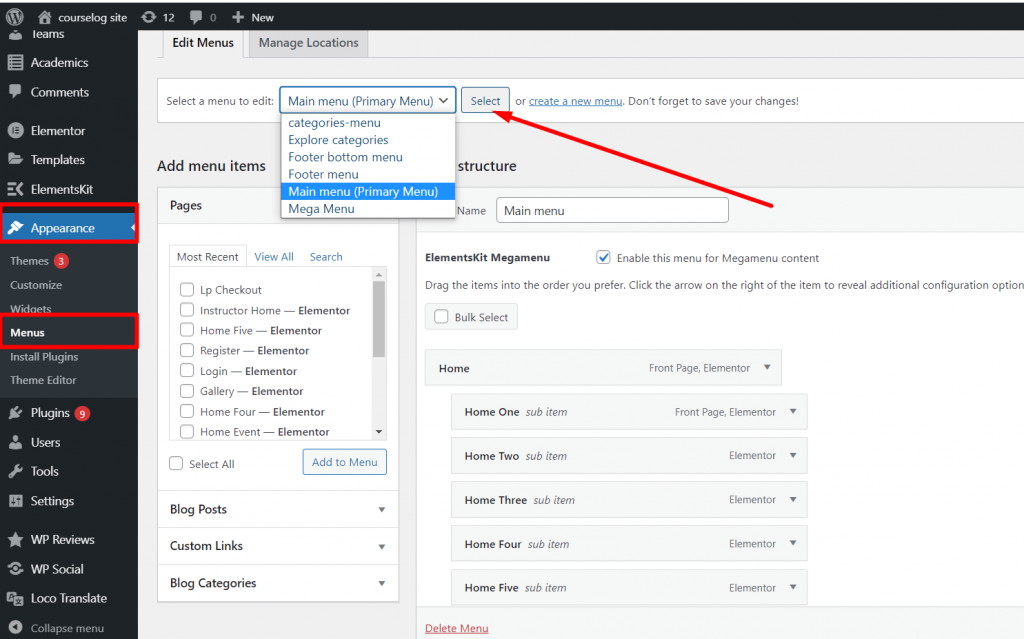
Enable mega menu option and click on your menu item here you edit the mega menu. There are 4 tabs: Content, Icon, badge, Settings. You can edit the content, icon, badge and other settings from this tab option.
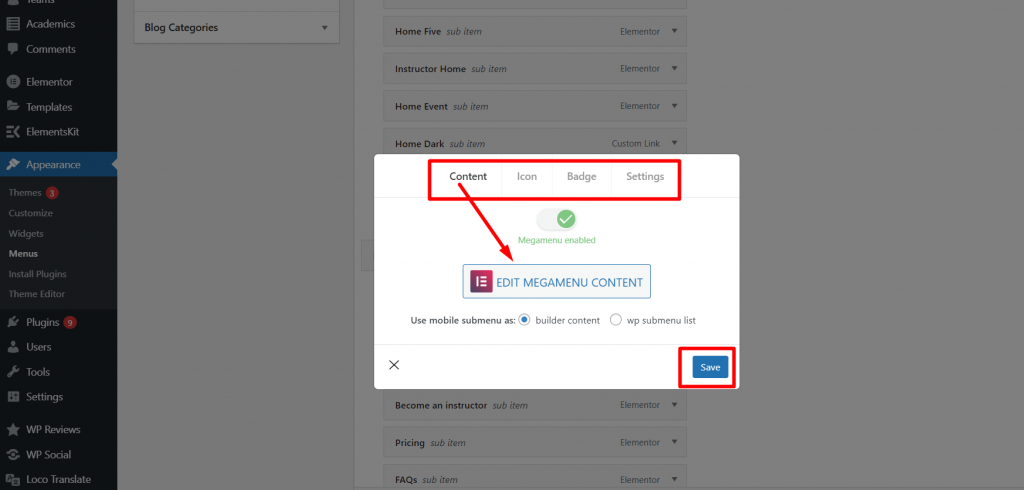
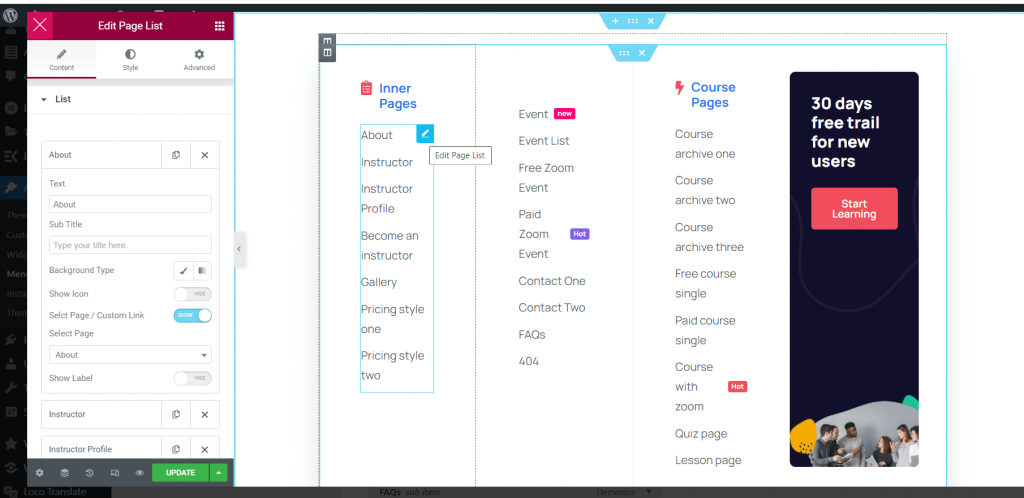
Click on mega menu contetn. Now you will able to add or eidt the content of mega menu.
For more information, kindly click on the video button.

Click me

Elementskit Footer #

Footer Logo Settings #

The process is pretty much the same for the footer logo: 

  1. Go to ‘ElementsKit’ in the WordPress Dashboard Menu. 
  2. Then go to the ‘Header Footer’ section. 
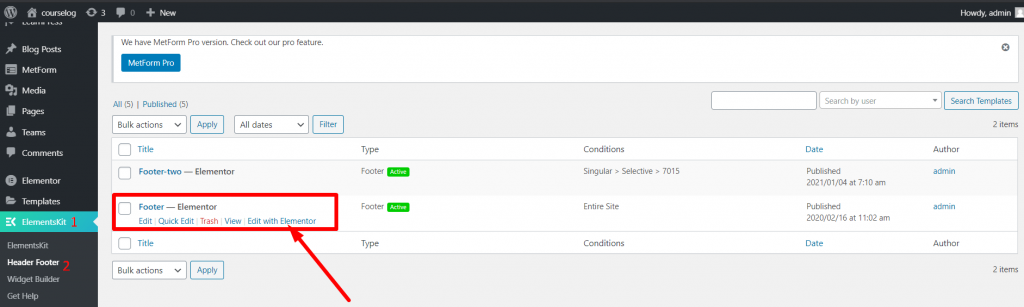
This image has an empty alt attribute; its file name is 27-min-1024x307.png
Editing Footer
  1. You’ll find, under the templates section, the header and footer options. 
  2. Under the ‘Footer’ option, you will need to choose ‘Edit with Elementor’. 

You will now be able to change the footer logo.
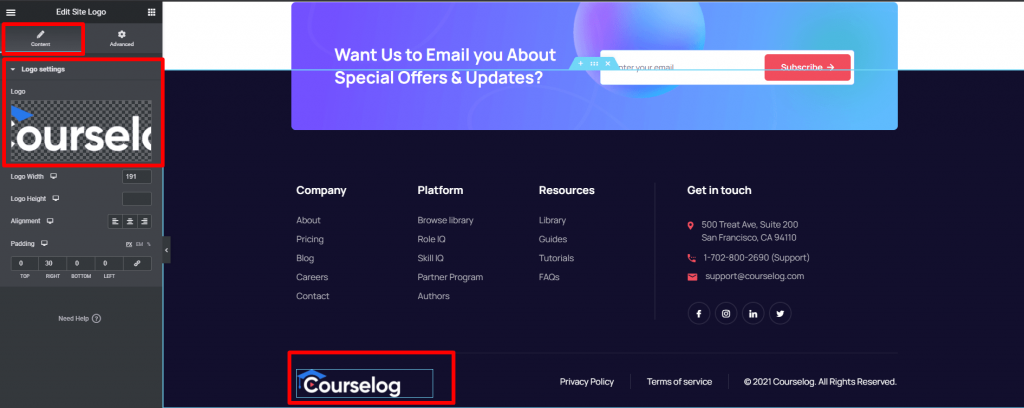
Working with Footer Settings

What are your Feelings

Share This Article :

  • Facebook
  • X
  • LinkedIn
  • Pinterest
Updated on November 15, 2022
Courselog with WooCommarceGeneral Information

Powered by BetterDocs

Table of Contents
  • Adding a section
  • Elementskit Header
    • Header Logo
    • Edit Header Content
    • Try for Free Button
    • Changing the Menu Settings 
    • Working with the Menu Options 
    • Header Mega Menu
  • Elementskit Footer
    • Footer Logo Settings
Copyright © 2026 Documentations for Themewinter WordPress Themes.