Skip to content
Documentation for Themes
  • Home
  • Support
  • Theme Docs

Autrics

  • Autrics Shortcodes
  • ElementsKit Header Footer Builder
  • General information
  • Image Source
  • Introduction and quick start guide.
  • LICENSE ACTIVATION
  • Slug Change
  • Theme Customizer
  • Translation
  • Version History (Changelog)
  • Visual Page Builder

BasCart

  • Advanced Slider Editing
  • Bascart Multivendor Settings
  • Common Error
  • CSS Customization
  • General Information
  • Guide Size for global products
  • Header Footer Builder
  • Image Source
  • Instagram Feed
  • Introduction and quick start guide.
  • Optimization Settings
  • Remove Popup Modal
  • Support Desk
  • Theme Customizer
  • Variation Swatches Settings
  • Visual Page Builder
  • WooCommerce Lucky Wheel Settings
  • WooCommerce Products
  • WooCommerce with ShopEngine

Bizxpo

  • General Information
  • Introduction and quick start guide.
  • License
  • RTL Settings
  • Support Desk
  • Theme Customizer
  • Update required pro plugins
  • Visual Page Builder

BuildBench

  • CSS Customization
  • General Information
  • Introduction and quick start guide.
  • Slug Change
  • Support Desk
  • Theme Customizer
  • Version History (Changelog) 
  • Visual Page Builder

Cafesio

  • Cafesio Header Footer
  • General Information
  • Home Page Edit with Elementor
  • Introduction and quick start guide.
  • License
  • Multi-Vendor Settings
  • Optimization Settings
  • RTL Settings
  • Support Desk
  • Theme Settings
  • Update Required Pro Plugins
  • Visual Page Builder

Courselog

  • BuddyPress
  • Courselog Slug Change
  • Courselog Widgets
  • Courselog with Eventin
  • Courselog with WooCommarce
  • Elementskit Header/Footer Builder
  • General Information
  • How to use Courselog Theme with Tutor LMS
  • Instructor Profile
  • Introduction and Quick Start Guide
  • LearnPress LMS
  • Login, Register & Share
  • Support
  • Theme Customizer
  • Visual Page Builder
  • Zoom Module

Cuinare

  • Common Error
  • CSS Customization
  • General Information
  • Image Source
  • Introduction and quick start guide.
  • Support Desk
  • Theme Customizer
  • Updates
  • Visual Page Builder

Deliciko

  • Common Error
  • CSS Customization
  • General Information
  • Image Source
  • Introduction and quick start guide
  • Support Desk
  • Theme Customizer
  • Updates
  • Visual Page Builder

Digiqole

  • Codestar Framework Migration
  • Common Error
  • Covid-19 Plugin
  • CSS Customization
  • Facebook Video
  • General Information
  • Image Source
  • Introduction and quick start guide.
  • License Activation
  • Live Score Setup For Sports Niche
  • Optimization Settings
  • Support Desk
  • Theme Customizer
  • Visual Page Builder

Dineora

  • General Information
  • How to Customize Colors and Fonts in Dineora
  • How to Customize the banner
  • How to Customize the Header and Footer
  • How to Quick Start with Dineora
  • Support Desk

EventPlace

  • Common Error
  • Credits
  • CSS Customization
  • Event Management
  • General Information
  • Image Source
  • Introduction and quick start guide.
  • Multivendor Event
  • Support Desk
  • Theme Customizer
  • Updates
  • Visual Page Builder

Exhibz

  • Codestar Framework Migration
  • Common Error
  • Countdown Text Change
  • General Information
  • How to Quick Start with Exhibz
  • Icon Settings
  • License Activation
  • Optimizations Settings
  • Slug Change
  • Support Desk
  • Theme Customizer
  • Visual Page Builder
  • Eventin Events
    • Create Event
    • Event Location
    • Event Schedule
    • Event Single Page With ELEMENTOR
    • Event Speaker & Organizer
    • General Settings
    • Recurring Events
    • Zoom Module

General

  • Education Theme FAQ
  • Minimal requirements

Geobin

  • Credits
  • General information
  • Geobin Elementor Widgets
  • Introduction and quick start guide.
  • Services Slug changes
  • Theme Customizer
  • Visual Page Builder

Gloreya

  • Common Error
  • General Information
  • Introduction and quick start guide
  • Support Desk
  • Theme Customizer
  • Updates
  • Visual Page Builder

Induxo

  • Common Error
  • General Information
  • Introduction and quick start guide
  • Support Desk
  • Theme Customizer
  • Updates
  • Visual Page Builder

Instive

  • CodeStar Migration
  • CSS Customization
  • General Information
  • Home 7
  • Image Source
  • Instive License Activation
  • Introduction and quick start guide
  • Services
  • Slug Change
  • Support Desk
  • Theme Customizer
  • Version History (Changelog)
  • Visual Page Builder

Inzox

  • Common Error
  • General Information
  • Introduction and quick start guide
  • Support Desk
  • Theme Customizer
  • Updates
  • Visual Page Builder

News247

  • Common Error
  • General Information
  • Introduction and quick start guide
  • Support Desk
  • Updates
  • Visual Page Builder

Newseqo

  • General Information
  • Introduction and quick start guide.
  • License
  • Newseqo Header & Footer(Free)
  • Newseqo Header & Footer(Pro)
  • Newseqo Widgets
  • Support Desk
  • Theme Customizer
  • Visual Page Builder

Privsa

  • CSS Customization
  • General Information
  • Image Source
  • Introduction and quick start guide
  • License Activation
  • Slug Change
  • Support Desk
  • Theme Customizer
  • Version History (Changelog)
  • Visual Page Builder

Qoxag

  • AMP Settings
  • Common Error
  • CSS Customization
  • Dark Mode Support
  • Facebook Video
  • General Information
  • Gutenberg PostX
  • Image Source
  • Instagram Feed
  • Introduction and quick start guide.
  • Live Score Setup For Sports Niche
  • Optimization Settings
  • Popup Modal Settings
  • RTL Support
  • Support Desk
  • Theme Customizer
  • Visual Page Builder
  • WooCommerce Products
  • WooCommerce Support

Turitor

  • Common Error
  • Create Event
  • Create Instructor
  • CSS Customization
  • General Information
  • Image Source 
  • Introduction and quick start guide.
  • Learndash LMS
  • Learnpress LMS
  • License Activation
  • Slug Change
  • Support Desk
  • Theme Customizer
  • Tutor LMS
  • Version History (Changelog) 
  • Visual Page Builder
  • Zoom Settings

Tymic

  • Displaying Google Map
  • General Information
  • How to customize Header & Footer
  • How to Import Demo Data
  • Introduction and Quick Start Guide
  • Setting Up an Appointment Schedule
  • Support Desk
View Categories
  • Home
  • Docs
  • Qoxag
  • WooCommerce Products

WooCommerce Products

Simple Product #

  1. Go to WooCommerce > Products > Add Product. You then have a familiar interface and should immediately feel at home.
  2. Enter a product Title and Description.
  3. Go to the Product Data panel, and select downloadable (digital) or virtual (service) if applicable.
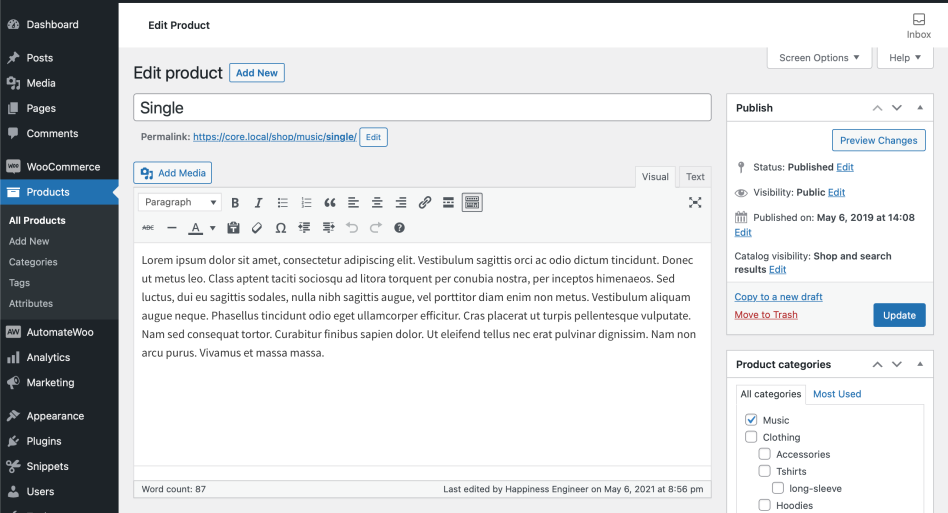
Note: Virtual products don’t require shipping — an order with virtual products won’t calculate shipping costs.

Product data #

The Product Data meta box is where the majority of important data is added for your products.
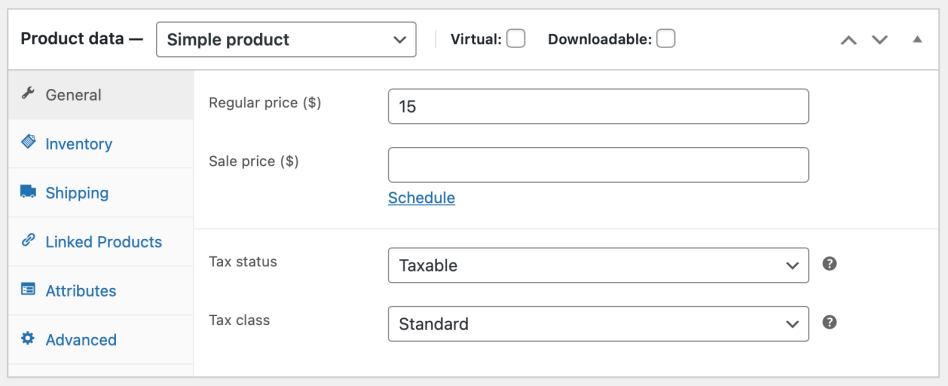
General section #

  • Price
    • Regular Price – Item’s normal/regular price
    • Sale Price – Item’s discounted price that can then be scheduled for certain date ranges. The sale expires at 11:59pm of the specified end date
  • Tax
    • Tax status – Taxable / Shipping only / None
    • Tax class – Choose which tax class should be applied

Inventory section #

The inventory section allows you to manage stock for the product individually and define whether to allow back orders and more. It enables you to sell products and allows customers to add them to the cart to buy.

Enable Stock Management must be selected in Products Inventory Settings; otherwise, only the ‘Stock status’ option is visible in the Product Data Inventory box.

Options when stock management at product level is disabled. You are responsible for updating the Stock Status.
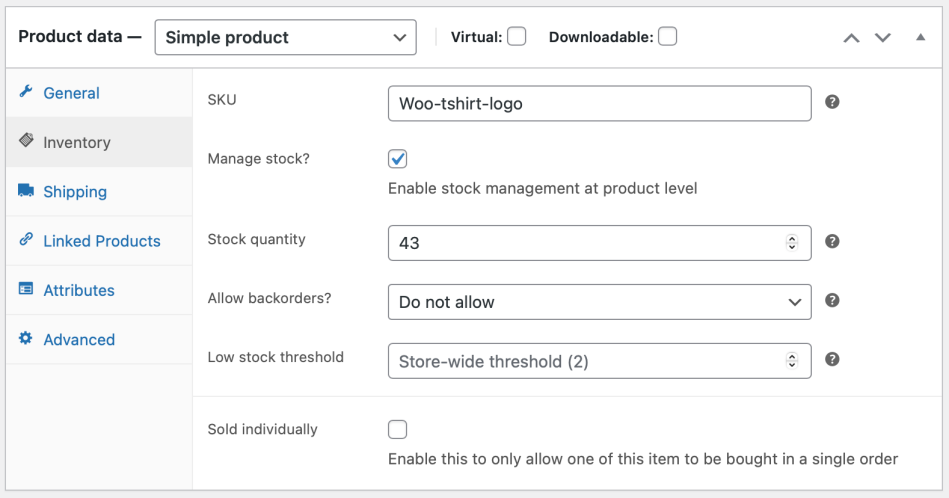
Options when stock management at product level is enabled.

  • Enter the Stock Quantity, and WooCommerce auto-manages inventory and auto-updates Stock Status as Stock, Out of Stock or On Backorder.
  • Select whether to Allow Backorders.
  • Low stock threshold – Enter a number upon which you are notified.
  • Tick the Sold Individually box to limit the product to one per order.

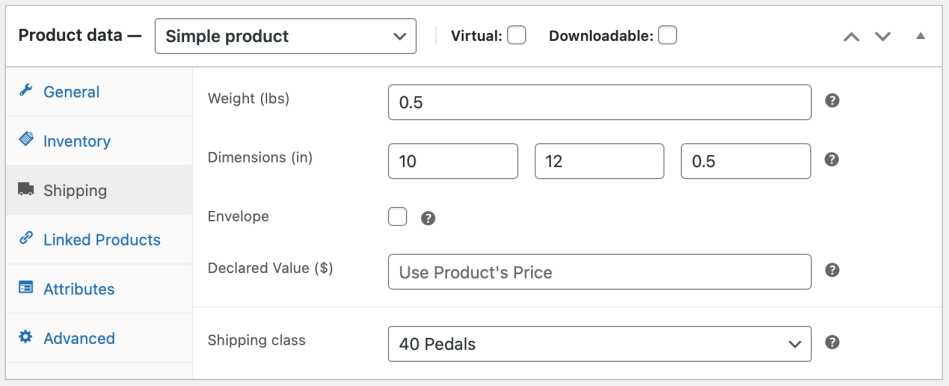
Shipping section #

  • Weight – Weight of the item.
  • Dimensions – Length, width and height for the item.
  • Shipping Class – Shipping classes are used by certain shipping methods to group similar products.
Linked Products section #

Using up-sells and cross-sells, you can cross-promote your products. They can be added by searching for a particular product and selecting the product from the dropdown list:
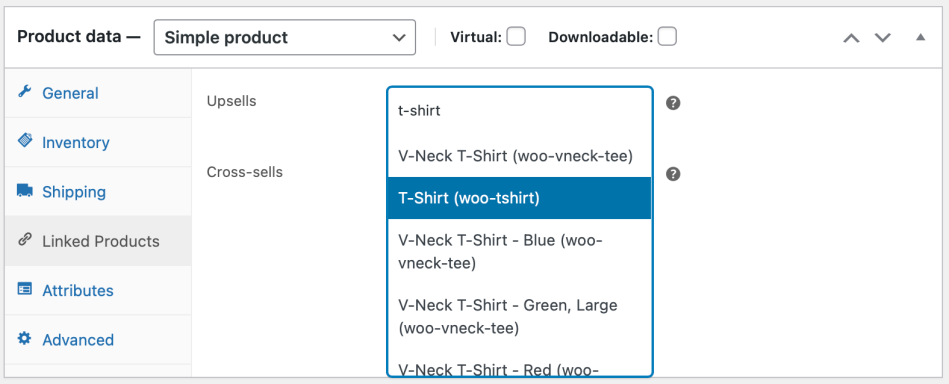
Up-sells are displayed on the product details page. These are products that you may wish to encourage users to upgrade, based on the product they are currently viewing. For example, if the user is viewing the coffee product listing page, you may want to display tea kettles on that same page as an up-sell.
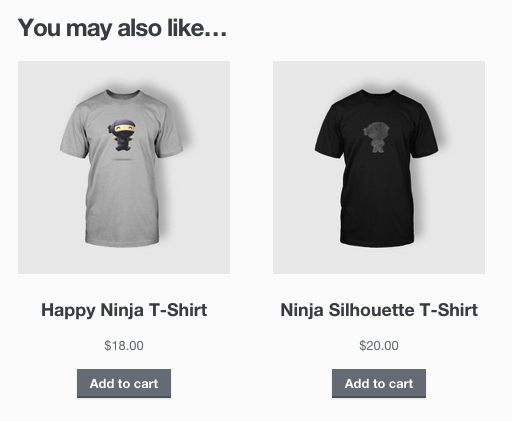
Cross-sells are products that are displayed with the cart and related to the user’s cart contents. As an example, if the user adds a Nintendo DS to their cart, you may want to suggest they purchase a spare stylus when they arrive at the cart page.

Attributes section #

On the Attributes tab, you can assign details to a product. You will see a select box containing the global attribute sets you created (e.g., platform). More at: Managing Product Categories, Tags and Attributes.

Once you have chosen an attribute from the select box, click add and apply the terms attached to that attribute (e.g., Nintendo DS) to the product. You can hide the attribute on the frontend by leaving the Visible checkbox unticked.

Custom attributes can also be applied by choosing Custom product attributes from the select box. These are added at the product level and won’t be available in layered navigation or other products.

Advanced section #

  • Purchase note – Enter an optional note to send the customer after they purchase the product.
  • Menu order – Custom ordering position for this item.
  • Enable Reviews – Enable/Disable customer reviews for this item.

Product short description #
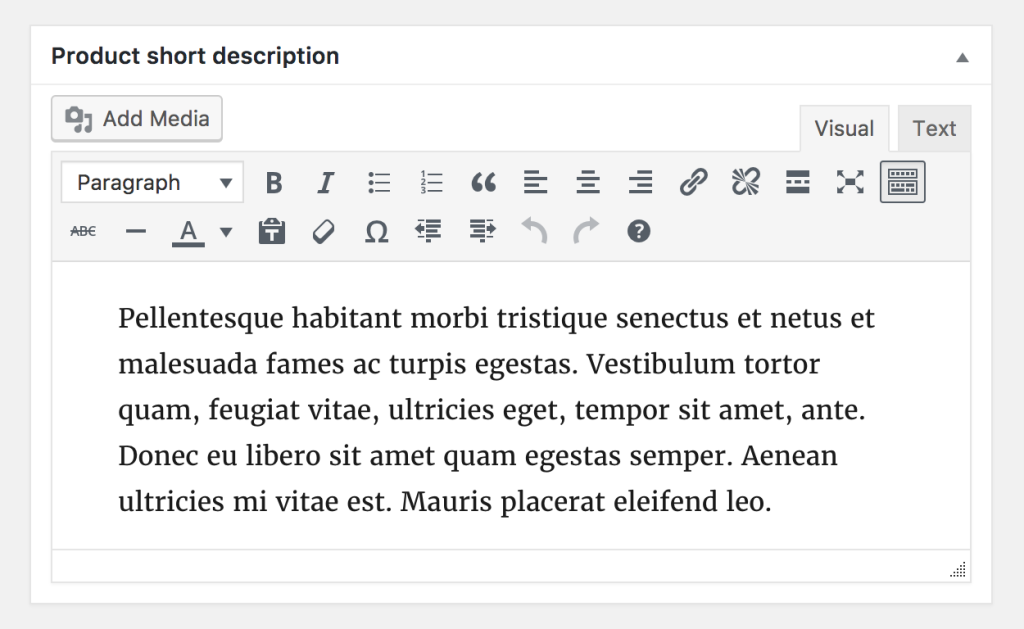
Add an excerpt. This typically appears next to product imagery on the listing page, and the long description appears in the Product Description tab.

Video embeds (oembed) may be used, as of version 3.1x.

Taxonomies #

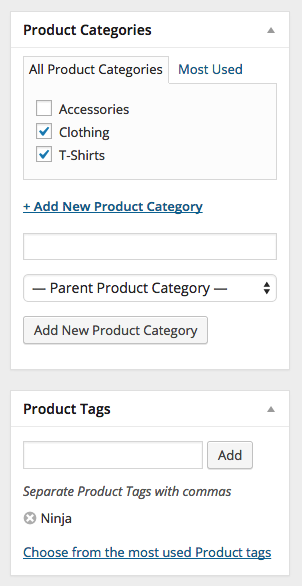
On the right-hand side of the Add New Product panel, there are product categories in which you can place your product, similar to a standard WordPress post. You can also assign product tags in the same way.
Product images #

Add a main product image and a gallery of images. More at: Adding Product Images and Galleries.

Setting catalog visibility options and feature status #

In the Publish panel, you can set Catalog Visibility for your product.
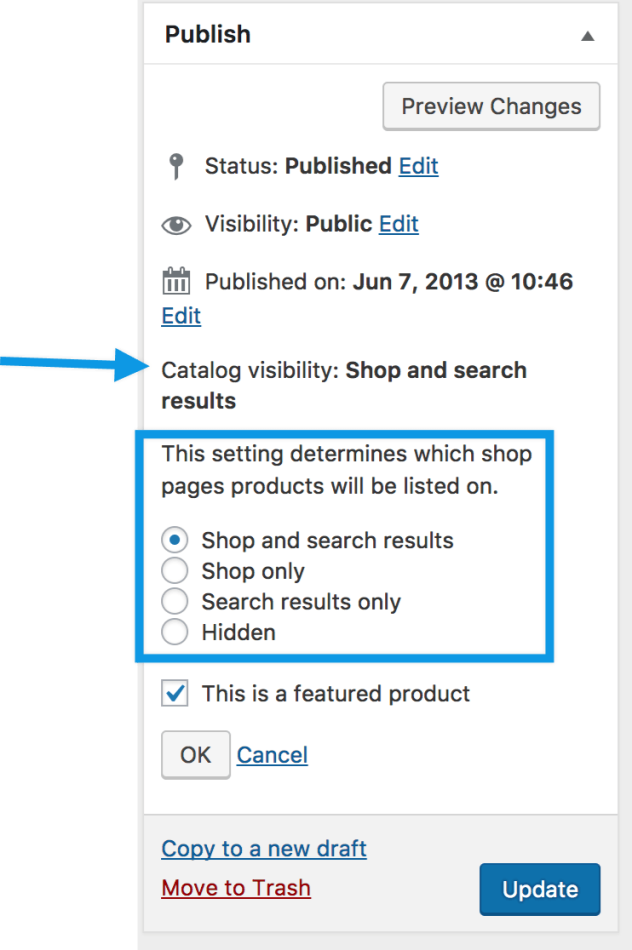
  • Shop and search – Visible everywhere, shop pages, category pages and search results.
  • Shop only – Visible in shop pages and category pages, but not search results.
  • Search only – Visible in search results, but not in the shop page or category pages.
  • Hidden – Only visible on the single product page – not on any other pages.

You can also set whether the product is promoted in product categories, up-sells, related products as a Featured Product. For example, you could tick the Featured box on all bundles you sell.
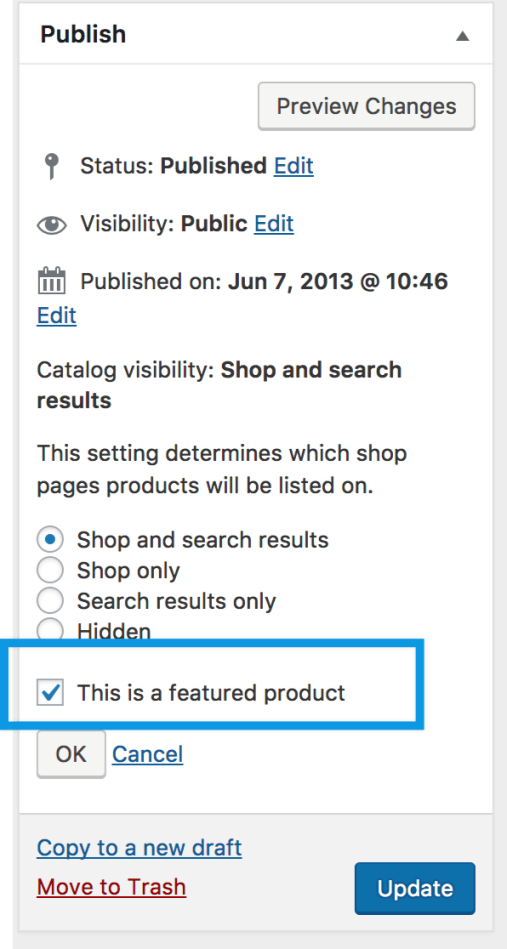
Other ways to set as Featured are described in the below section: Mark a product as Featured.

Grouped Product #

A grouped product is created in much the same way as a Simple product. Grouped products are like lists of other products in your shop, and as a result do not have prices or stock numbers of their own. To create one, select Grouped Product from the Product Type dropdown.
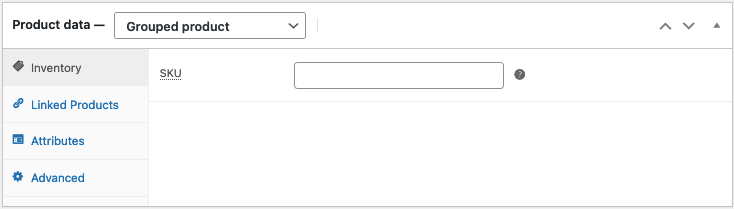
To create your parent product select ‘Grouped’ from the Product Type dropdown.

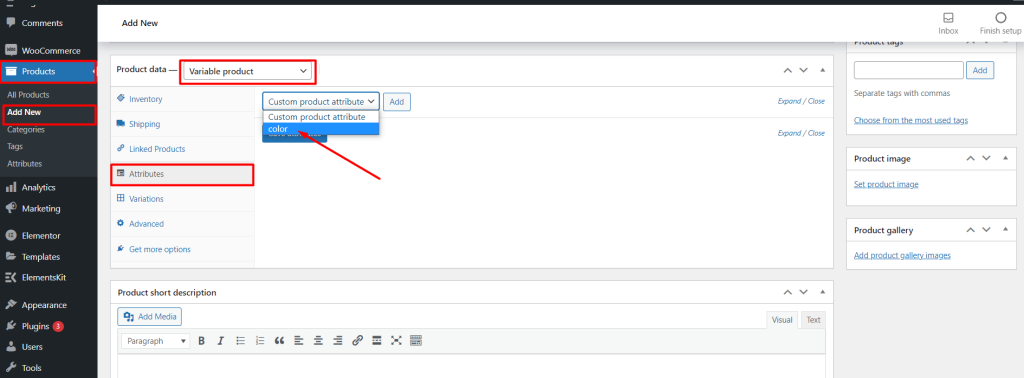
Variable Products #

Variable products in WooCommerce lets you create specific products that have multiple variations, for example, different colors, sizes, prices, and other data.

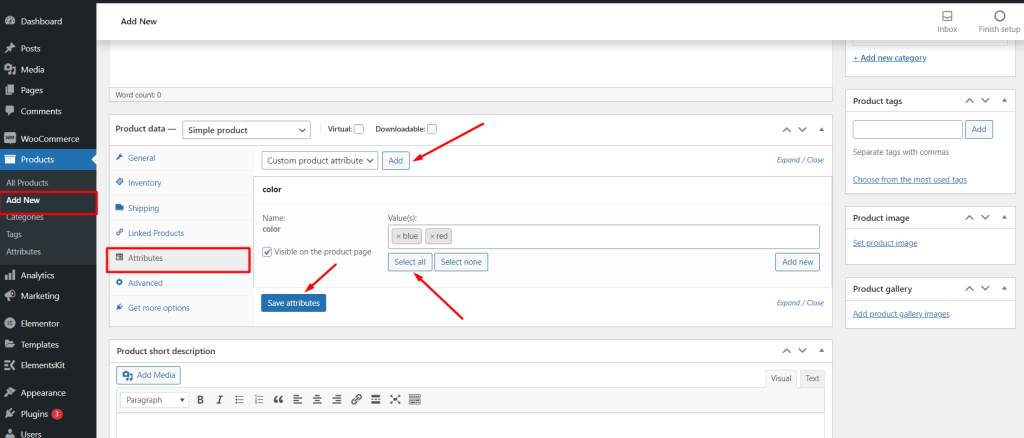
First of all, you need to add the product attributes from the Products> Attribute. Then configure the product attributes and click on configure terms.
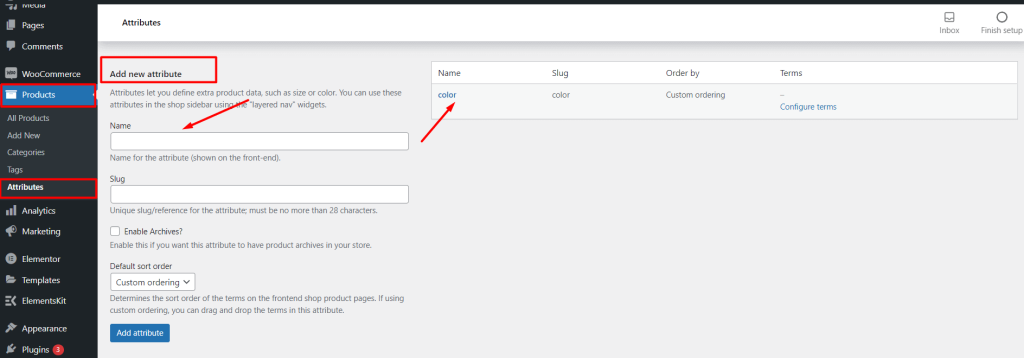
Then you need to select the attribute from the attribute tab and save attribute.
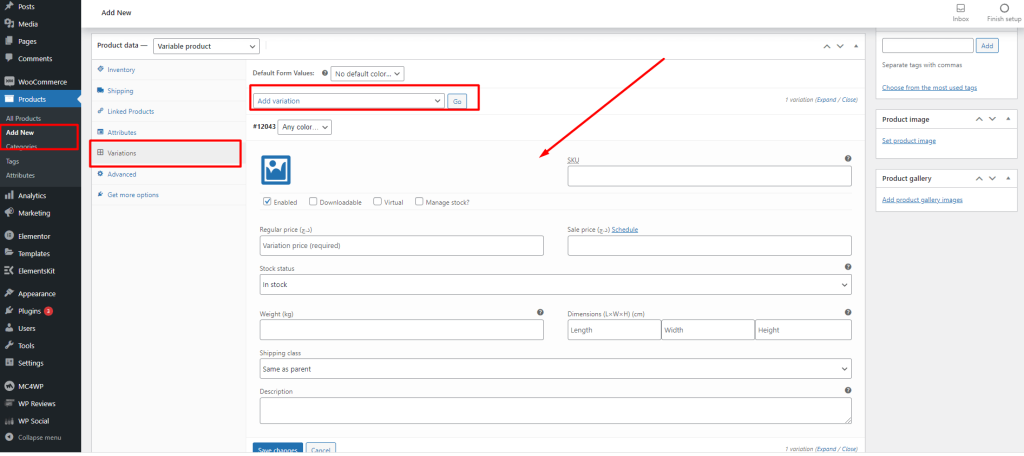
Insert product variation details from here
What are your Feelings

Share This Article :

  • Facebook
  • X
  • LinkedIn
  • Pinterest
Updated on December 5, 2021
Visual Page BuilderWooCommerce Support

Powered by BetterDocs

Table of Contents
  • Simple Product
    • Product data
      • General section
      • Inventory section
      • Shipping section
      • Linked Products section
      • Attributes section
      • Advanced section
    • Product short description
    • Taxonomies
    • Product images
    • Setting catalog visibility options and feature status
  • Grouped Product
  • Variable Products
Copyright © 2026 Documentations for Themewinter WordPress Themes.