In Healnetic, you can add multiple doctors to help manage bookings, serve patients, and handle appointments based on their availability. This helps you run your clinic more efficiently by distributing responsibilities across your medical staff.
How to Add a Doctor #
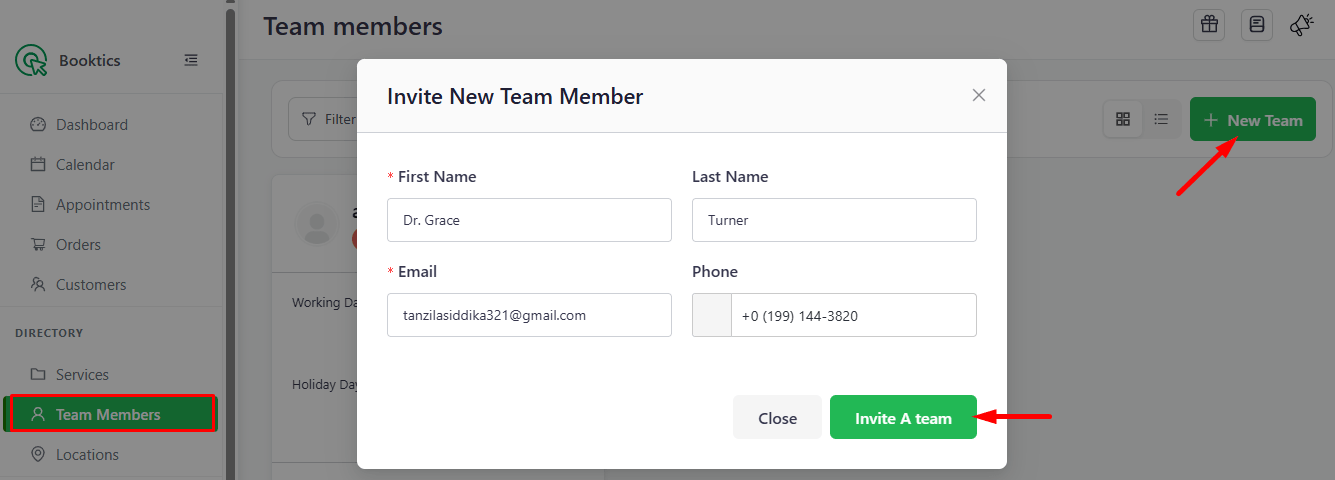
First, go to Booktics → Team Members from your WordPress dashboard and click the “+ New Team” button at the top.
A pop-up form will appear where you need to enter the doctor’s details:
- First Name
- Last Name
- Email Address
- Phone Number
After filling out the information, click the “Invite a Team” button.
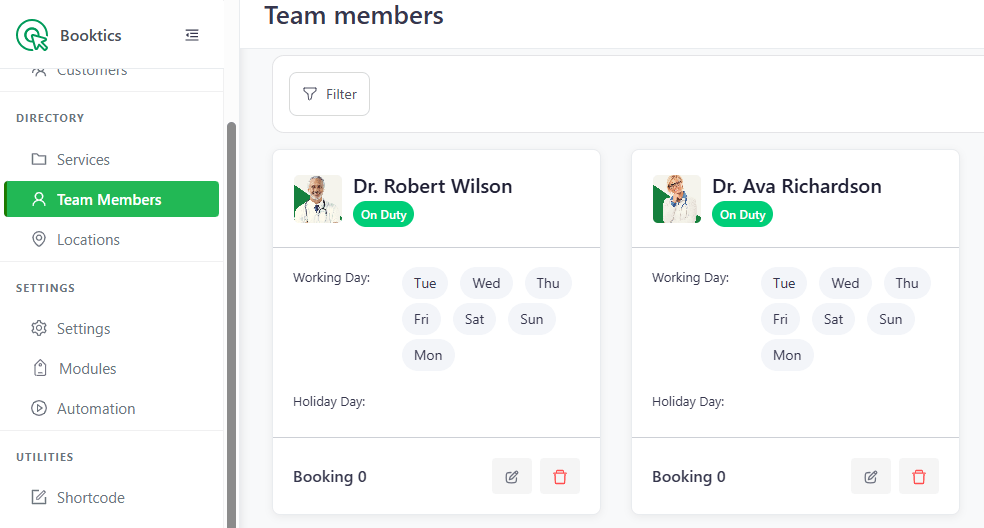
Once invited, the new doctor will appear in the Doctors list, where you can manage their profile or remove them if needed.
The invited doctor will receive an email invitation. After accepting it, they will be permanently added to your Healnetic system as an active doctor.
Edit Doctor Information #
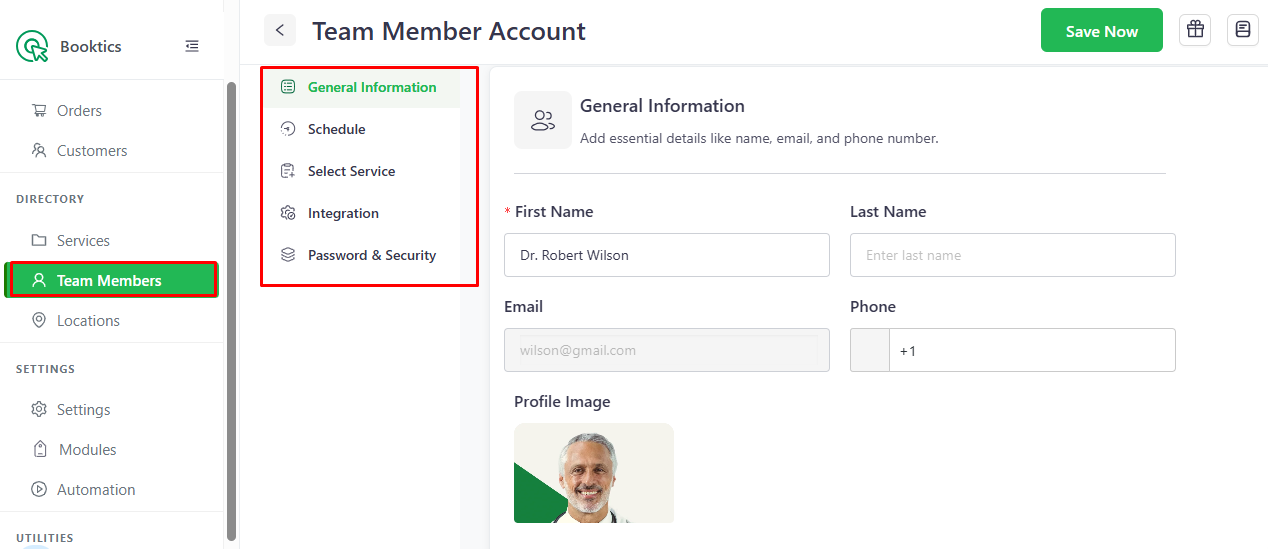
General Information: From this section, you can edit the doctor’s basic details and upload or update their profile image.
Schedule: From this section, you can set individual working hours, customize availability for specific days, and manage holidays or days off for each doctor.
Select Service: From this section, you can assign existing services to the doctor or create a new service if needed. You can also configure service details such as pricing and availability, while adding services.
Integrations: From this section, you can connect Google Meet, Google Calendar, and Outlook Calendar to sync appointments and manage meetings efficiently.
Password & Security: From this section, you can update the doctor’s password and manage account security settings.
How to Show Doctors on the Frontend #
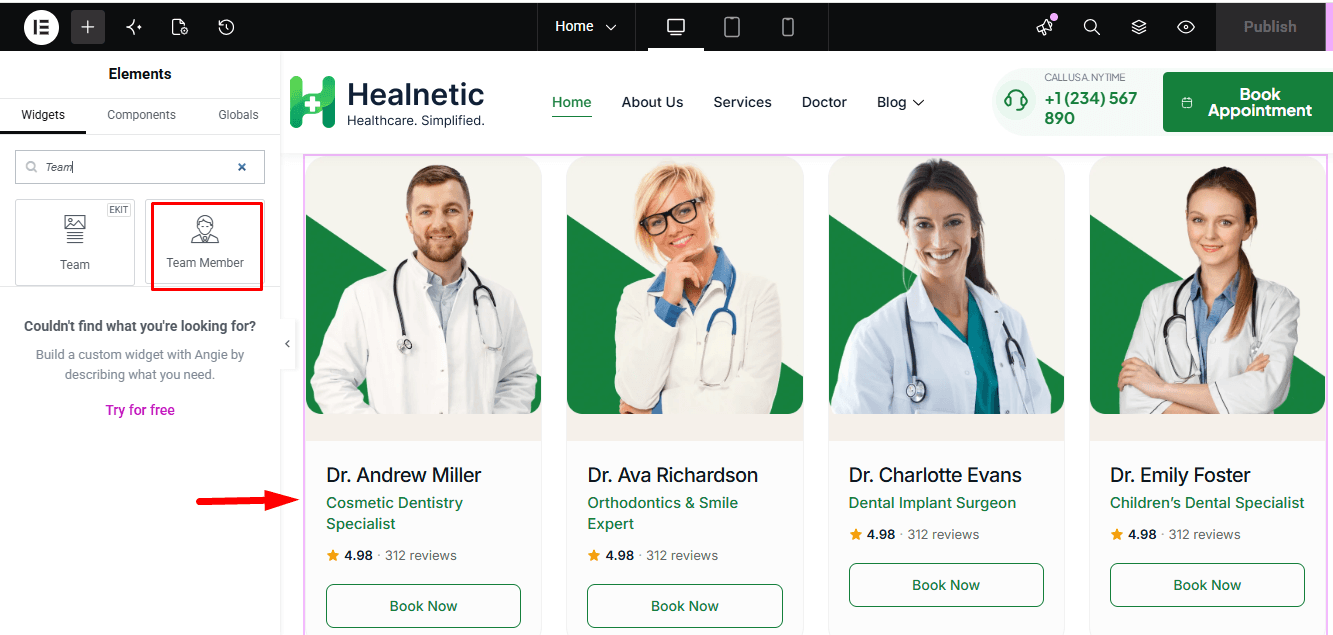
To display doctors on your website frontend, go to the Elementor Editor and add the Team Member widget. From there, you can configure the layout and adjust the sidebar or display style as needed to showcase your doctors properly.