
For WooCommerce businesses handling local delivery or pickup, printing order documents is essential. Clear invoices or delivery notes streamline kitchen prep and packing — ensuring accuracy from the counter to the customer’s door. The Receipt Layout feature in WPCafe lets you create and fully customize your own printable receipt templates.
In this guide, you’ll learn how to create receipt layouts, customize them using the Gutenberg editor, set a default layout, and print receipts from WooCommerce order pages.
Prerequisite: Make sure WPCafe Pro is activated on your site. Then go to WPCafe → Modules and ensure the Food Ordering module and its Receipt Layout submodule are both enabled.
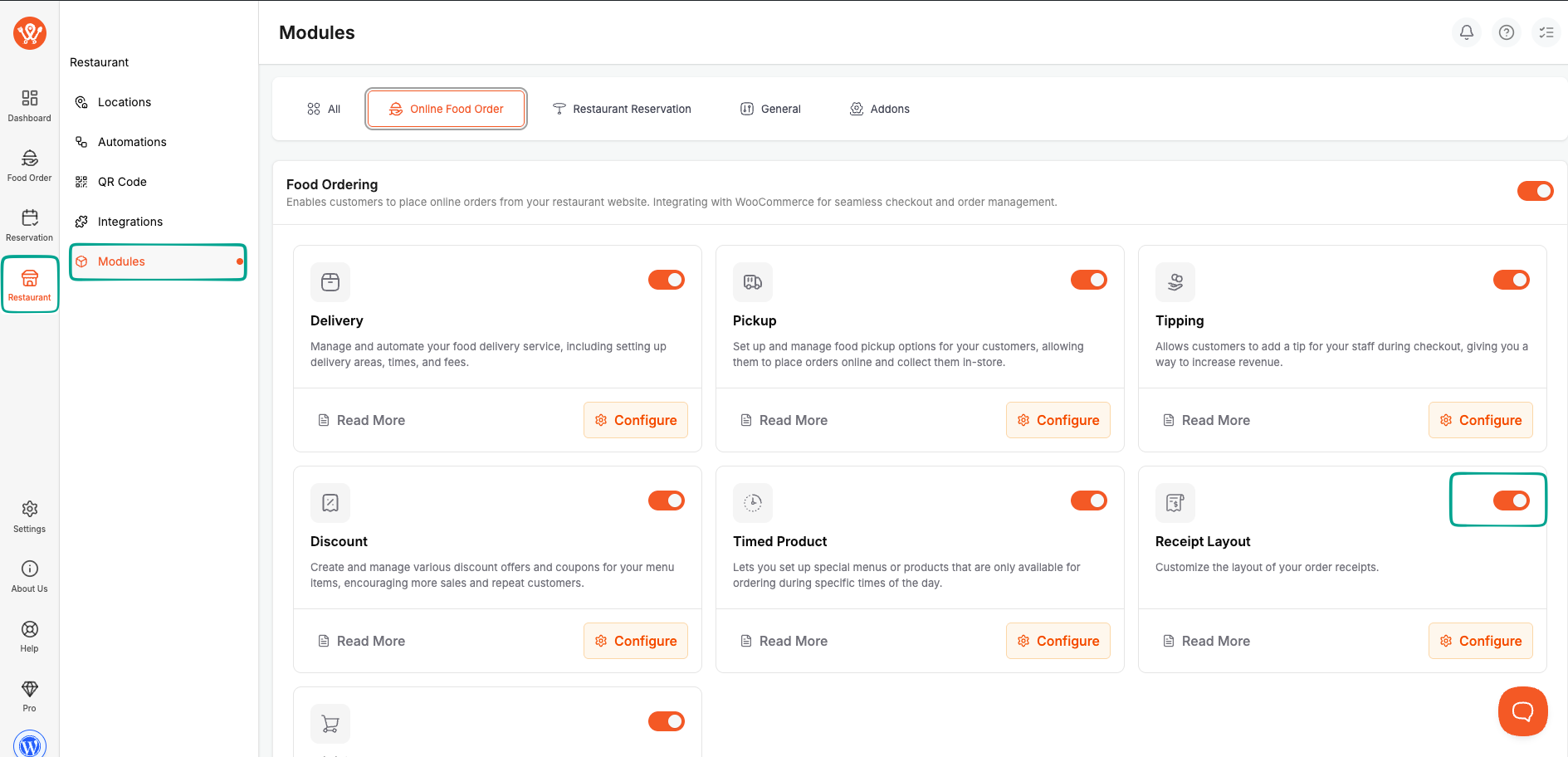
Step 1: Access the Receipt Layout Menu #
Once the submodule is enabled, a new Receipt Layout menu item will appear in the WordPress sidebar under WPCafe. Click on it to open the layout manager.
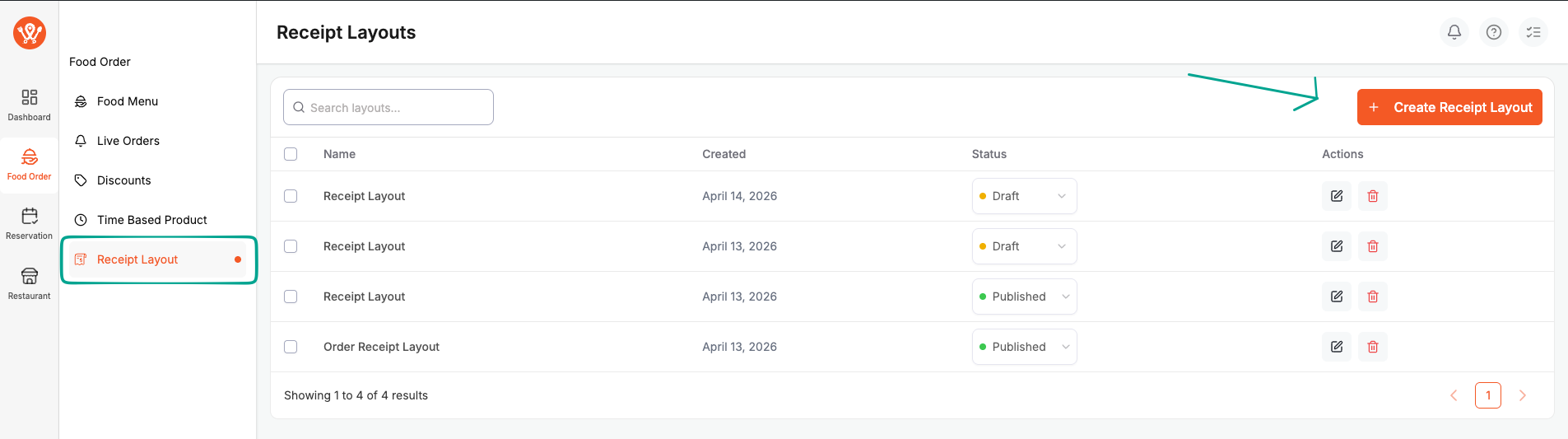
Step 2: Create a New Layout #
On the Receipt Layout listing page, click the “Create New Layout” button in the top right corner. This will open the WordPress block editor (Gutenberg) where you can design your layout.
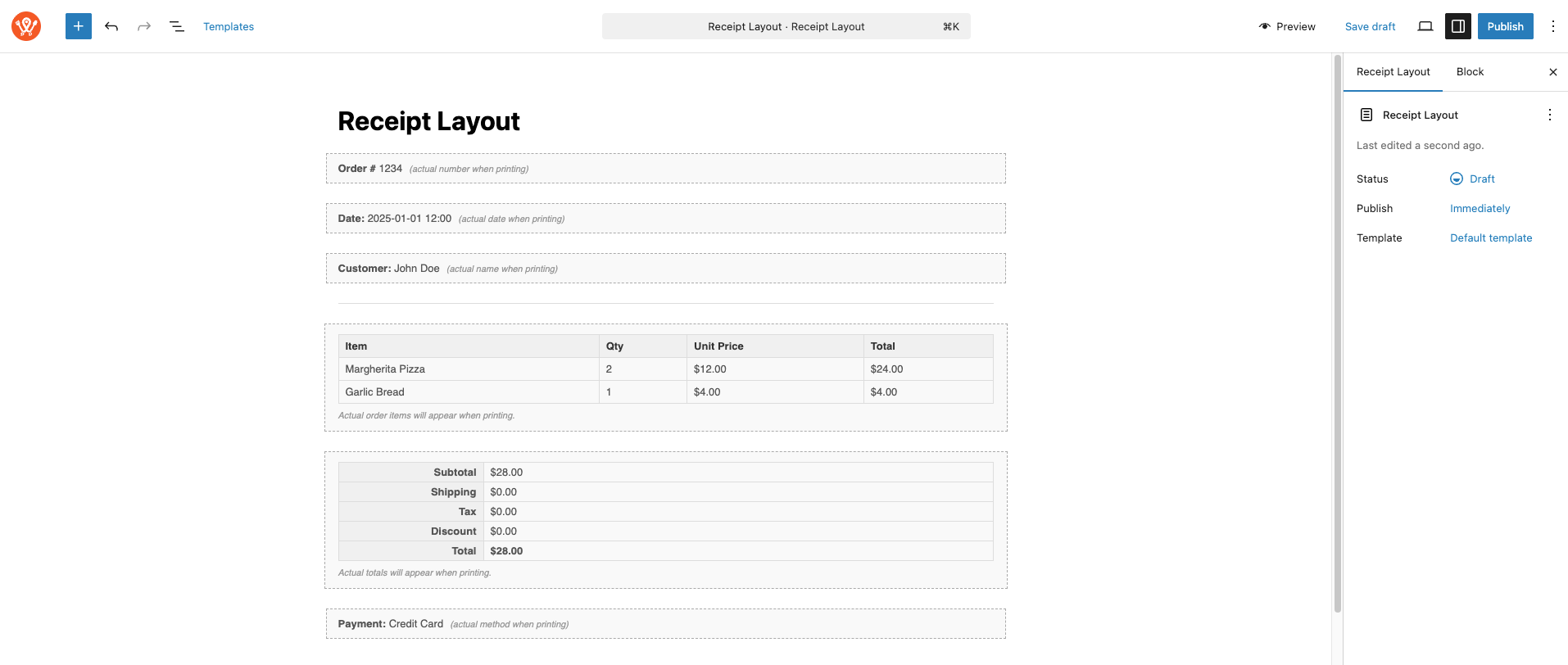
A default template is automatically inserted into the editor for your convenience so you can get started right away.
Step 3: Choose a Premade Template #
WPCafe offers several premade receipt templates. To browse them, click the Template button on the Gutenberg toolbar at the top of the editor. A modal will appear showing all available templates.
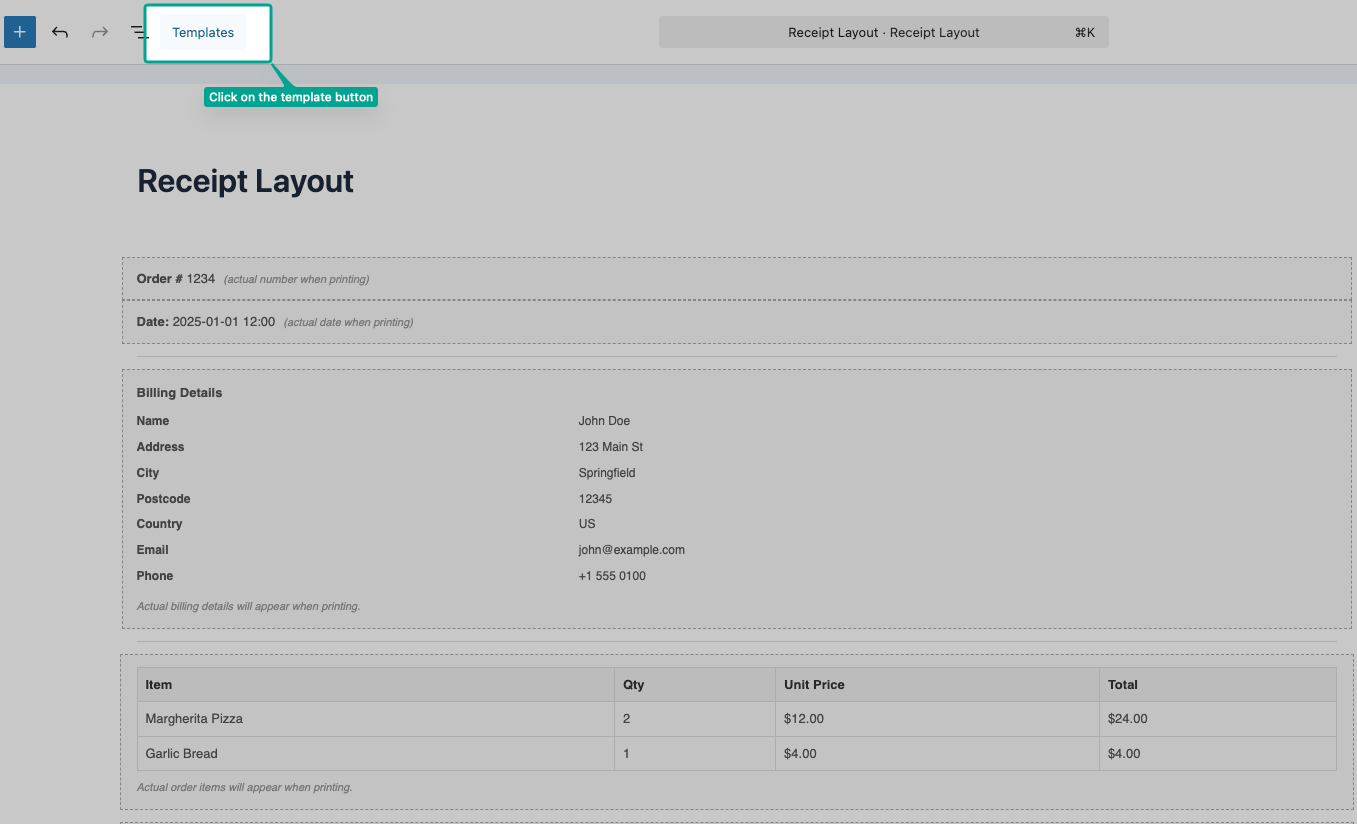
Click on a template to select it, then click Import to load it into the editor, replacing the current content.
![[SCREENSHOT: Template selection modal showing available premade receipt templates]](https://support.themewinter.com/docs/plugins/wp-content/uploads/sites/3/2025/08/template-1.jpg)
Step 4: Customize the Template #
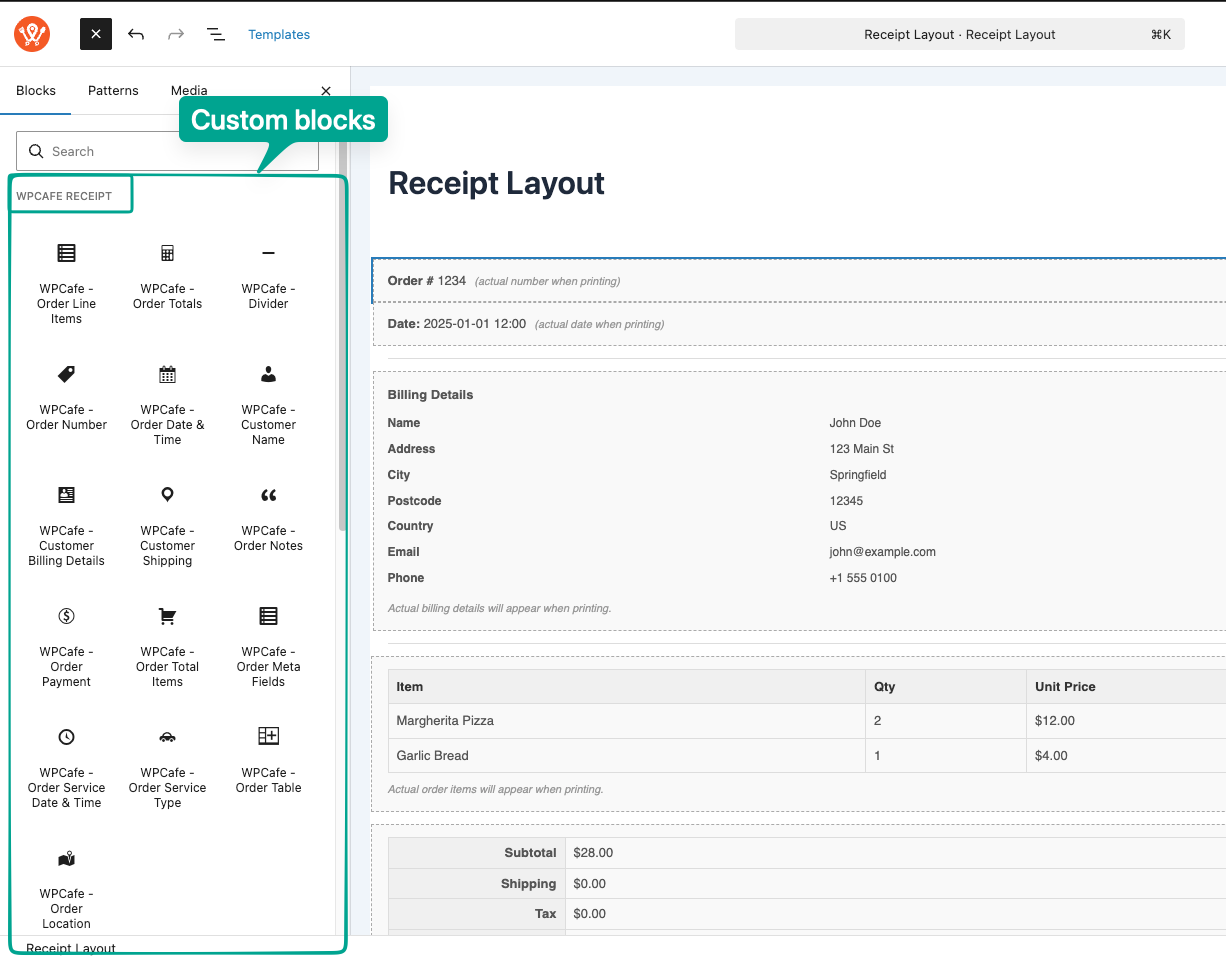
Once a template is imported, you can customize it freely using the native Gutenberg block editor the same way you write any WordPress post or page. Also we provides various custom gutenberg blocks for your conveinence. Click on the plus button, In the insertion panel you will find our custom blocks under “WPCafe Receipt” section. Insert them, Adjust text, rearrange blocks, change colors, and add or remove sections to match your branding and workflow.
Step 5: Preview and Publish the Layout #
When you’re happy with the design, click the “Preview” button in the top right corner to see how the receipt will look when printed.
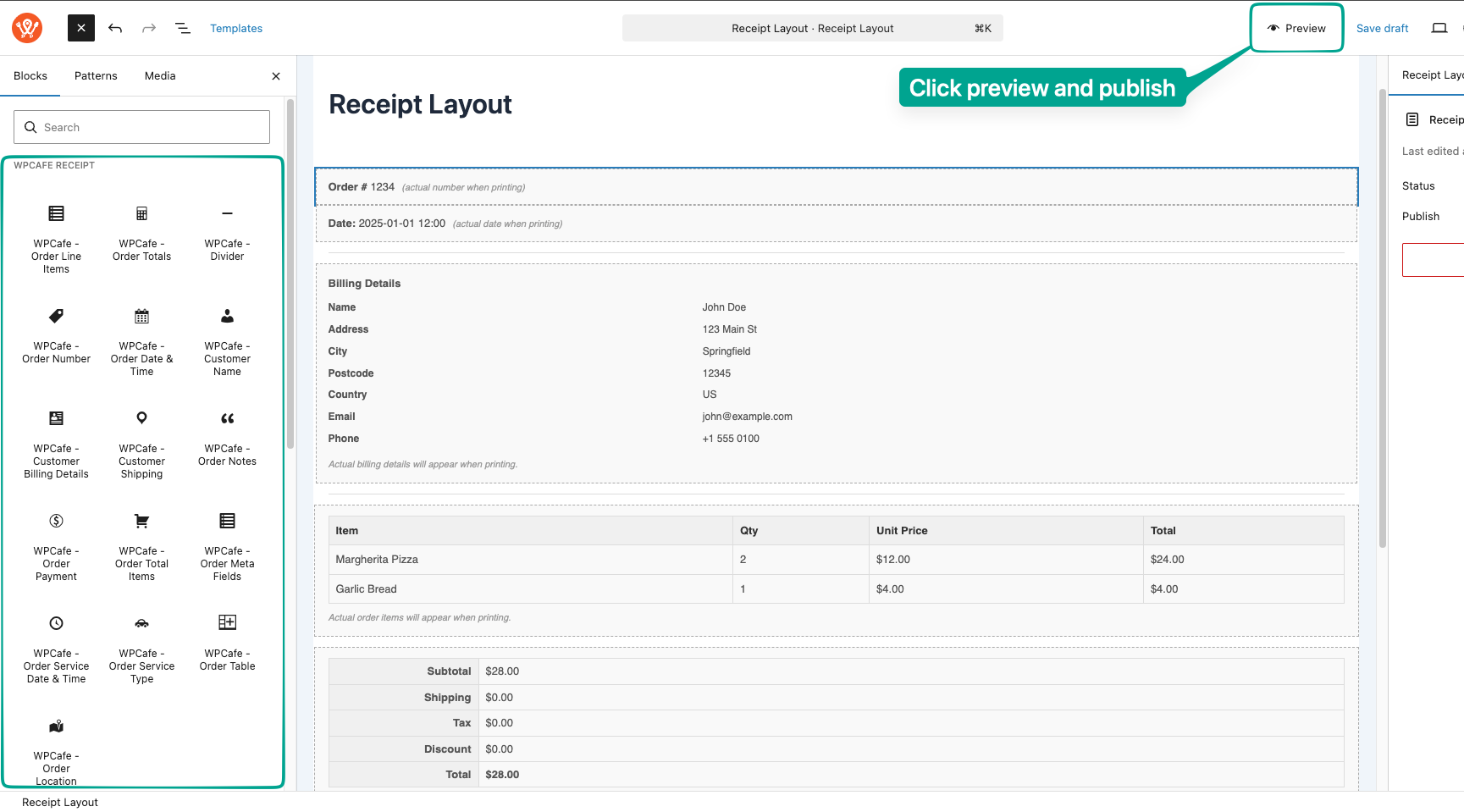
Once you’re satisfied, click Publish to save the layout and make it available for use.
Step 6: Manage Your Layouts #
Click the WPCafe logo in the top left corner of the editor to return to the Receipt Layout listing page. All your published layouts will be listed here. You can edit, duplicate, or delete any layout from this screen.
Step 7: Set a Default Print Layout #
To activate a layout for actual order printing, you need to assign it as the default. Navigate to WPCafe → Settings → Receipt Layout. From the dropdown, select the layout you want to use as the default for all customer-facing printed receipts.
![[SCREENSHOT: WPCafe Settings page, Receipt Layout section with default layout dropdown]](https://support.themewinter.com/docs/plugins/wp-content/uploads/sites/3/2025/08/SCR-20260415-lhyz.png)
Printing Receipts from WooCommerce Order Pages #
Business owners can also print receipts on demand. WPCafe adds a Print button to both the WooCommerce order list page and the individual order details page. Click it to instantly print the receipt for that order using your configured default layout.
![[SCREENSHOT: Woocommerce order page, Receipt print button]](https://support.themewinter.com/docs/plugins/wp-content/uploads/sites/3/2025/08/SCR-20260415-ljme.png)
![[SCREENSHOT: Woocommerce order page, Receipt print button]](https://support.themewinter.com/docs/plugins/wp-content/uploads/sites/3/2025/08/SCR-20260415-ljro.png)
FAQs #
Q: Do I need coding skills to design a receipt in WPCafe?
A: No, you don’t need any coding knowledge. WPCafe uses the native WordPress block editor (Gutenberg). You can drag and drop custom WPCafe blocks, change colors, and edit text just like you would on a standard WordPress page or post.
Q: Does WPCafe offer premade receipt templates?
A: Yes. In the receipt editor, click the “Template” button on the top toolbar. A modal will appear showing several premade designs. Simply select one and click “Import” to load it into your editor.
Q: Where can I print receipts for individual orders?
A: WPCafe adds a “Print” button to both the WooCommerce order list page and the individual order details page. Business owners can click this button to instantly print a receipt for any specific order using the default layout.


