
Overview #
The Facebook Import tool lets you bring events from Facebook into your WordPress site in a few clicks. You can import:
- One or more specific events using their Event IDs.
- All upcoming events from a Facebook Page.
- All upcoming events from a Facebook Group.
1. Before you start #
You will need:
- A Facebook account that can manage the Page, Group, or events you want to import.
- The Eventin plugin installed and activated on your WordPress site.
- A Facebook App (free to create) – we will set this up below.
2. Create a Facebook App #
Step 1. Go to: https://developers.facebook.com/apps
Step 2. Click “Create App” and follow the on-screen steps. Choose a name for your app – any name is fine
Step 3. Once the app is created, open its Dashboard.
Step 4. Find two values under “App Settings”.
- App ID
- App Secret (click “Show” to reveal it)
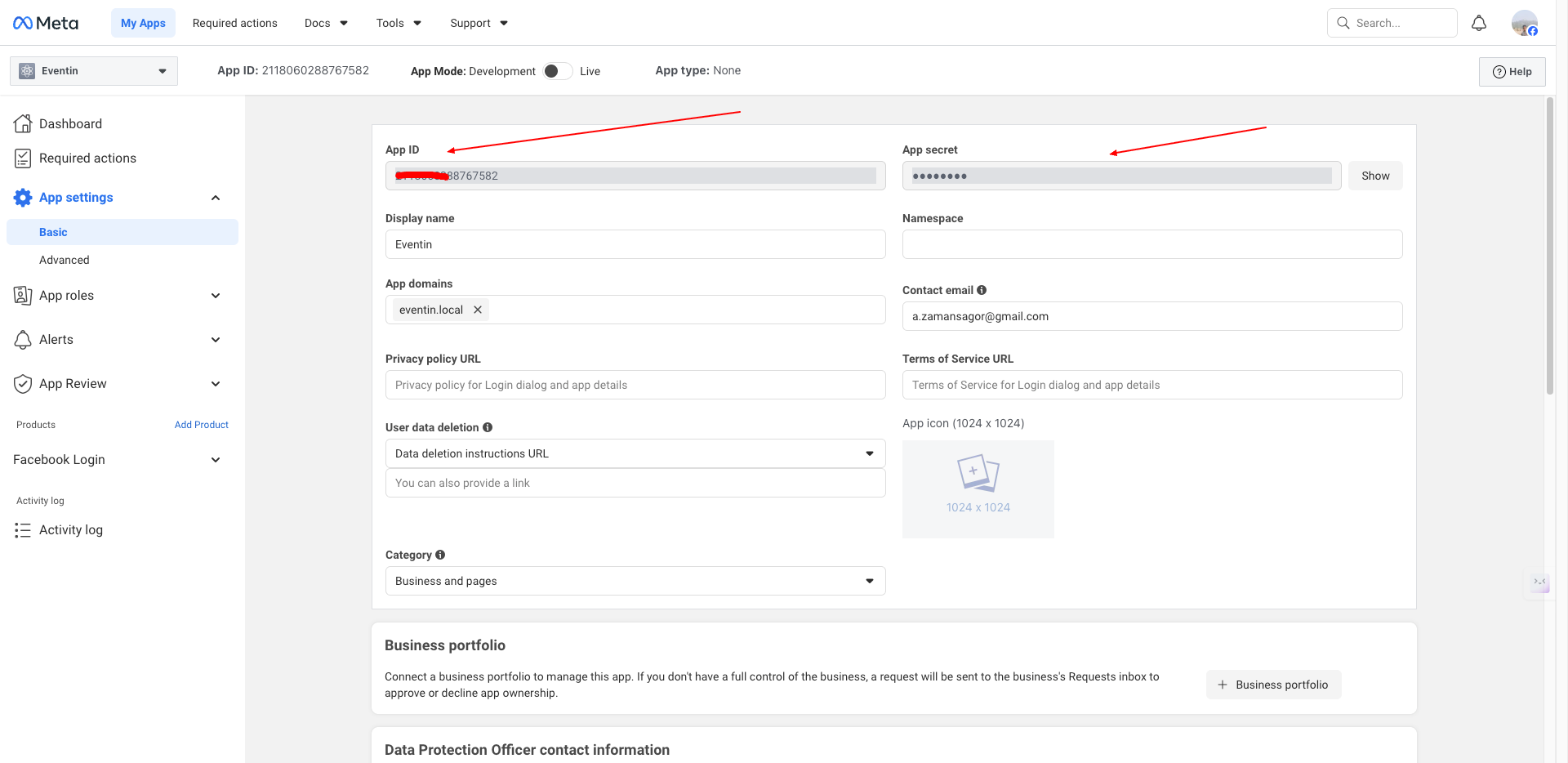
Keep this tab open – you will paste these into Eventin in the next step.
Step 5. In your Facebook App, also set.
3. Open the Facebook import page In Eventin #
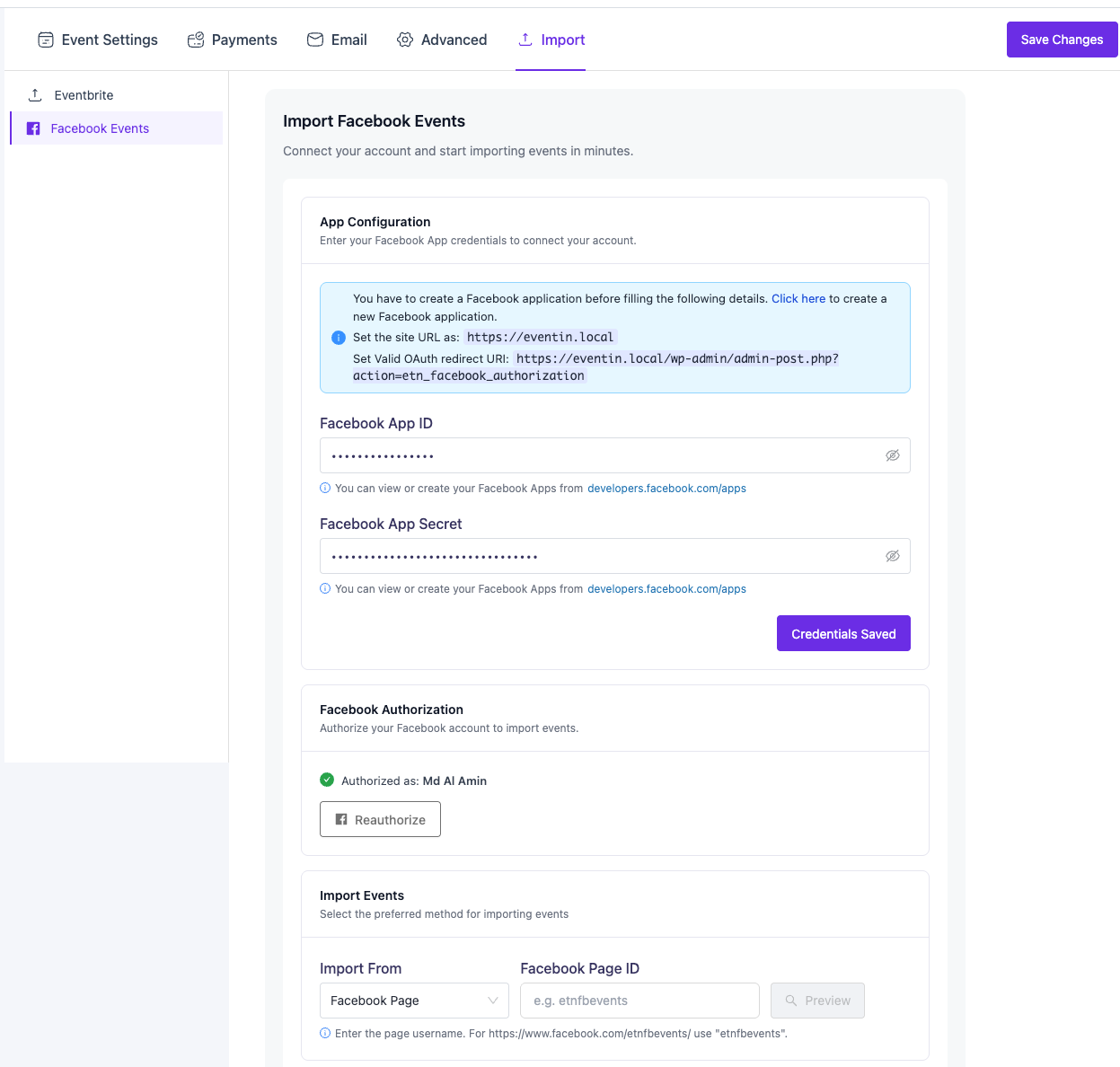
In WordPress admin, go to: Eventin -> Settings -> Import -> Facebook Events
You will see three sections that appear one after another:
- App Configuration
- Facebook Authorization (appears after saving credentials)
- Import Events (appears after authorizing)
4. Connect you Facebook app to Eventin #
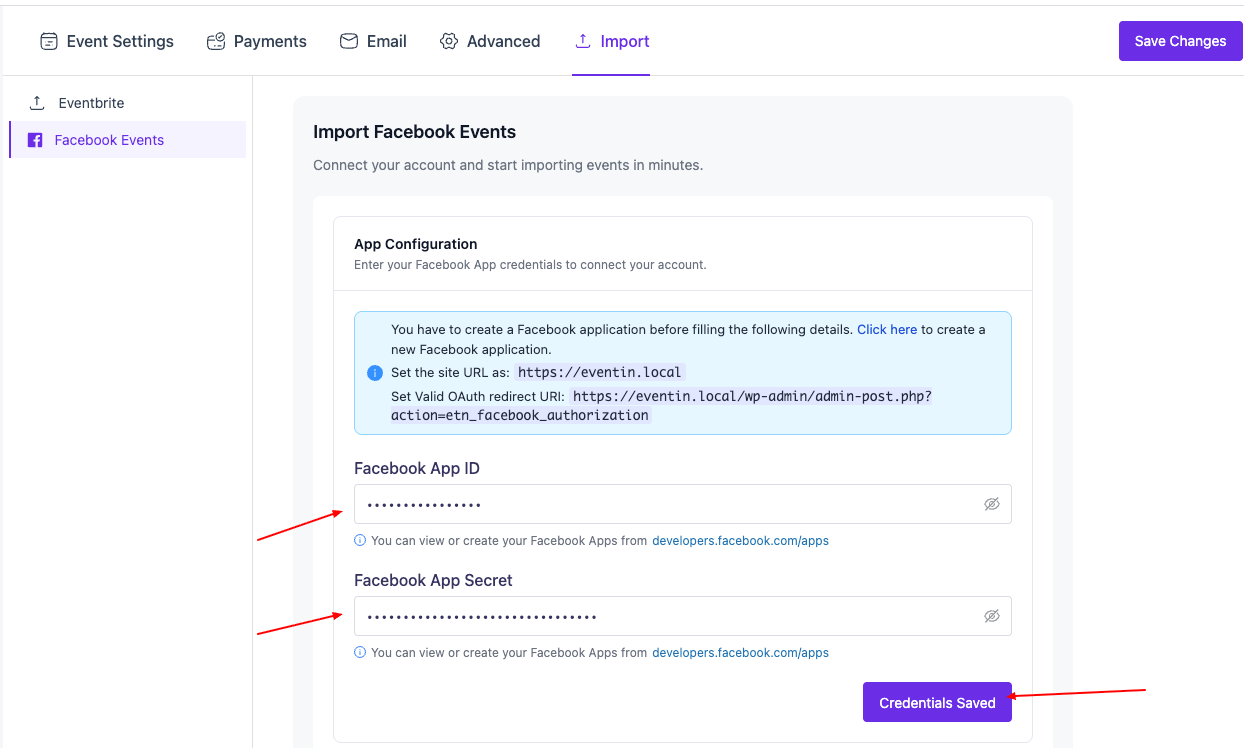
Step 1. In the “App Configuration” section, copy the URLs shown in the blue info box:
– Site URL
– Valid OAuth Redirect URI
Paste these two values into your Facebook App settings
Step 2. Come back to Eventin and paste:
– Facebook App ID into the “Facebook App ID” field
– Facebook App Secret into the “Facebook App Secret” field
Step 3. Click “Save Credentials”.
Step 4. When the button label changes to “Credentials Saved”, the app is connected and a new “Facebook Authorization” section appears below.
5. Authorize your Facebook Account #
Step 1. In the “Facebook Authorization” section, read the “Important” notice and make sure the OAuth Redirect URI it shows is already saved in your Facebook App.
Step 2. Click the blue “Authorize with Facebook” button.
Step 3. A Facebook login window opens. Log in and approve the requested permissions.
Step 4. You will be returned to Eventin. A green check and “Authorized as: ” confirms success.
6. Import your Event #
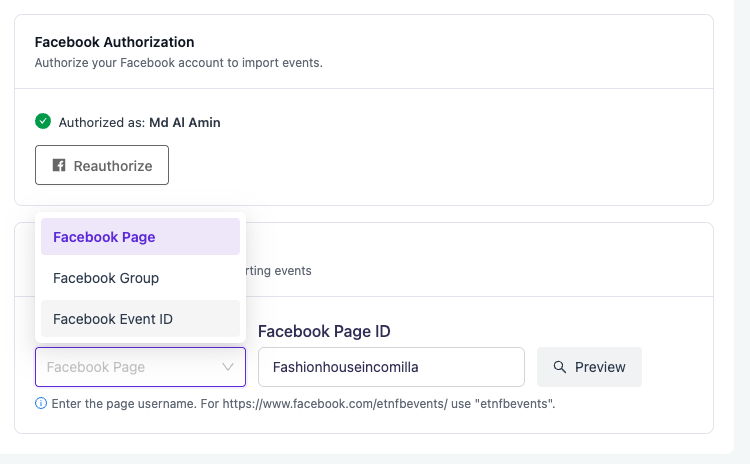
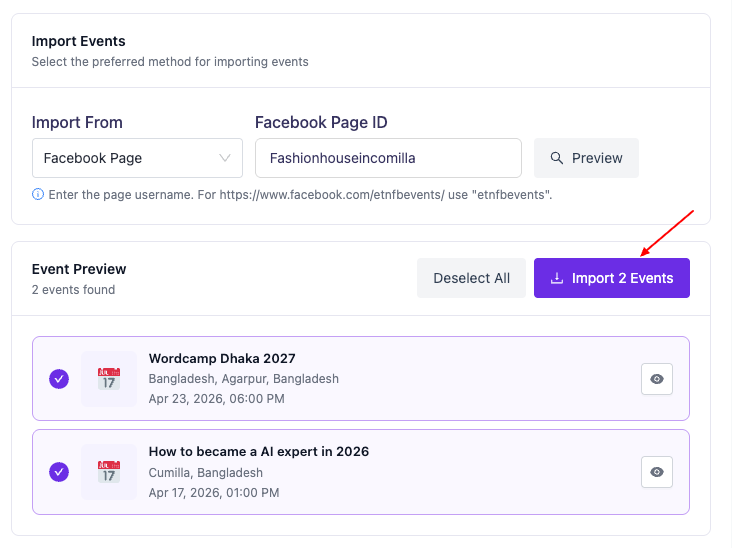
Step 1. In the “Import Events” section, choose one option in the “Import From” dropdown:
– Facebook Page -> enter the page username.
Example: for facebook.com/etnfbevents enter “etnfbevents”.
– Facebook Group -> enter the numeric Group ID.
– Facebook Event ID -> enter one or more Event IDs,
separated by commas. Example: 123456789,987654321
Step 2. Type the ID or username in the field on the right.
Step 3. Click “Preview”.
Step 4. Wait a moment while Eventin fetches your events.
Step 5. The “Event Preview” section appears with every event found. All events are selected by default.
Step 6. Uncheck any events you do not want, or use “Select All” / “Deselect All”.
Step 7. Click the purple “Import X Events” button to start.
7. Check your import result #
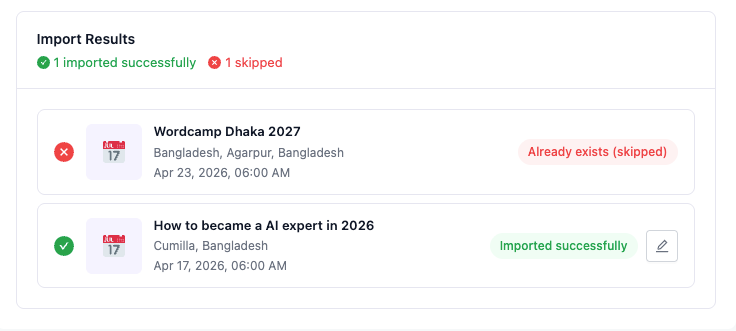
After the import finishes, the “Import Results” section appears at the bottom. Each event will show one of these statuses:
- Imported successfully -> the event was added to your site.
- Updated -> an existing event was refreshed.
- Already exists (skipped) -> the event was already in Eventin, so it was not imported again.
- Failed to import -> something went wrong (see message).
Click the pencil icon next to any imported event to open and edit
it in WordPress.
8. Thinks to know #
- Duplicates are detected automatically. Re-importing the same event will skip or update it, never create a copy.
- You only need to save credentials and authorize once. Eventin remembers both for next time.
- Switching the “Import From” option clears the preview list so you can start fresh.
- Imports run one event at a time, so large Pages or Groups may take a short while. Please keep the page open.
- Facebook only returns events that your account can actually see, so private or expired events may not appear.
9. TROUBLESHOOTING #
Problem: “Credentials Saved” button does not appear after clicking Save.
Fix: Make sure both App ID and App Secret are filled. If the box shows a red error, copy the values again from your Facebook App (watch out for trailing spaces).
Problem: Authorization Error after clicking “Authorize with Facebook”.
Fix: Open your Facebook App settings and confirm the Valid OAuth Redirect URI exactly matches the one shown in the blue box in Eventin. Even a different “http” vs “https” will cause this error.
Problem: “No events found.” after Preview.
Fix: – For a Page, use the username from the page URL, not the display name.
– For a Group, use the numeric Group ID.
– For an Event ID, check the ID is correct and that your authorized Facebook account can see the event.
Problem: Import shows “Failed to import” on some rows.
Fix: The message on the row explains why. Common causes are network timeouts or missing event fields on Facebook. Try the import again; duplicates will simply be skipped.
10. NEED MORE HELP? #
If you are stuck, contact Eventin support with:
- A screenshot of the error message.
- Which option you used (Page, Group, or Event ID) and the value you entered.
- Your WordPress and Eventin version numbers.


