
You can integrate a Thermal Printer with WPCafe to automate printing food-order receipts. WPCafe supports integration through the Print Manager for WooCommerce plugin. After enabling it, you will get the following benefits:
Key Benefits #
- Automatically print receipts for food orders
- Generate remote receipts instantly for every order
- Customize the receipt message and details
- Allow connected printers anywhere in the world to print orders
Required Plugin: Print Manager for WooCommerce
IImportant: WPCafe supports the Thermal Printer integration for Food Ordering only.
Install the Print Manager Plugin #
Go to Plugins → Add New in your WordPress dashboard, search for “Print Manager for WooCommerce”, then install and activate the plugin.
Get the Printer Server URL #
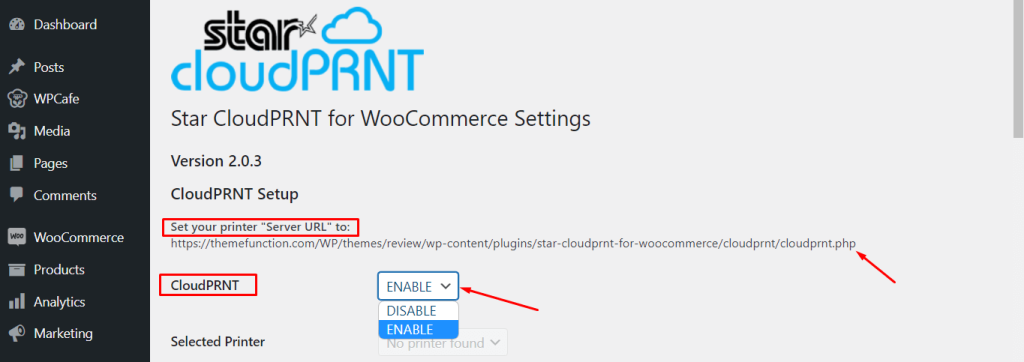
Navigate to Settings → Print Manager for WooCommerce and copy the Server URL shown there.
Before saving, ensure the CloudPRNT option is set to Enabled.
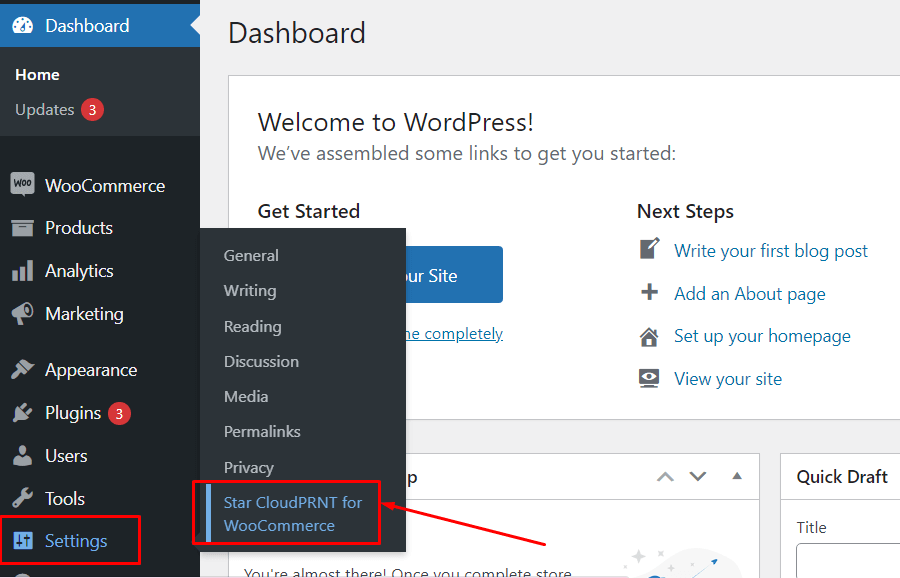
Note– Don’t forget to set the ‘CloudPRNT’ option as Enable before saving the changes.
Configure Printer Settings #
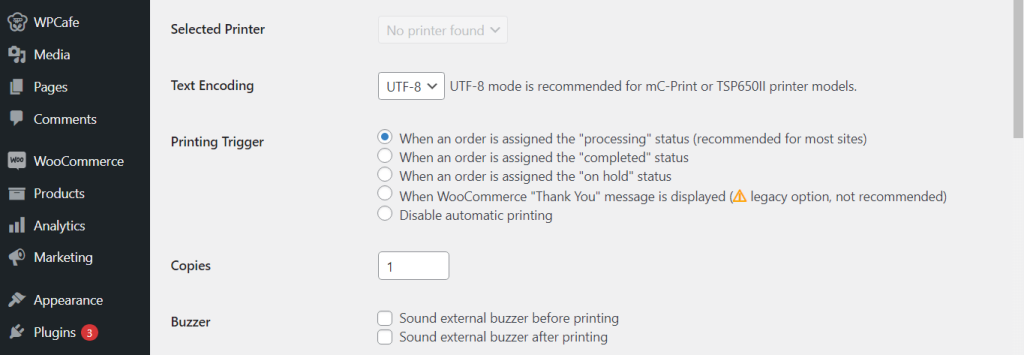
Adjust the following options to customize your receipts:
General Settings
- Selected Printer: Choose the printer for receipts
- Text Encoding: Select the text format
- Printing Trigger: Decide when to print
- Copies: Set the number of copies
- Buzzer: Enable/disable sound notifications
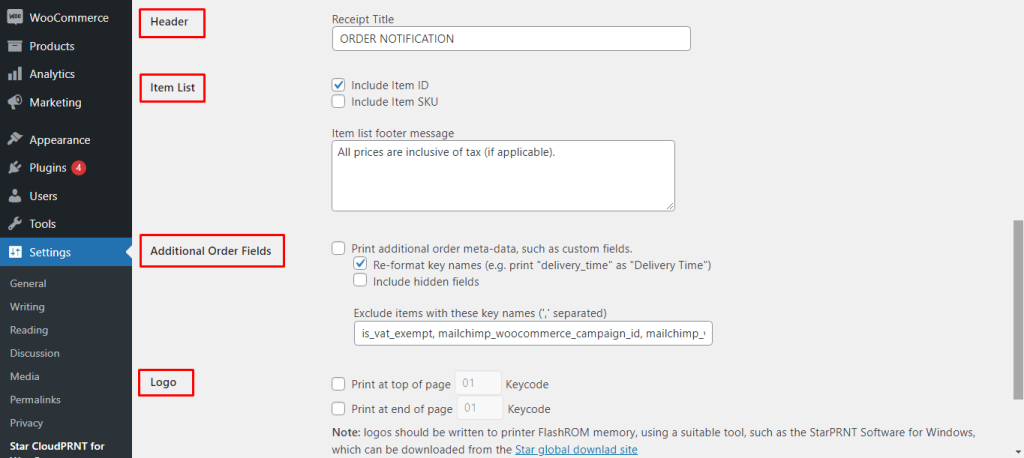
Receipt Customization
- Header: Title displayed at the top of the receipt
- Item List: Include SKU and/or ID
- Additional Order Fields: Print extra order meta
- Logo: Add your logo
Note: Thermal printer integration can also be done using the Print Manager for WooCommerce plugin with similar steps.


