
1. Introduction #
Attendee Waitlists let people reserve a spot for an event after all tickets are sold out. Instead of leaving a sold-out event with no way to capture interest, Eventin shows a “Join the Waiting List” button so attendees can sign up. When a seat opens up — or you decide to release more capacity — you can email those waitlisted attendees a direct payment link so they can complete checkout in one click.
Waitlists work in two modes depending on how you manage capacity: per-ticket waitlists (one limit per ticket type) when Global Capacity is OFF, and a single shared waitlist when Global Capacity is ON.
Where to find it #
In your WordPress admin, go to:
Eventin → Events → (Open or create an event) → Tickets tab
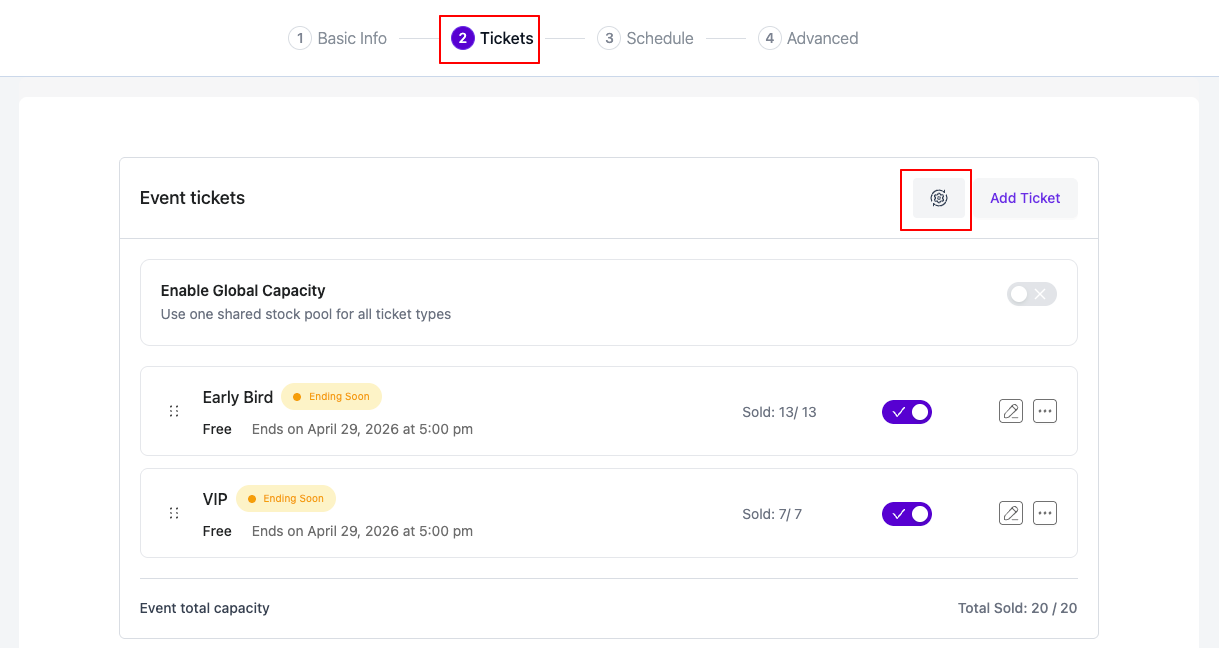
The waitlist toggle lives inside the Tickets tab Settings modal. Click the “Settings” button on the Tickets tab to open it.
How to enable the Waitlist #
- Open the event in Eventin and switch to the Tickets tab.
- Click the “Settings” button to open the Settings modal.
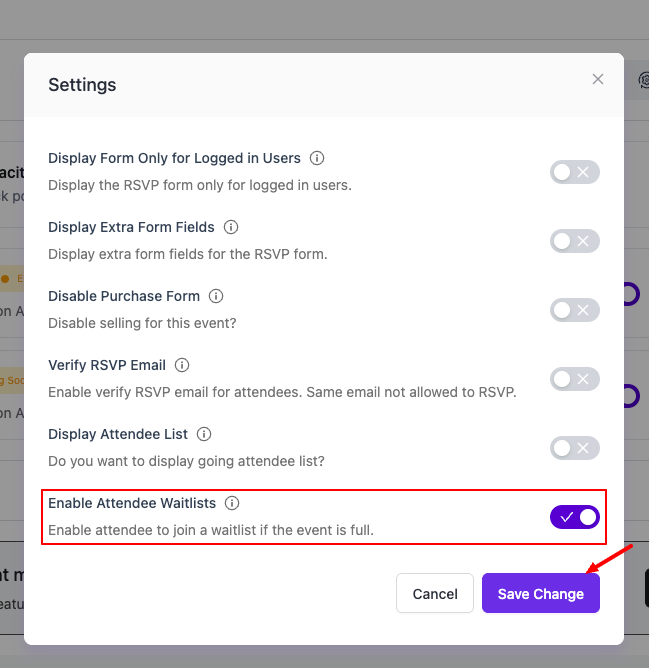
- Find the “Enable Attendee Waitlists” row and toggle it ON.
- Click “Save Change”.
After saving, where you set the waitlist size depends on your event:
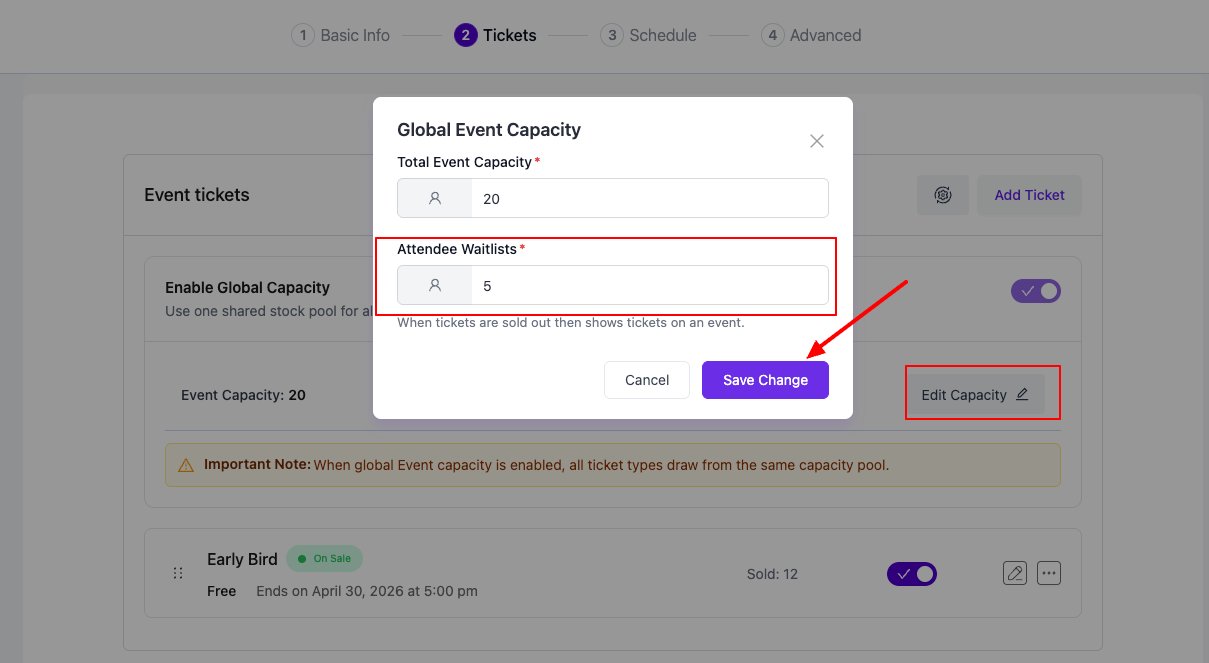
If Global Capacity is ON: Open the global capacity banner, click “Edit Capacity”, and fill in the “Attendee Waitlists” field in the modal. This is one shared waitlist across all ticket types for the event.
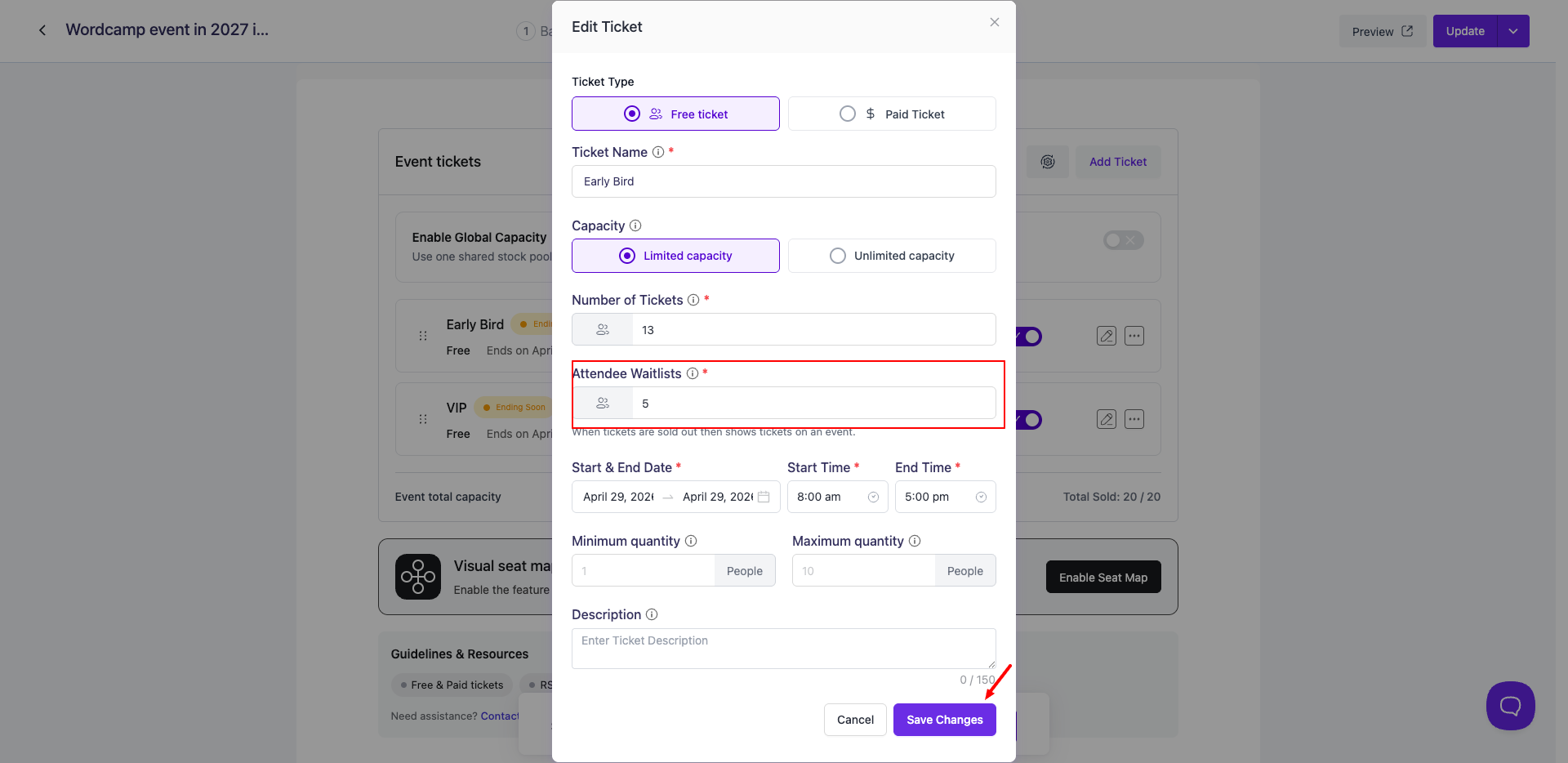
If Global Capacity is OFF: Open each ticket type (or create a new one) and fill in the new “Attendee Waitlists” field. This is the maximum number of people who can join the waitlist for that specific ticket type after it sells out.
What attendees see #
- While tickets are still available: a normal “Get Tickets” or “Buy Now” button.
- When all waitlist-enabled tickets (or the global pool) are sold out: the button changes to “Join the Waiting List”.
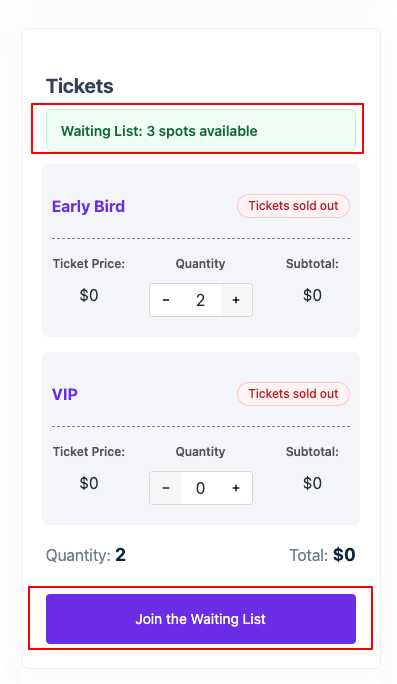
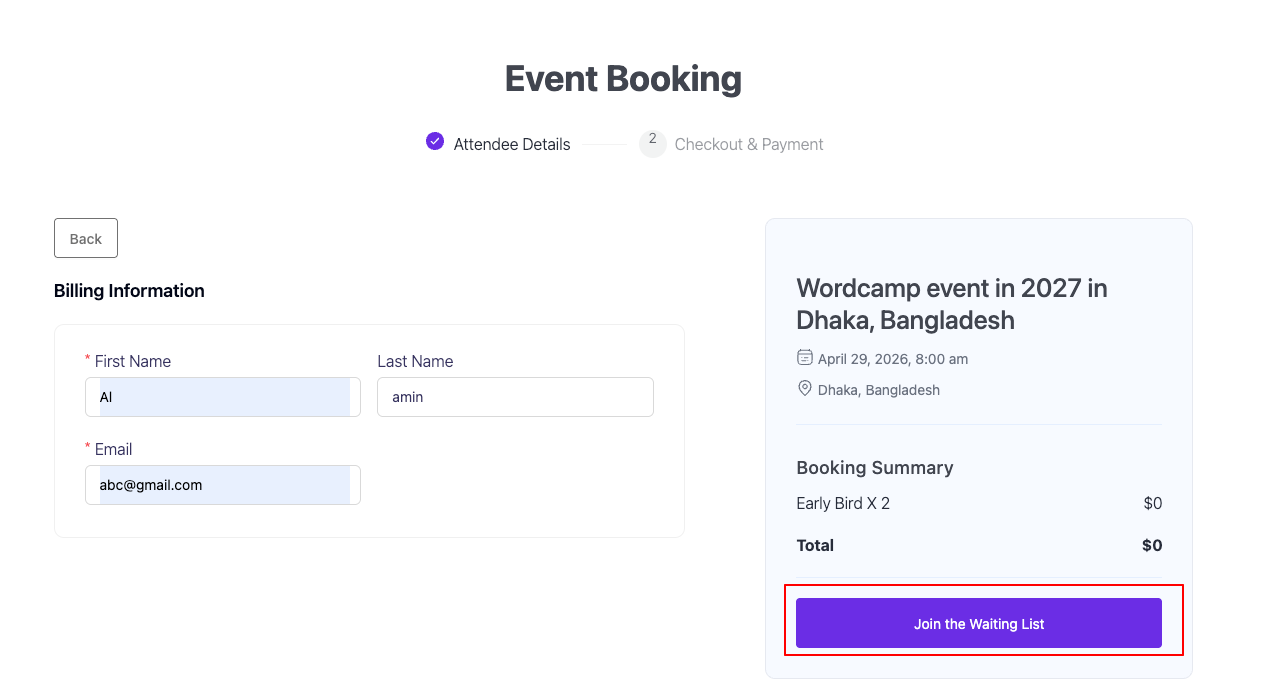
- After joining, the attendee fills in the same form they would for a normal purchase, but no payment is taken. Their order is created with the status “Waiting”.
The waitlist button only appears once the relevant tickets are fully sold out — if even one waitlist-enabled ticket still has stock, the button stays as “Get Tickets”.
How waitlisted orders work from admin #
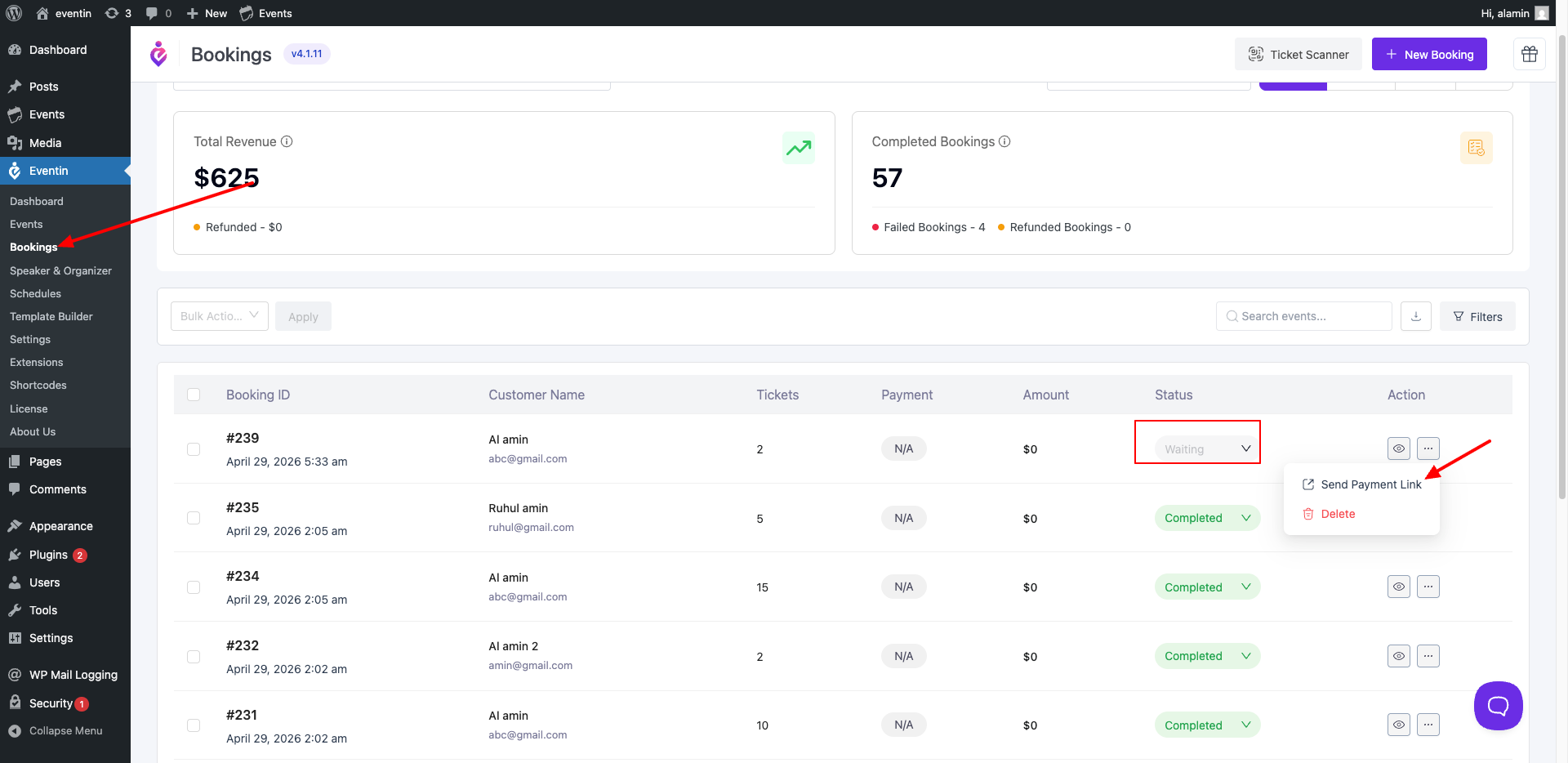
- Go to Eventin → Bookings.
- Waitlisted orders appear with a status badge of “Waiting”.
- Open the actions menu (three dots) on a waiting row.
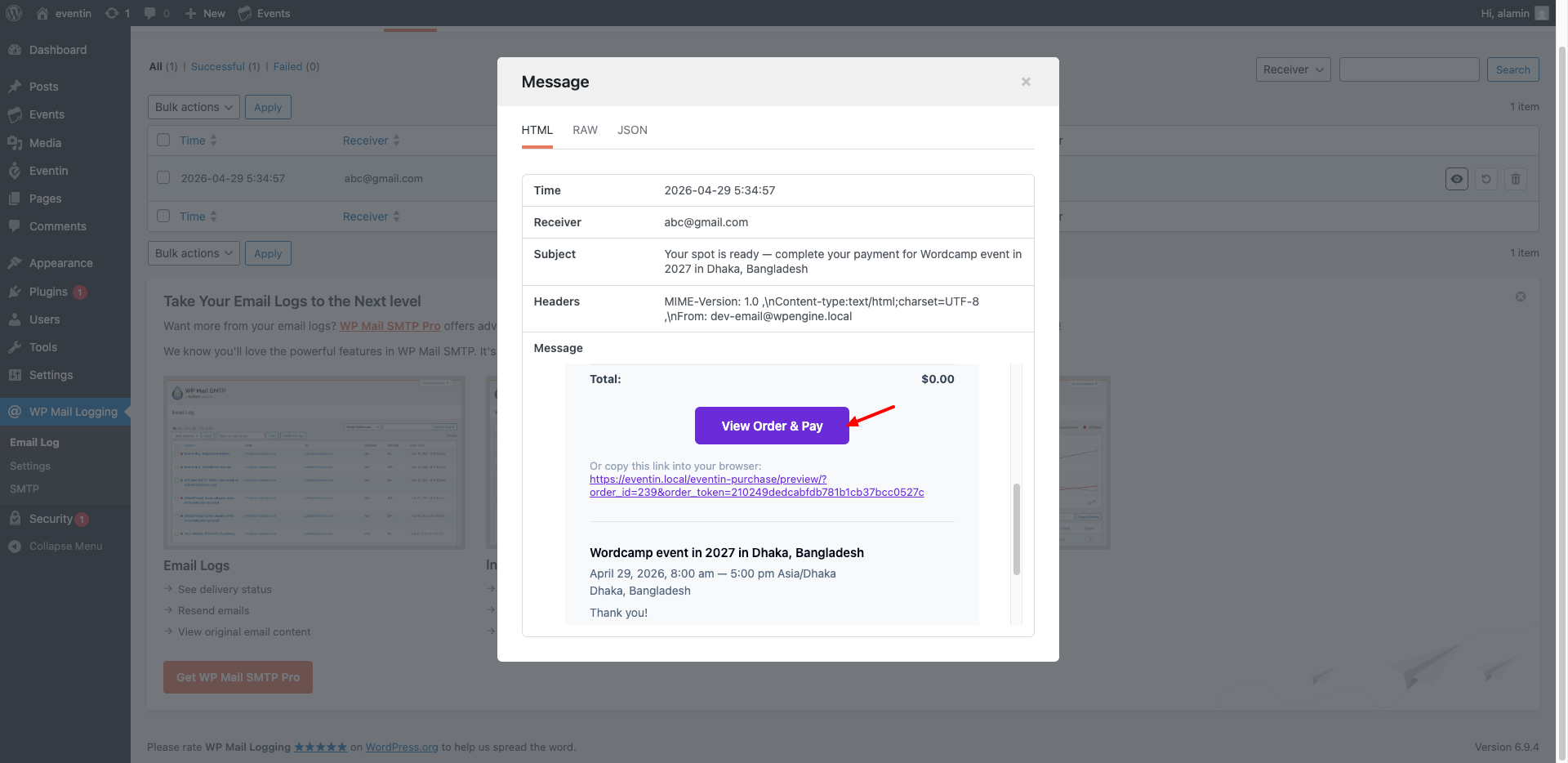
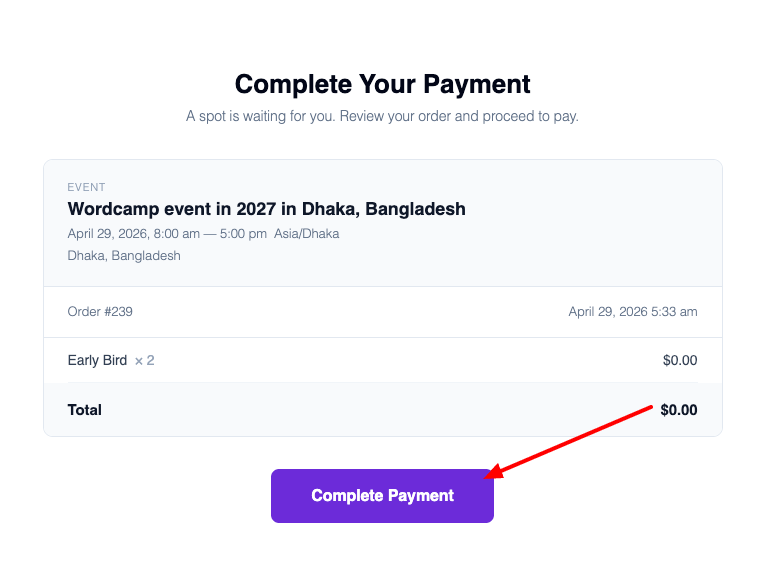
- Click “Send Payment Link”. Eventin emails the attendee a signed link that takes them straight to a payment preview page, where they can complete checkout.
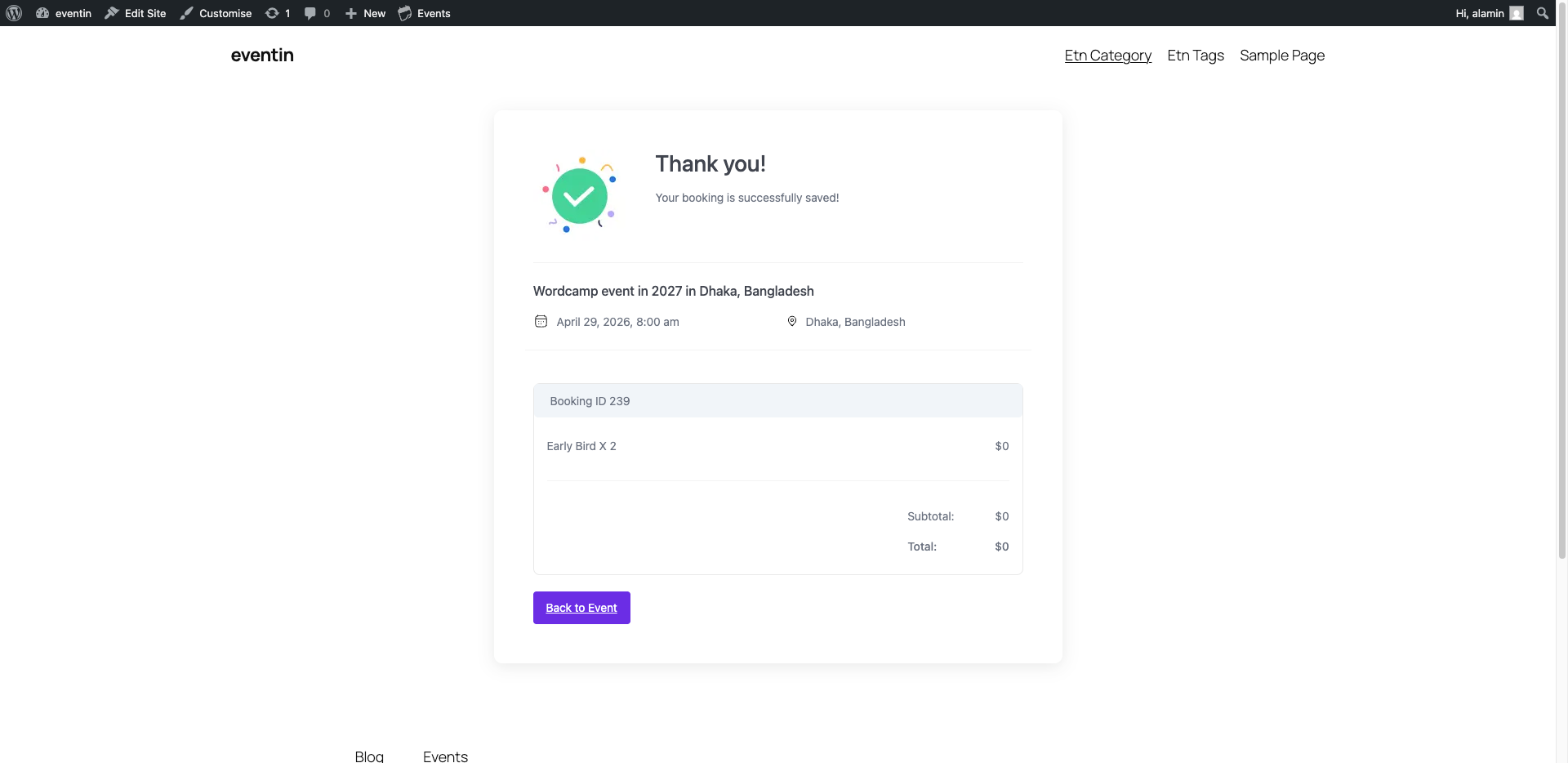
- Once they pay, the order status moves to “Completed” and they receive their tickets like any other purchase.
You decide when to send the payment link — usually after a refund opens up a seat, or when you raise the event capacity.
2. FAQs #
Q: Do I have to enable Global Capacity to use the waitlist? #
A: No. The waitlist works in both modes. With Global Capacity OFF, you set a separate waitlist size for each ticket type. With Global Capacity ON, you set one shared waitlist for the whole event in the same modal where you set the event capacity.
Q: When does the “Join the Waiting List” button appear to buyers? #
A: Only when every waitlist-enabled ticket in the event is sold out (or the global pool is empty). If at least one ticket type still has stock, the regular “Get Tickets” button is shown instead. Tickets without a waitlist size are ignored when deciding whether to show the button.
Q: Does joining the waitlist charge the customer? #
A: No. Waitlist sign-ups create an order with the status “Waiting” and no payment is taken at that moment. Payment only happens later, when you send them a payment link from the Bookings page and they complete checkout from the email.
Q: How do I notify a waitlisted attendee that a spot is open? #
A: Go to Eventin → Bookings, find the order with the “Waiting” status, open the row’s action menu, and click “Send Payment Link”. Eventin emails them a signed link with the subject “Your spot is ready — complete your payment for [event]”. Clicking the link opens a payment preview where they can pay in one step.
Q: What happens if more people try to join than my waitlist limit allows? #
A: They cannot. The waitlist size you set is enforced — once the waitlist is full, both buyers and Eventin will refuse new waitlist sign-ups, with a message explaining how many spots remain.
Q: Can I see how many people are on the waitlist? #
A: Yes. With Global Capacity enabled, the Tickets tab banner shows a “Remaining waitlists” stat (e.g., “8 / 20”). With per-ticket waitlists, you can see the count by filtering the Bookings page by the “Waiting” status.
Q: Does refunding a paid ticket free up a waitlist spot? #
A: A refund returns the seat to the available pool, which means you can now send a payment link to one of your waitlisted attendees and let them claim it.
3. Conclusion #
Attendee Waitlists turn a “Sold Out” page into an opportunity. With one toggle and a capacity number, you stop losing demand once seats run out and gain a ready-made list of buyers you can convert the moment more capacity opens up.
Key takeaways:
- One toggle in the Tickets tab Settings modal turns the feature on.
- Per-ticket limits when Global Capacity is OFF, one shared limit when Global Capacity is ON.
- The “Join the Waiting List” button only appears once the relevant tickets are fully sold out.
- Waitlist sign-ups do not pay until you send them a payment link from the Bookings page.
- Use Bookings → Send Payment Link to convert waitlisted orders into completed sales.


