
1. Introduction #
Global Capacity (also called “Global Stock”) lets you set one shared ticket pool for an entire event, instead of giving every ticket type its own separate quantity. When it is on, all ticket types — General, VIP, Student, and so on — draw from the same total. Once that total is reached, every ticket type shows as “Sold Out”.
Use it when you only care about total attendance (for example, a venue that holds 200 people regardless of ticket tier).
Where to find it #
In your WordPress admin, go to:
Eventin → Events → (Open or create an event) → Tickets tab
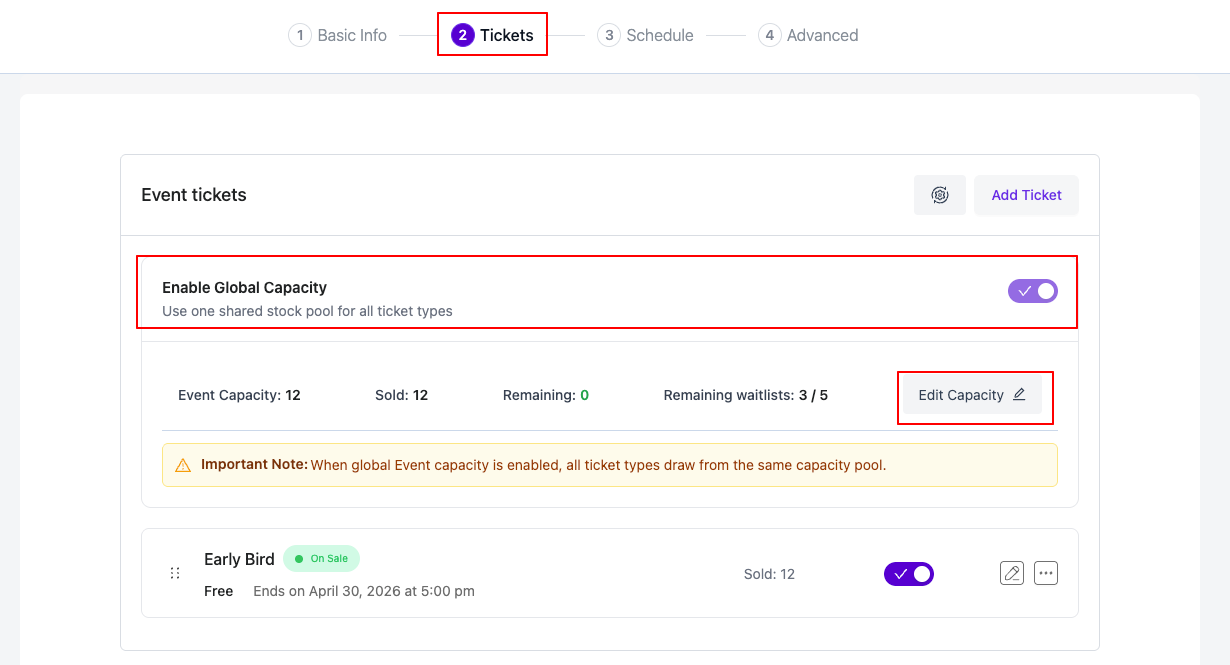
At the top of the Tickets tab you will see a banner titled “Enable Global Capacity” with a toggle switch.
How to enable Global Capacity #
- Open the event in Eventin and switch to the Tickets tab.
- Toggle the “Enable Global Capacity” switch ON.
- The banner expands and shows three numbers:
- Event Capacity — the shared pool (starts at 0)
- Sold — how many tickets are already sold
- Remaining — Capacity minus Sold
- Click “Edit Capacity” on the right side of the banner.
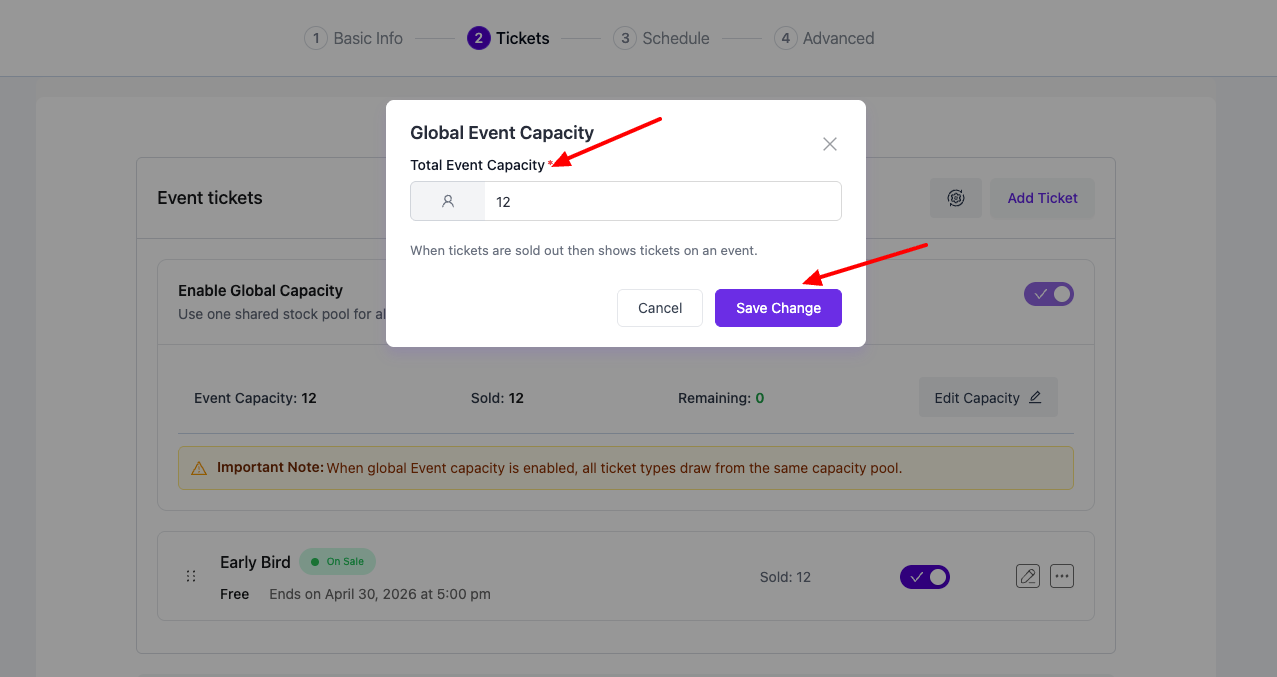
- In the modal, enter the total number of tickets you want to make available across the whole event.
- Click “Save Change”.
Reading the banner #
Once enabled, the banner shows you a live view of stock:
- Event Capacity — total tickets available across all types
- Sold — tickets already paid for (all types combined)
- Remaining — Capacity minus Sold
- Remaining waitlists — waitlist spots left (only if the Attendee Waiting List is enabled)
A yellow “Important Note” box reminds you that all ticket types are sharing the same pool while Global Capacity is ON.
How to turn Global Capacity off #
Toggle the “Enable Global Capacity” switch OFF.
Important: Once tickets have been sold from the global pool, the toggle is locked and a tooltip explains why. This prevents you from accidentally breaking the inventory of an event that is already selling. To free the toggle, you would need to refund the sold tickets first.
2. FAQs #
Q: What is the difference between Global Capacity and the per-ticket quantity I set on each ticket type? #
A: Per-ticket quantity is the limit for one specific ticket type (e.g., “only 20 VIP seats”). Global Capacity is a shared limit across all ticket types — whichever combination of tickets people buy, the total cannot exceed the global number. When Global Capacity is ON, the per-ticket quantities are no longer enforced — the global pool is what controls availability.
Q: Why is the “Enable Global Capacity” toggle greyed out? #
A: There are two reasons this can happen:
- The toggle is ON and at least one ticket has already been sold from the global pool. You cannot disable Global Capacity once sales have started, because it would change how stock is counted mid-event.
- The toggle is OFF and at least one ticket type has already had sales. You cannot switch to Global Capacity after tickets have been sold individually, for the same reason.
Q: Can I set the Event Capacity to a number lower than the tickets I have already sold? #
A: No. The capacity field will not let you go below the current “Sold” number, and the “Save Change” button stays disabled until you enter a valid value. This protects you from accidentally over-selling.
Q: Can I change the Event Capacity later, after the event is live? #
A: Yes. You can increase capacity at any time. You can also decrease it, but only down to (not below) the number already sold. Open the Tickets tab, click “Edit Capacity”, enter the new number, and save.
Q: Will buyers see “Sold Out” when the global pool is empty? #
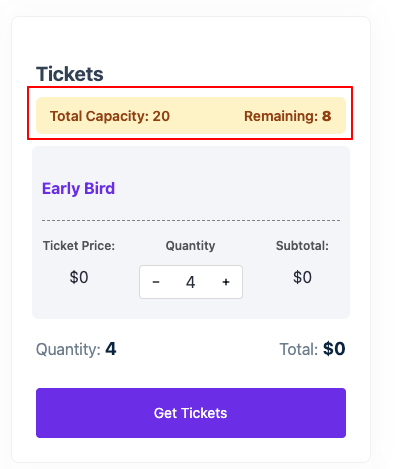
A: Yes. Once the Remaining count reaches 0, every ticket type on the event page is shown as sold out, even if a specific ticket tier had a higher per-ticket quantity. From the buyer’s perspective, the whole event is full.
3. Conclusion #
Global Capacity is the simplest way to manage events where what matters is the total number of attendees, not which tier they booked. With one toggle and one number, you stop worrying about keeping ticket-tier inventories in sync and let Eventin enforce a single, shared limit for the whole event.


