
1. Introduction #
The Tutor LMS integration for Eventin auto-enrolls ticket buyers into the Tutor LMS courses you map to each ticket type. Sell a workshop or training event, and the moment a buyer completes checkout, they show up as a student in your Tutor LMS dashboard with the linked course already added — no manual roster work.
Prerequisites #
- Eventin (this plugin).
- Tutor LMS — installed and active.
- Eventin Addon for Tutor LMS — installed from the Eventin Extensions page.
Step 1 — Install and activate the addon #
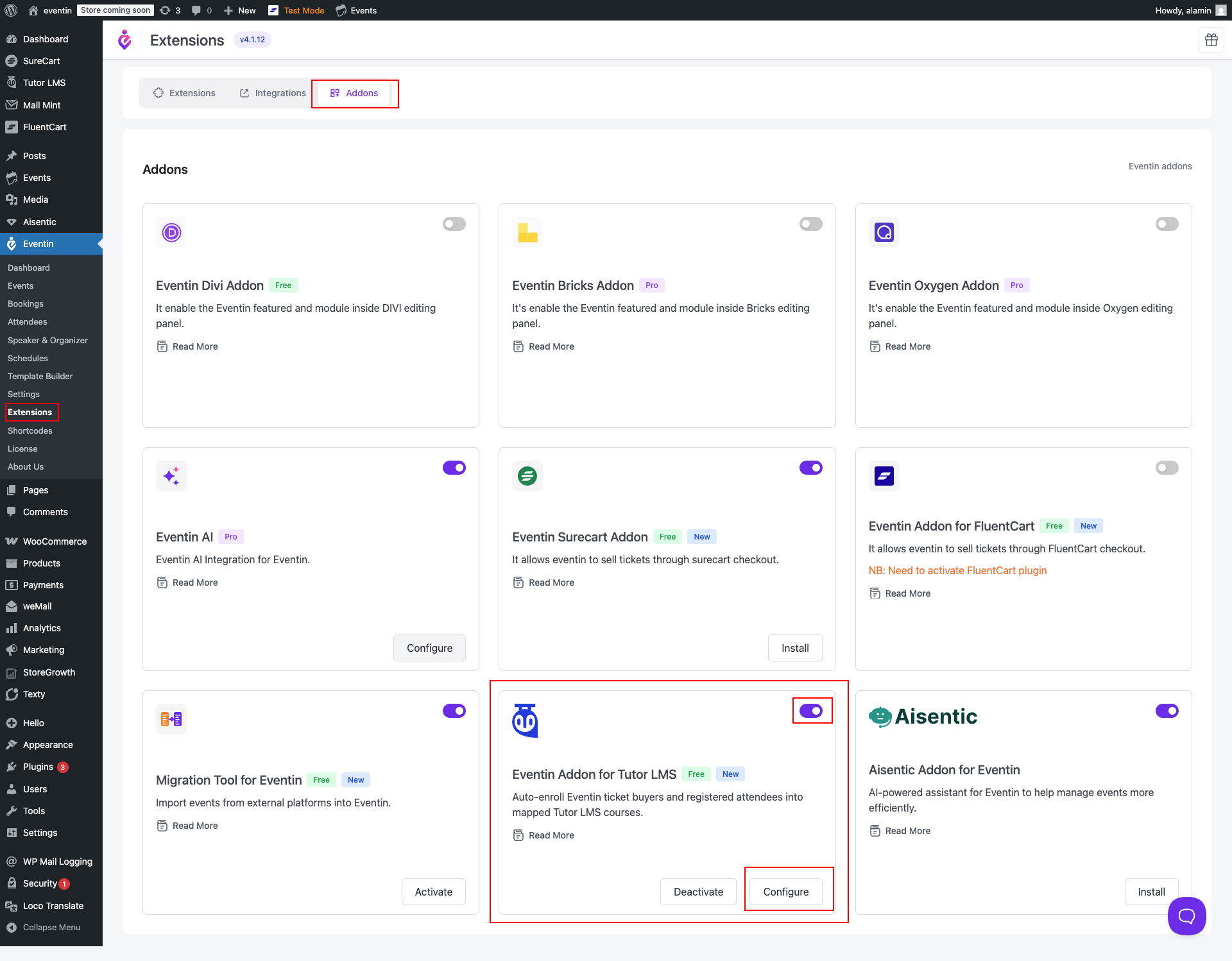
- Go to Eventin → Extensions → Addons tab.
- Find the “Eventin Addon for Tutor LMS” card and toggle it ON.
- Click “Install”, then “Activate” when the button changes.
- A “Configure” button appears on the card once the addon is active.
Step 2 — Set global enrollment behavior #
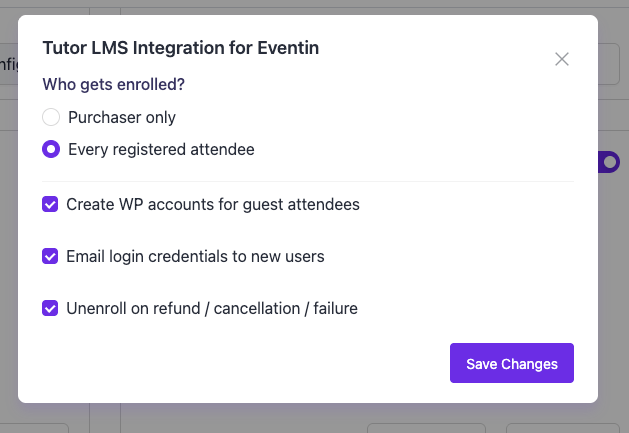
Click “Configure” on the addon card to open the “Tutor LMS Integration for Eventin” modal. Four global settings:
- Who gets enrolled? — Purchaser only enrolls just the buyer; Every registered attendee (default) enrolls every attendee on the order.
- Create WP accounts for guest attendees — auto-creates a WordPress user for any buyer without an account. On by default. Required for guest checkout to enroll into Tutor LMS.
- Email login credentials to new users — sends a welcome email with login details. On by default.
- Unenroll on refund / cancellation / failure — removes course access if the order is refunded or cancelled. On by default.
Click “Save Changes”. These settings apply to every event that uses the integration.
Step 3 — Map tickets to Tutor LMS courses (per event) #
Course mapping happens on the event itself, so different events can unlock different courses.
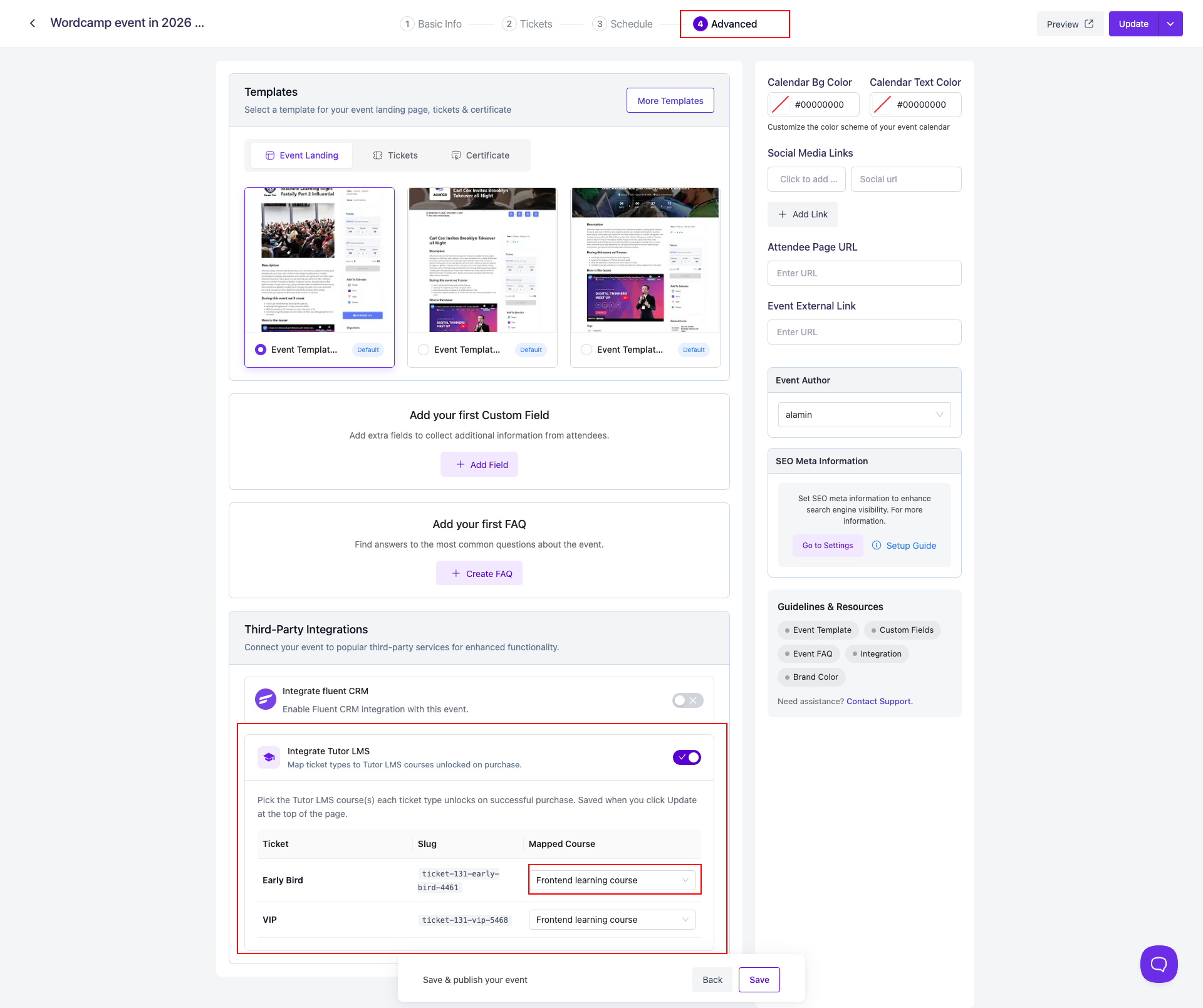
- Open the event in Eventin and switch to the Advanced tab.
- Scroll to the Third-Party Integrations card.
- Toggle “Integrate Tutor LMS” ON. The description reads “Map ticket types to Tutor LMS courses unlocked on purchase.”
- A table appears listing every ticket type for the event with three columns: Ticket, Slug, Mapped Course.
- For each ticket row, pick a Tutor LMS course from the Mapped Course dropdown. You can map different tickets (e.g., Early Bird, VIP) to the same course or to different courses.
- Click “Update” at the top of the event page to save. Mappings are not saved until you click Update.
Tickets without a mapped course will not enroll buyers into anything — leave the dropdown empty for tickets that should not unlock a course.
After purchase — students appear in Tutor LMS #
When a buyer completes checkout for a mapped ticket:
- Eventin enrolls the right people (purchaser only or every attendee, based on Step 2).
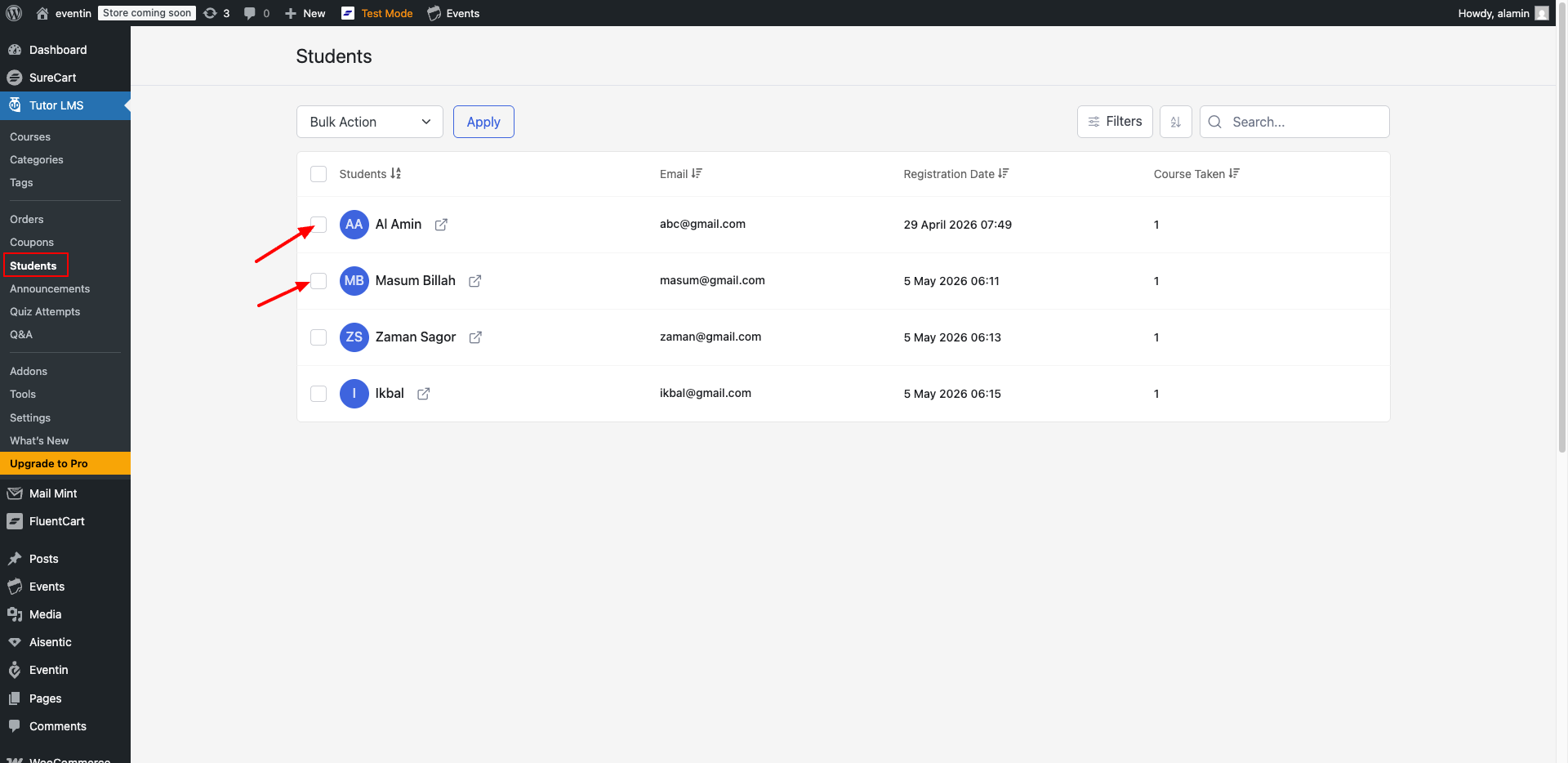
- They show up immediately in Tutor LMS → Students with their name, email, registration date, and the course count incremented.
- The mapped course appears on their student dashboard, ready to start.
You can verify enrollment any time by opening Tutor LMS → Students and searching for the buyer’s email — a row with “Course Taken: 1” (or higher) confirms the integration ran.
2. FAQs #
Q: Where do I map tickets to courses? #
A: Open the event, go to the Advanced tab, scroll to Third-Party Integrations, toggle “Integrate Tutor LMS” ON, then pick a course in the Mapped Course dropdown for each ticket type. Click “Update” at the top to save.
Q: My order has 5 attendees. Will all 5 get the course? #
A: Yes, if “Who gets enrolled?” is set to Every registered attendee (default). Set it to Purchaser only if you want just the buyer enrolled.
Q: How do I check that a buyer was enrolled? #
A: Go to Tutor LMS → Students and search for the buyer’s email. You’ll see their name, registration date, and a “Course Taken” count of 1 or more.
Q: What happens to guest buyers without a WordPress account? #
A: If “Create WP accounts for guest attendees” is on (default), Eventin creates an account, enrolls them, and emails their login details. If it’s off, guests are not enrolled because Tutor LMS requires a WordPress user.
Q: Does refunding an order remove course access? #
A: Yes, if “Unenroll on refund / cancellation / failure” is on (default). Refunds processed before you turned this on are not retroactively unenrolled.
3. Conclusion #
Install the Tutor LMS addon, set global enrollment behavior once, then map each event’s tickets to the right courses on the Advanced tab. Every paid ticket becomes a course enrollment automatically — visible right away in Tutor LMS → Students.


