
1. Introduction #
The Mail Mint integration for Eventin sends purchaser and attendee data to a Mail Mint webhook the moment an order is created. Use it to add ticket buyers (and optional individual attendees) to your Mail Mint email lists, automations, and funnels — no manual list imports.
Prerequisites #
- Eventin (this plugin).
- Mail Mint — installed and active on the same WordPress site.
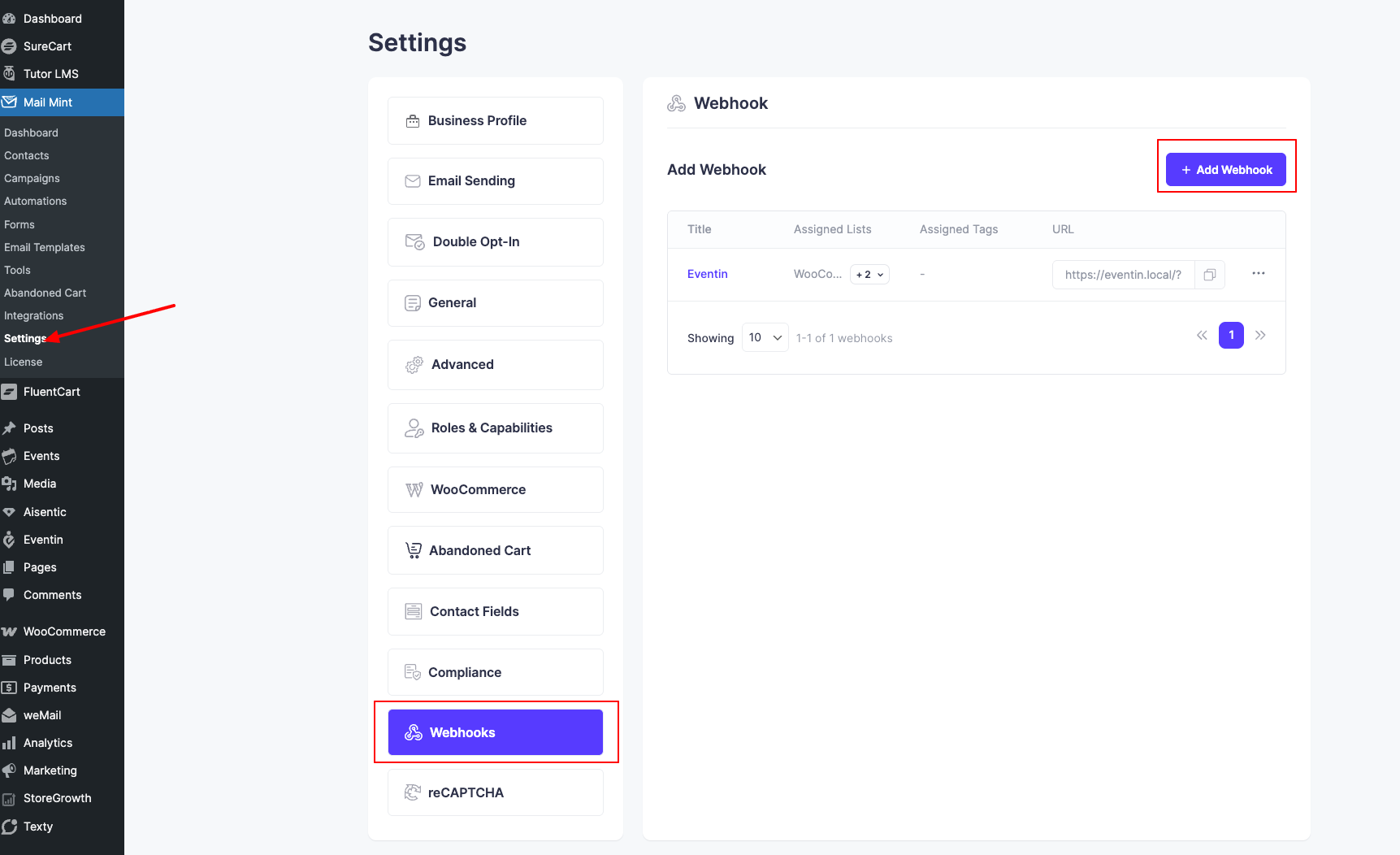
- A Mail Mint webhook URL — created inside Mail Mint and pointed at the list/automation you want to populate.
Step 1 — Enable the Mail Mint integration #
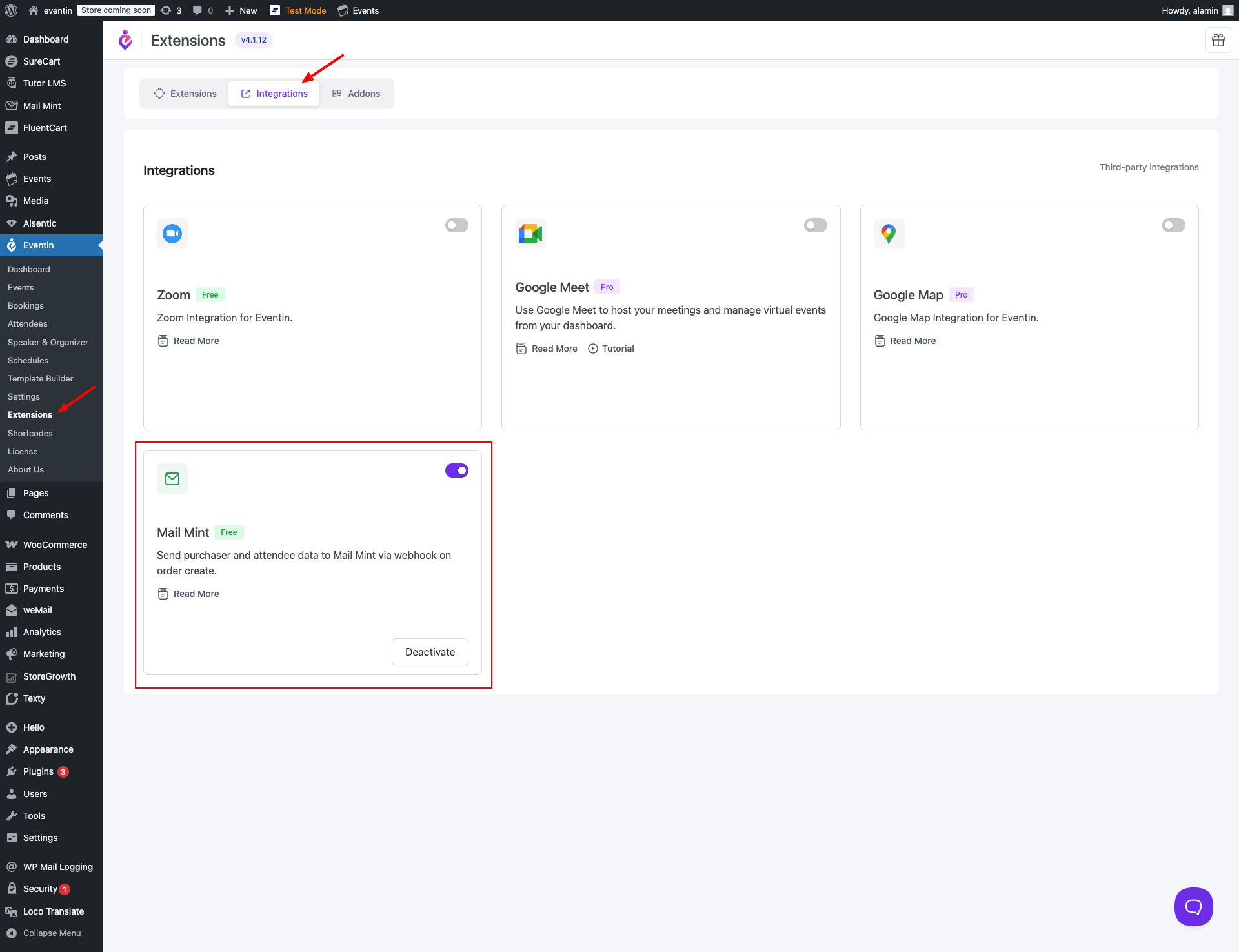
- Go to Eventin → Extensions → Integrations tab.
- Find the “Mail Mint” card and toggle it ON.
- If Mail Mint is not yet installed, Eventin shows the notice “NB: Need to install and activate Mail Mint plugin”. Install and activate it from the WordPress Plugins page first, then return and toggle the integration ON.
Step 2 — Configure Mail Mint per event #
The webhook and recipient settings are configured on each event individually, so different events can feed different Mail Mint lists.
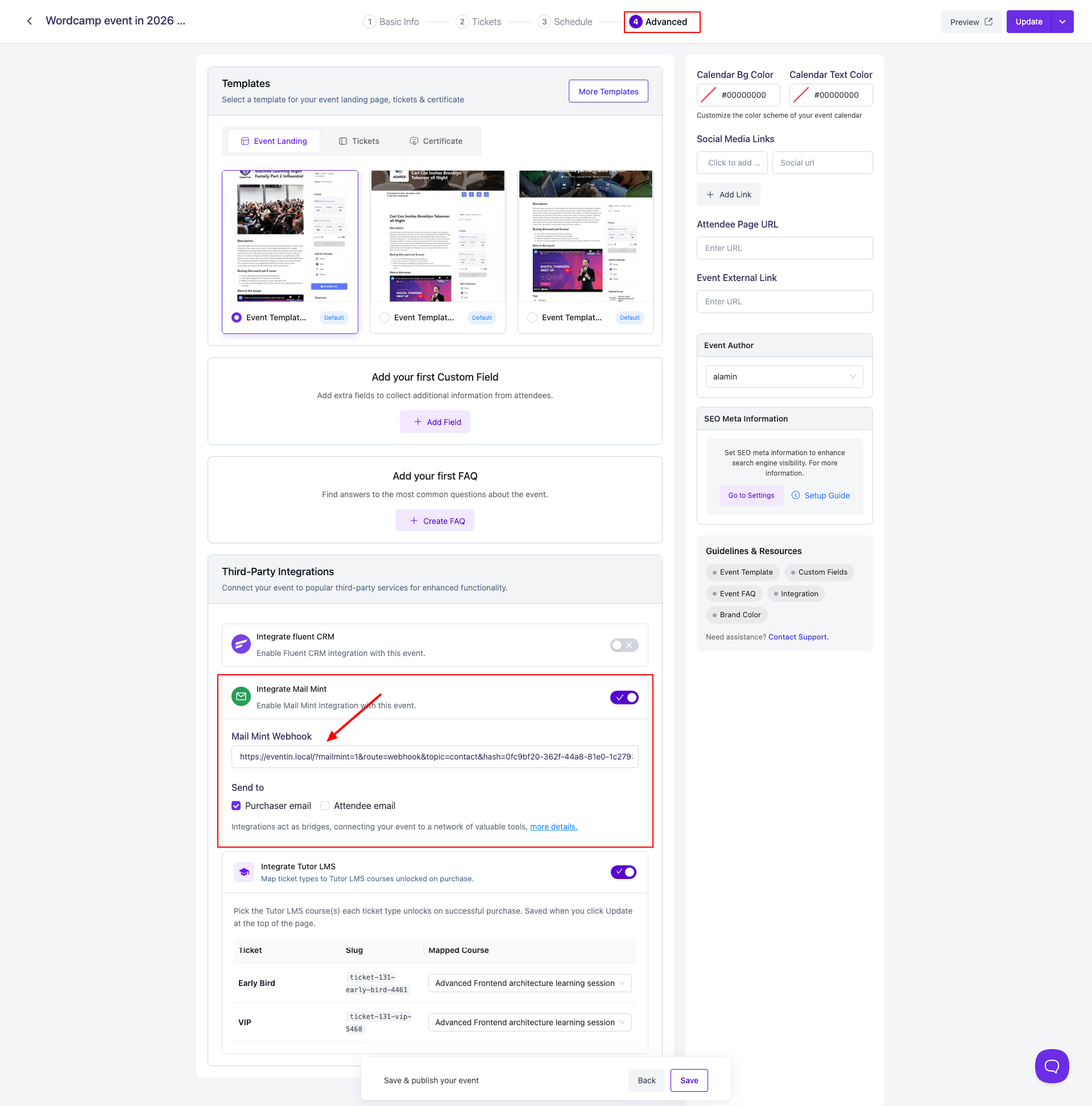
- Open the event in Eventin and switch to the Advanced tab.
- Scroll to the Third-Party Integrations card.
- Toggle “Integrate Mail Mint” ON. The panel expands.
- Paste your Mail Mint webhook URL into the Mail Mint Webhook field. Eventin validates the URL format.
- Under Send to, choose who gets sent to Mail Mint:
- Purchaser email — the buyer who paid.
- Attendee email — every individual attendee on the order (only fires if Attendee Registration is on).
- Click “Update” at the top of the event page to save.
If the “Integrate Mail Mint” row is not visible on the Advanced tab, the global toggle from Step 1 is off — turn it on first.
After purchase — data lands in Mail Mint #
The moment an Eventin order is created for a Mail-Mint-enabled event, Eventin POSTs the configured contacts to your webhook URL:
- Purchaser send — one POST with the buyer’s email and first name.
- Attendee send — one POST per attendee with that attendee’s email and first name.
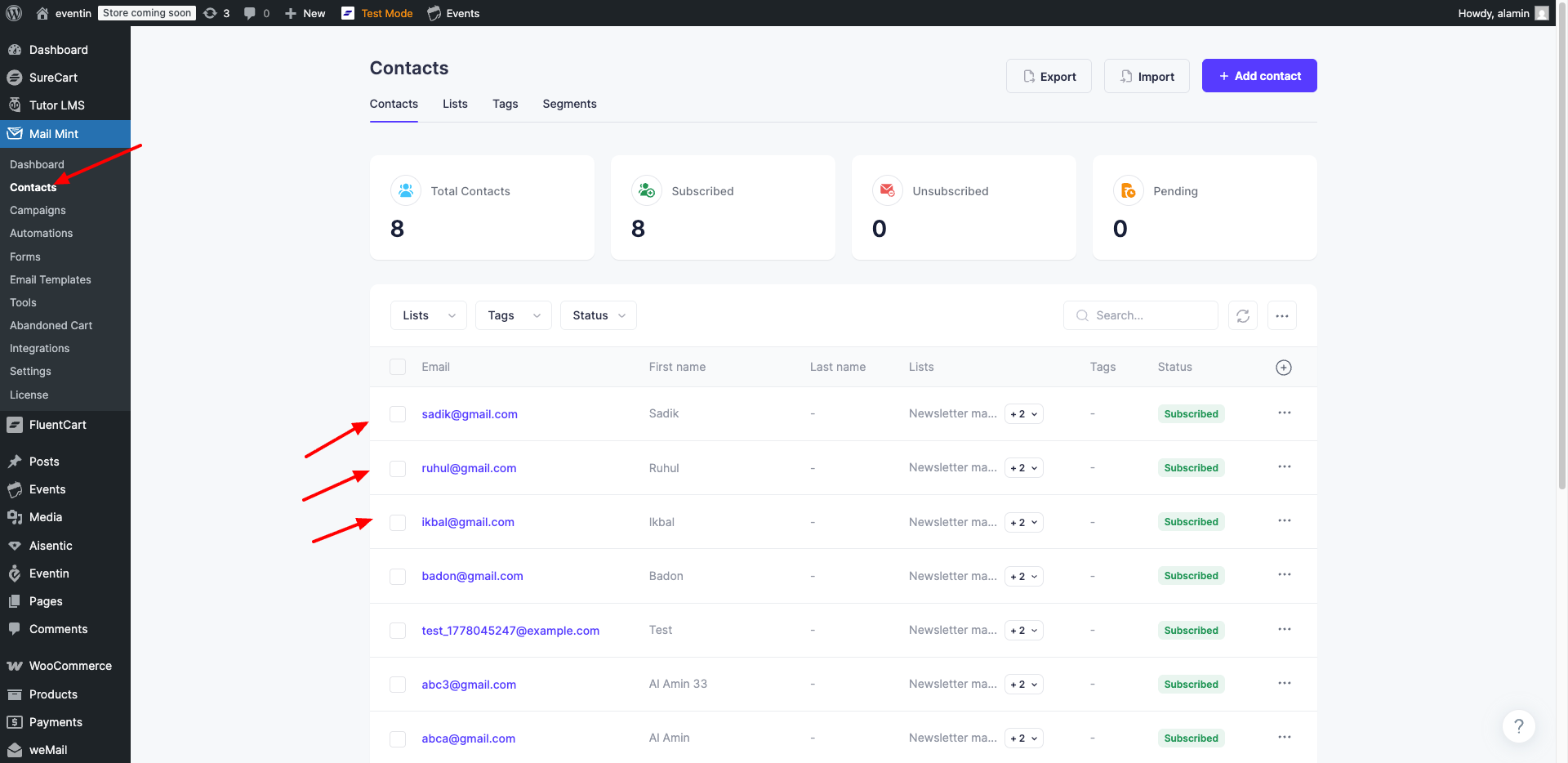
- The contacts appear in the Mail Mint list/automation tied to that webhook, ready for any follow-up email sequence you’ve configured.
Verify it’s working by placing a test order, then opening Mail Mint and checking that the buyer (and any attendees you opted in) have appeared as new contacts.
FAQs #
Q: Where do I get the Mail Mint webhook URL? #
A: Inside the Mail Mint plugin, create a webhook for the list or automation you want to populate. Copy the URL Mail Mint generates and paste it into the Mail Mint Webhook field on the event’s Advanced tab.
Q: Can I send only the purchaser, not the attendees? #
A: Yes. In the Send to field, check only Purchaser email and leave Attendee email unchecked. Only the buyer will be sent to Mail Mint.
Q: I don’t see “Integrate Mail Mint” on the Advanced tab. Why? #
A: The per-event panel only appears when the global Mail Mint integration is toggled ON in Eventin → Extensions → Integrations. Turn it on there, then refresh the event page.
Q: Does each event need its own webhook? #
A: Not necessarily. You can reuse the same webhook URL on multiple events, or create a separate webhook per event so each one feeds a different Mail Mint list. The choice is yours — Eventin doesn’t restrict it.
Q: What data does Eventin send to the webhook? #
A: Email and first name — for the purchaser and/or each attendee, depending on your Send to selection. The send happens once per order, immediately after checkout completes.
3. Conclusion #
Enable Mail Mint once under Extensions, then drop a webhook URL into each event’s Advanced tab and choose who to send. From that point on, every Eventin order auto-feeds your Mail Mint lists and automations — no manual exports.


