Skip to content
Themewinter Logo
  • Home
  • About
  • Our Products
    • Eventin
    • WPCafe
    • WP Timetics
    • Poptics New
    • Booktics New
  • Blog
  • Deals
  • Login
Popular Search ticketqr codeemailtranslatelocation

Aisentic

  • Gettings Started
    • How to Manage Eventin Events Using AISentic’s AI Chatbot
    • How to Connect Your WordPress Plugins with AISentic
    • Getting Started with Aisentic: Your AI Assistant for WordPress

Authorsy

  • Introduction
  • Getting Started
    • Introduction
    • Plugin installation
    • License
  • Author Box
    • Add New Author
    • Author Settings
  • Voting
    • Voting
  • Shortcodes
    • ShortCode
  • Translation
    • Translation with Loco Translate

Delivery Module(Pro)

  • General
  • Add Food Store’s Location on Google Map(Pro)
  • Google autocomplete address in the checkout(Pro)
  • Minimum order amount to place order(Pro)

Eventin

  • Introduction of Eventin
  • Gettings Started
    • Introduction of Eventin
    • How to install Eventin Plugin
    • How to Upgrade Eventin Free to Pro Version
    • How to Activate Eventin License
    • Quick Start Guide
  • General Settings
    • General Settings for Eventin
    • How to Change Event & Speaker Slug
    • How to Create a Webhook for Events (Pro)
    • How to Use Embeddable Scripts in Events(Pro)
    • How to Manage Role-Based Access in Eventin
    • Getting support
  • Events
    • How to Create Event in Eventin
    • How to Create Event Categories and Tags
    • How to Assign Categories and Tags to Events
    • How to Create Event Ticket Variations
    • How to Create Recurring Event in Eventin
    • How to Check Event Report
    • How to Customize the Eventin Event Page with Elementor
    • How to Use WooCommerce Coupon for Events
    • How to insert Event Location in Eventin
    • How to Submit Events from the Front End in Eventin
    • How to Create a Hybrid Event in Eventin
  • Event Attendees
    • How to Enable Event Attendee Registration
    • How to Add Attendee Extra Fields
    • How to Generate and Scan QR code(Pro)
    • How to Purchase Tickets on Eventin
    • How to Set a Countdown Timer for Ticket Purchases in Eventin
    • How to Send Event Certificates
    • How to Manage Attendees in Eventin
    • How to Manage Booking of Events
    • How to Add Attendees Manually (Pro)
    • How to View Event Bookings on the Frontend
  • Email Settings
    • How to Configure Confirmation Email for Event
    • How to Configure Reminder Email for Event
    • How to Configure RSVP Email
    • Email Automation Workflow Builder
  • Speakers and Organizers
    • Introduction of Eventin Speaker & Organizer
    • How to Create Eventin Speaker
    • How to Create Eventin Organizer
    • How to assign speakers on schedules
    • How to assign a speaker/organizer on events
  • Schedules
    • Introduction of Eventin Schedules
    • How to Create Eventin Schedule
    • How to Assign Schedule on Events
  • Payment Type
    • How to Configure FluentCart with Eventin
    • Which payment methods are supported by Eventin?
    • How to Configure the WooCommerce in Eventin
    • How to Configure the Stripe Payment Gateway in Eventin (Pro)
    • How to Configure the PayPal Payment Gateway in Eventin
    • How to Configure the Local Payment in Eventin
    • How to Configure SureCart in Eventin
  • Shortcodes & Widgets
    • Available Shortcodes & Widgets in Eventin
    • How to Use Eventin Shortcodes
    • Elementor Widgets in Eventin
    • Event Calendar View In Eventin
  • RSVP Events (Pro)
    • What is RSVP Event
    • How to Create RSVP in Eventin
    • RSVP Attendee Report
    • How to send RSVP invitations
  • Visual Seat Map
    • How to Create Event with Visual Seat Map in Eventin
  • Integration
    • How to Integrate Eventin with Bit Integrations
    • How to Integrate Eventin with Bit Flows
    • How to Integrate Eventin with OttoKit (formerly SureTriggers) to Automate Event Workflows
    • How to Integrate WowRevenue with Eventin
    • How to Integrate Oxyzen Builder with Eventin(Pro)
    • How to Integrate Bricks Builder with Eventin(Pro)
    • How to Integrate DIVI Builder with Eventin
    • How to Integrate FluentCRM with Eventin (pro)
    • How to Integrate Calendar with Eventin (Google, Apple etc)
    • How to Integrate Pabbly with Eventin
    • How to Integrate Twilio SMS Remindar with Eventin
    • How to Integrate Zapier with Eventin
    • How to Integrate BuddyBoss with Eventin(Pro)
    • How to Integrate Zoom Module with Eventin
    • How to Integrate Google Meet with Eventin (Pro)
    • How to Integrate Artificial Intelligence (AI) with Eventin (Pro)
    • How to Integrate Dokan with Eventin for Multivendor Events( Pro)
    • How to Integrate SEO Plugin with Eventin
    • Automate Eventin Bookings with Make.com Webhooks
  • Templates
    • How to Override Email Template
    • How to Change Event Templates
    • How to Change Speaker Templates
    • How to Change Ticket Templates
    • How to Override Event Template
    • How to Override Speaker Template
    • How to Override Archive Page
  • Template Builder
    • How to Create Custom Event Landing Pages in Eventin (Pro)
    • How to Create Event Ticket Templates in Eventin (Pro)
    • How to Create Event Certificate Templates in Eventin (Pro)
  • Translations
    • Which languages are supported in Eventin?
    • Which translation plugins are supported in Eventin?
  • Rollback V4 to V3
    • Rollback V4 to V3
  • Troubleshooting
    • Admin Email Showing in Public Source Code
    • Ticket Email Sent from WordPress
    • ACF Field Support
    • How to Fix 404 issue on Event Page

General

  • How to Cancel Your Subscription

Optiontics

  • What is Optiontics?
  • How to Create Product Options

WPCafe

  • Introduction to WPCafe
  • Product Addons
    • Product Addons (Pro)
  • Email Settings
    • How to Automate Reservation Emails in WPCafe
  • Getting Started
    • Introduction of WPCafe
    • How to install the WPCafe Plugin
    • How to Upgrade WPCafe Free to Pro Version
    • How to Activate WPCafe License
    • Quick Start Guide
    • Plugin Uninstallation
  • Translation
    • How to Translate WPCafe
  • Rollback V2 to V3
    • How to Roll Back to an Older Version of WP Cafe
  • Troubleshooting
    • Slug Change
  • General settings
    • How to Manage Global Schedule Settings
    • General Settings for Date and Time
    • Get Support
    • Theme Compatibility
    • User Roles and Permissions
    • How to use shortocde on WPCafe
    • WpCafe Elementor Widgets
  • Food Ordering
    • How to Add & Manage Food Categories and Tags
    • How to Add & Manage Brands
    • How to Add and Manage Food Menu in WPCafe
    • How to Manage Restaurant Locations in WPCafe
    • How to Show Food Menu by Location in WPCafe
    • How to Generate QR Codes for Food Menu
    • How to Enable Mini Cart in WPCafe
    • How to Set Up Tipping Using WPCafe
    • How to Add Discounts Using WPCafe
    • How to Enbale Sound Notification in WPCafe
    • How to Use Time Based Products in WPCafe
    • How to Setup Pickup for Food Ordering in WPCafe
    • How to Setup Delivery for Food Ordering in WPCafe
    • Searching Products with Pickup/Delivery(Pro)
  • Reservation
    • How to Configure Reservation Settings in WPCafe
    • How to Customize the Reservation Form in WPCafe
    • Notification Email
    • How to Display the Reservation Form
    • Schedule
    • Email Settings
    • Reservation with Food Ordering (PRO)
    • How to Customize Table Layout in Reservation
  • Integrations
    • How to Integrate Fluent CRM with WPCafe
    • How to Integrate Zapier in WPcafe
    • How to Integrate Pabbly with WPCafe
    • How to Integrate Shipday Plugin with WPCafe
    • How to Integration Twilio SMS with WPCafe
    • How to Integrate Clover POS with WPCafe
    • Loyalty Program Points & Rewards for Food Orders
    • How to Integrate Multivendor Addon in WPCafe
    • How to Use WPCafe Elements in Oxygen Builder
  • Style Settings
    • Style Settings
  • Home
  • Docs
  • Aisentic
  • Gettings Started
  • How to Connect Your WordPress Plugins with AISentic
View Categories

How to Connect Your WordPress Plugins with AISentic

AISentic integrates directly with your existing WordPress plugins to give you AI-powered control over their features. Once a plugin is connected, you can manage it entirely through AISentic’s chatbot — using plain language instead of navigating through multiple dashboard screens.

Currently, AISentic supports integration with Eventin, the WordPress event management plugin by Arraytics. More plugin integrations are on the way.

In this guide, you’ll learn how to connect a plugin with AISentic, using Eventin as a step-by-step example.

Prerequisite: This guide assumes you’ve already installed and activated Aisentic, and completed the onboarding process. If you haven’t, start with our Getting Started with Aisentic guide first.

Step 1: Open the Integrations Tab #

From your WordPress dashboard, go to Aisentic → Settings → Integrations. This page displays all the plugins that are available for integration with AISentic.

Each plugin is shown as a card with its name, a brief description, and an action button.
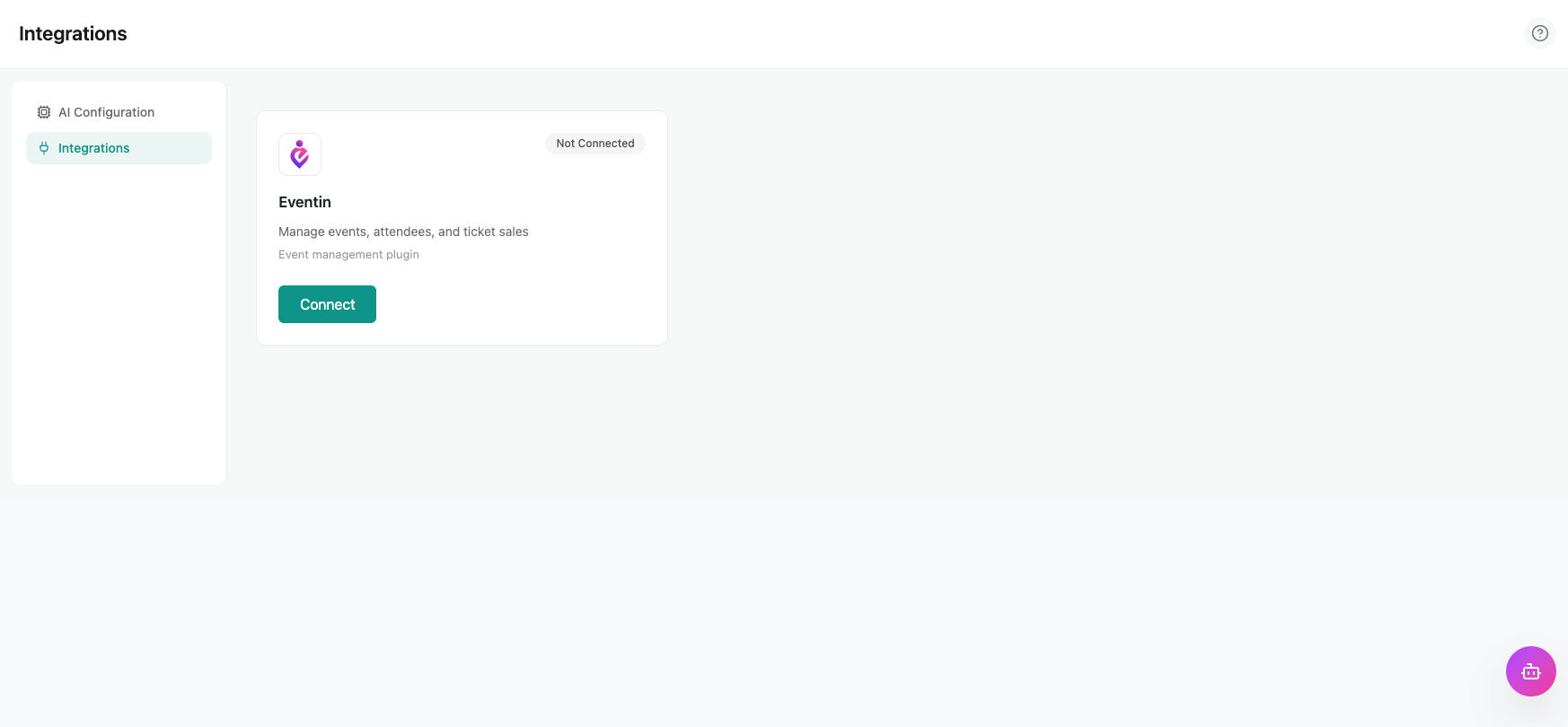
aisentic-integrations

Step 2: Check the Plugin Status #

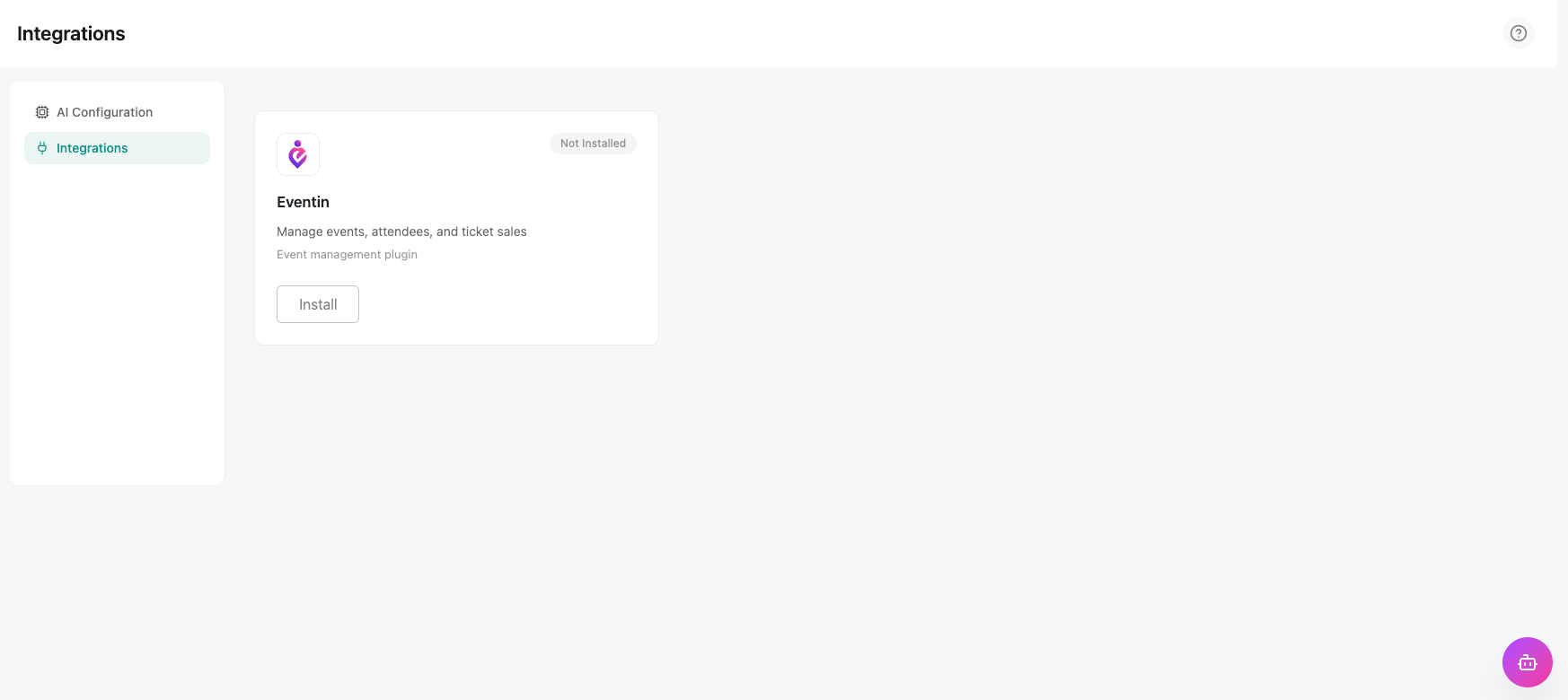
Find the plugin you want to connect. For this guide, locate the Eventin card. Depending on whether Eventin is already on your site, the card will show one of three states:

ButtonWhat It Means
InstallEventin is not installed on your site. Clicking this will install it directly.
ActivateEventin is installed but not active. Click to activate it.
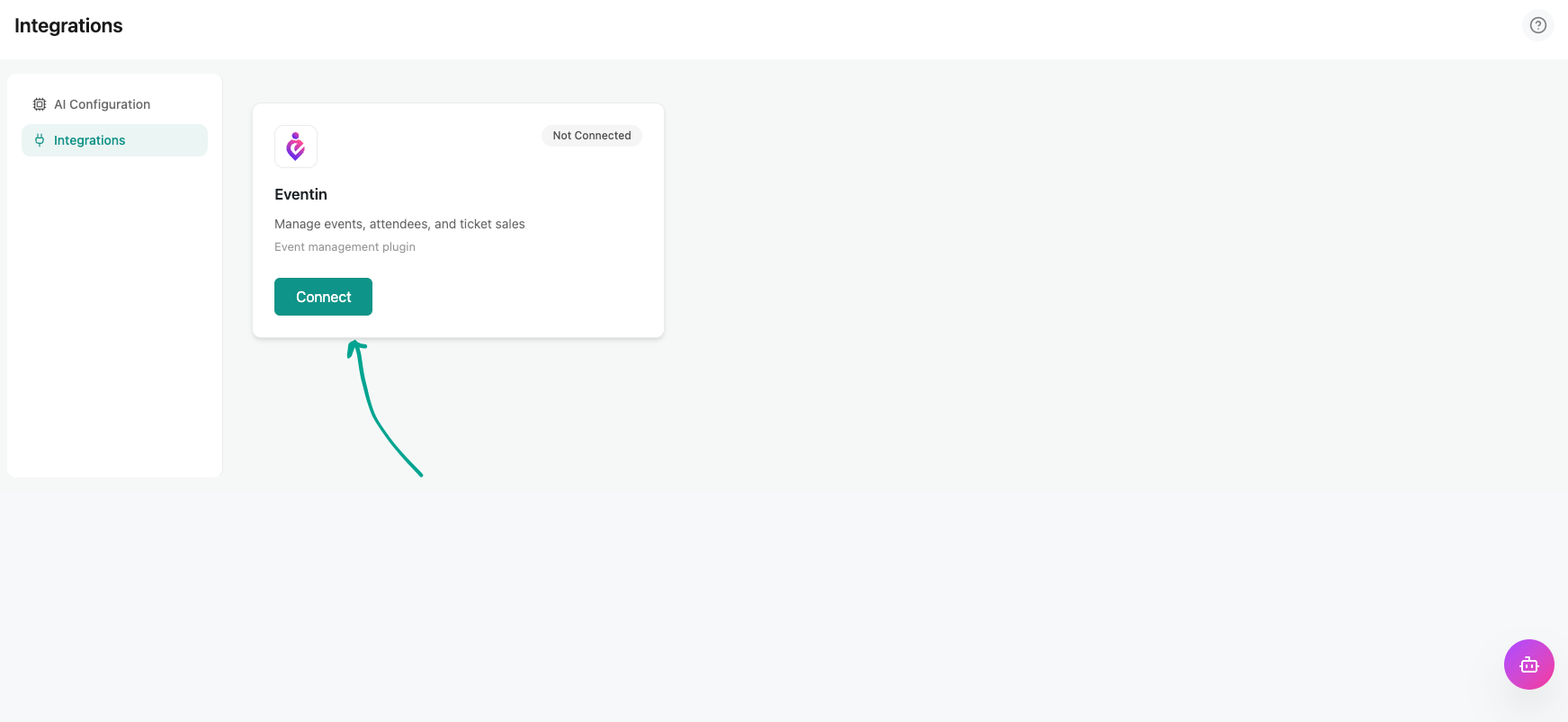
ConnectEventin is installed and active. You’re ready to integrate!
Tip: If Eventin is not yet installed, Aisentic handles the installation for you — no need to leave the Integrations page or search the WordPress plugin directory separately.
aisentic-integrations-eventin

Step 3: Connect the Plugin #

aisentic-integrations-eventin

Once the Eventin card shows the Connect button, click it. Aisentic will sync with Eventin and register its features with the chatbot.

You’ll see a confirmation message once the connection is successful. That’s it — Eventin is now integrated with Aisentic.
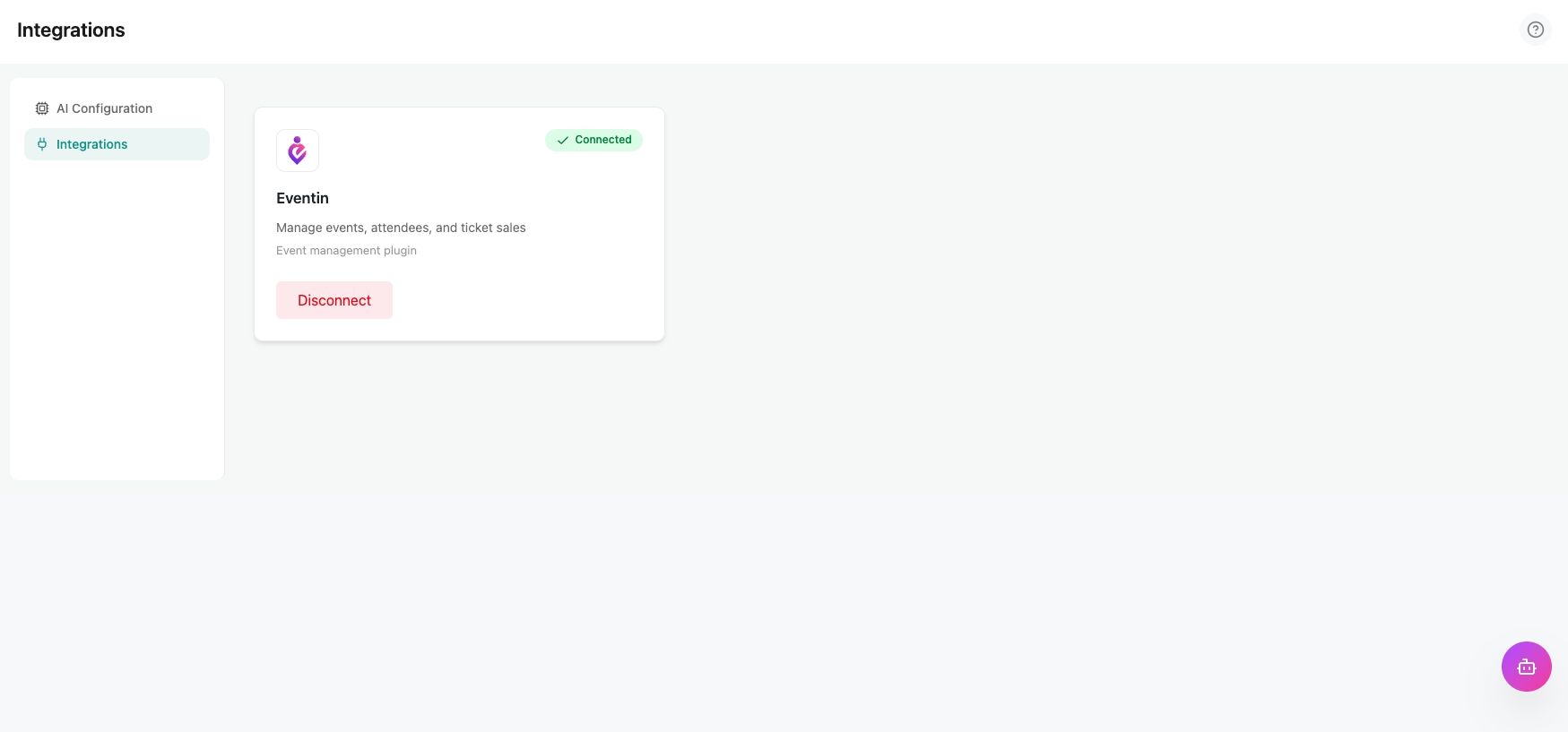
aisentic-eventin-integration

What You Can Do After Connecting #

With Eventin connected, Aisentic’s chatbot now understands your event data. You can open the Aisentic chat window and start managing events using natural language. Here are some examples of what you can do:

  • Search and browse: “Show me all events this month” or “Find the event called Tech Meetup.”
  • Create events: “Create a new event called Annual Workshop on July 15.”
  • Update details: “Change the description of the Annual Workshop event.”
  • Get help: If the chatbot can’t resolve your request, Click on “Talk to Agnet” button

The chatbot acts as a dedicated assistant for the connected plugin — so the more plugins you connect, the more Aisentic can help you with.

Frequently Asked Questions (FAQ) #

Q1: Can I connect multiple plugins at the same time?

A:
Yes. You can connect any number of supported plugins from the Integrations tab. Each connected plugin adds its capabilities to the Aisentic chatbot.
Q2: Will connecting Eventin change my existing events or data?

A: No. The integration is read-and-write through the chatbot, but it does not modify any existing data on its own. Changes only happen when you explicitly ask the chatbot to make them.
Q3: Do I need any technical knowledge to connect a plugin?

A: Not at all. The entire process is done through the Aisentic settings page with a single click. No coding or configuration required.
Q4: Can I disconnect a plugin after connecting it?

A: Yes. Go back to the Integrations tab, find the plugin card, and click Disconnect. The plugin will continue to work normally on its own — only the Aisentic chatbot integration is removed.

Conclusion #

Connecting a plugin to Aisentic takes just a few clicks, but it unlocks a completely new way to manage your WordPress site. Instead of navigating through menus and settings, you simply tell the chatbot what you need.

Now that Eventin is connected, you’re ready to put the chatbot to work. Head over to our next guide — How to Manage Eventin Events Using Aisentic’s AI Chatbot — to see real examples of creating, updating, and searching events through natural language.

What are your Feelings

Share This Article :

  • Facebook
  • X
  • LinkedIn
  • Pinterest
Updated on April 1, 2026
How to Manage Eventin Events Using AISentic’s AI ChatbotGetting Started with Aisentic: Your AI Assistant for WordPress
Table of Contents
  • Step 1: Open the Integrations Tab
  • Step 2: Check the Plugin Status
  • Step 3: Connect the Plugin
  • What You Can Do After Connecting
  • Frequently Asked Questions (FAQ)
    • Conclusion
Copyright © 2013-2026 ThemeWinter. – A Brand of Arraytics.