
Overview #
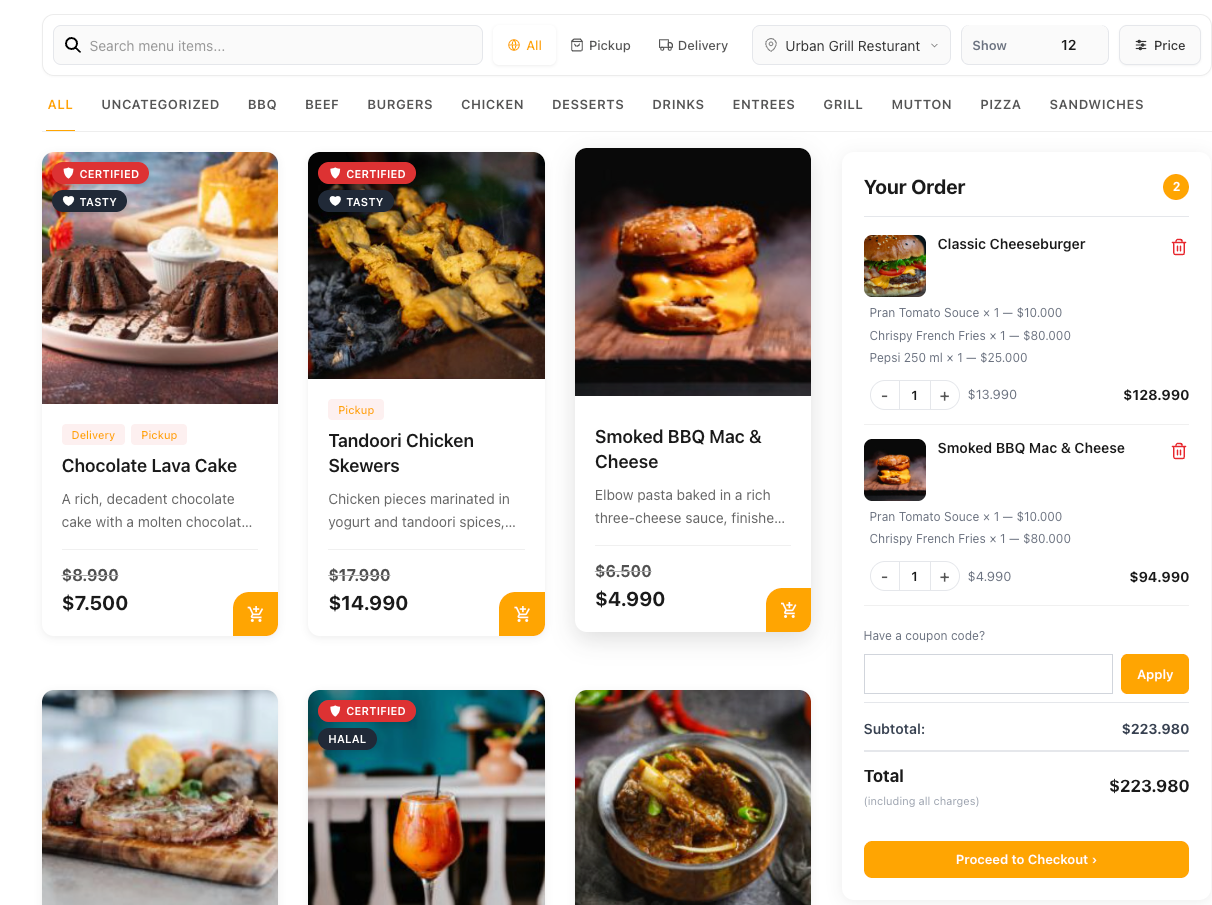
Product Label lets you flag WooCommerce products with branded badges like Vegan, Spicy, Gluten-Free, or Chef’s Pick. Each label has its own background color, foreground color, and icon (Dashicon or custom SVG), and renders as a styled pill on every WP Cafe product card. Use it when plain product tags aren’t expressive enough for your menu.
Requirements #
| Prerequisite: Make sure WP Cafe Pro and WooCommerce are installed and active. |
Step 1: Open the Product Label Management Screen #
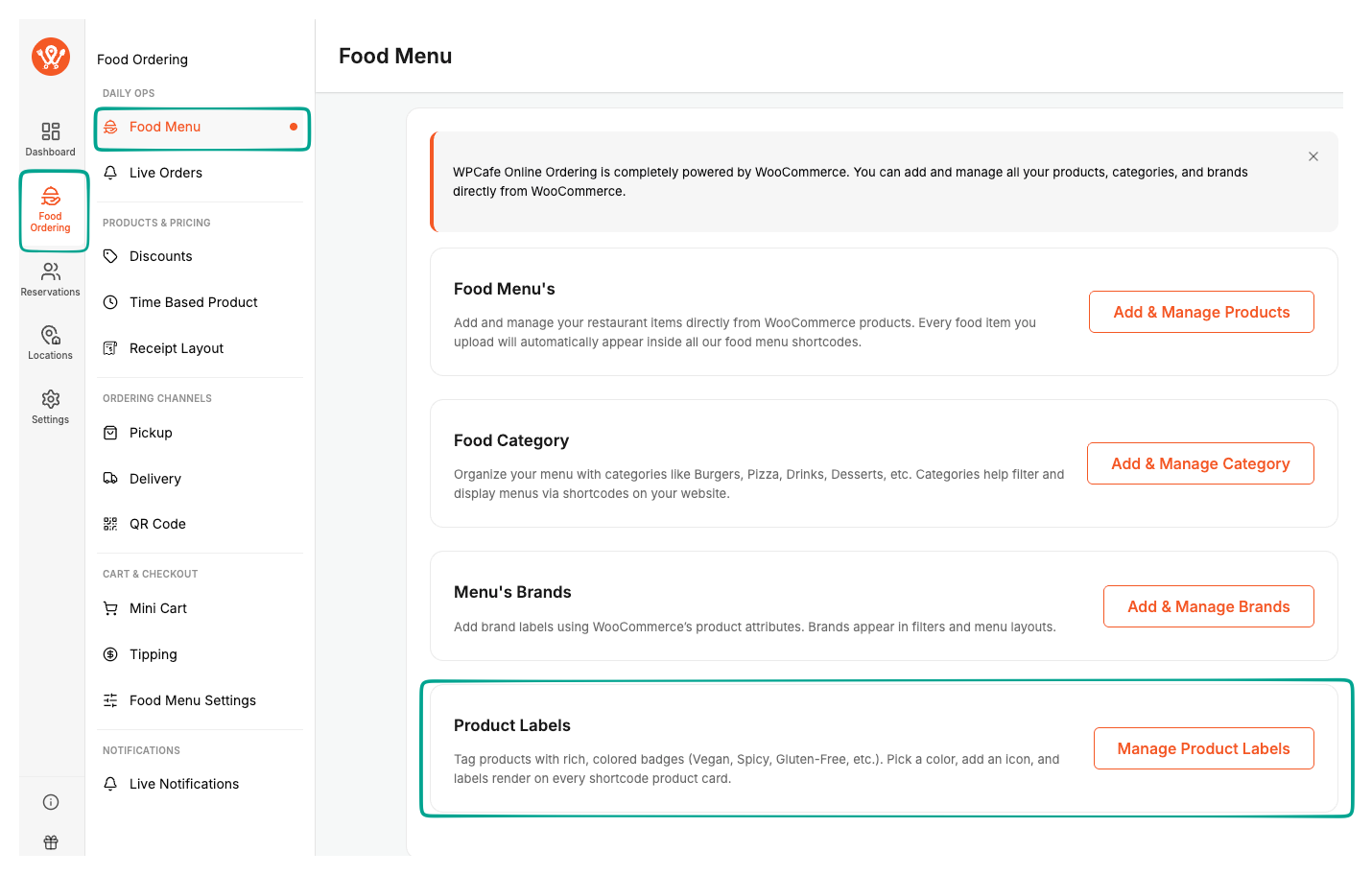
- From the WordPress dashboard, click Food Order in the sidebar → Food Menu.
- Click the Manage Product Labels button on the Product Labels card.
This opens the term editor for the Product Label taxonomy.
Step 2: Create a Label #
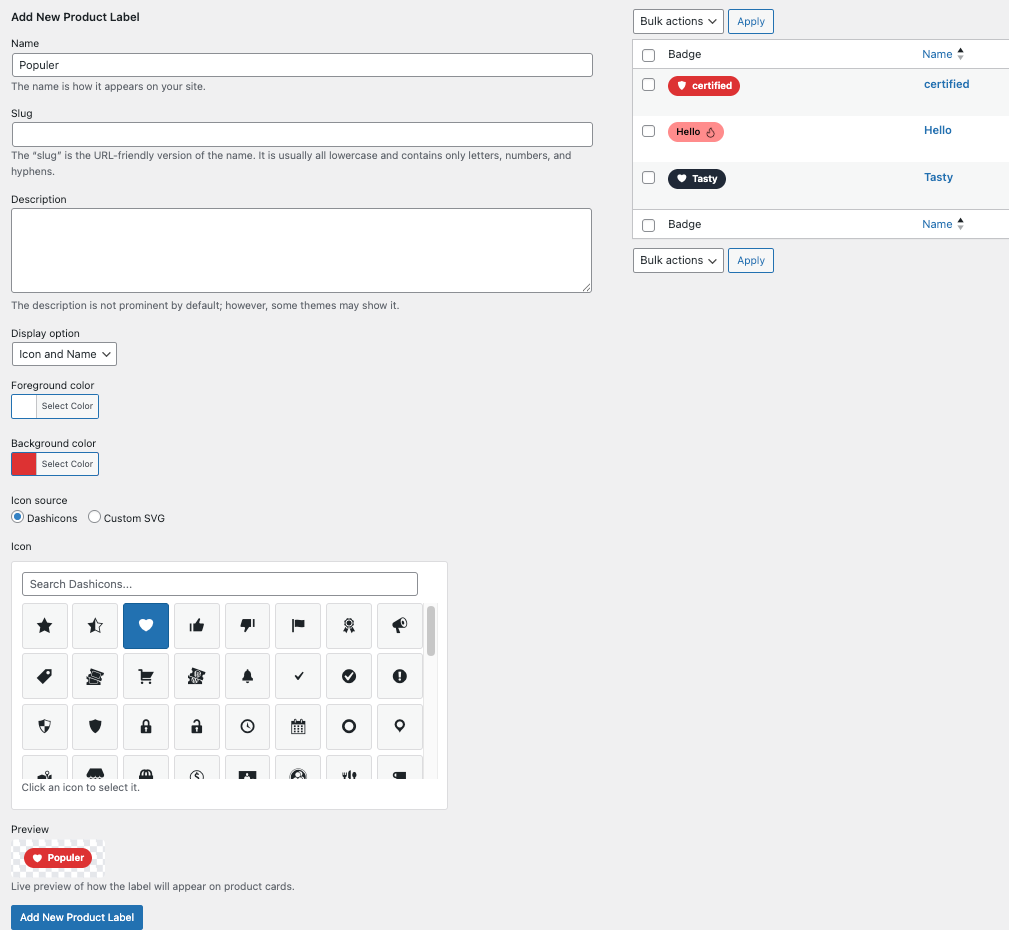
In the Add New Label form on the left side of the screen:
- Enter a Name (e.g.
Vegan). - Optionally set a Slug and Description.
- Choose a Display mode:
Name(text only),Icon(small circular badge),Icon + Name, orName + Icon. - Pick a Background color and Foreground (text) color using the color pickers.
- Choose an Icon source: Dashicons (search the grid and click any icon) or Custom SVG (click Upload SVG and pick a file from your media library).
- Watch the Live Preview update as you change fields.
- Click Add New Label.
Step 3: Assign Labels to a Product #
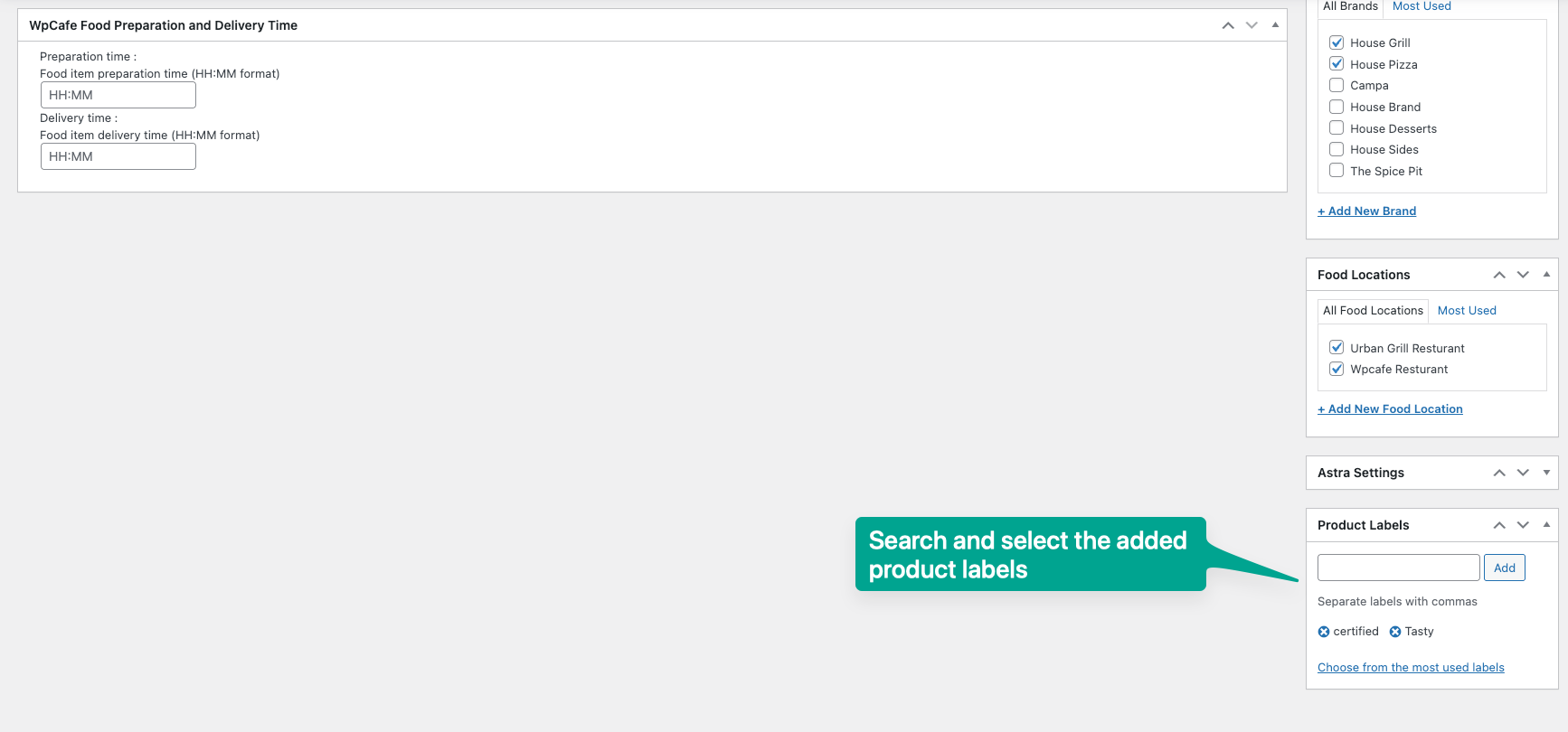
- Edit any WooCommerce product (Products → All Products → Edit).
- Find the Product Labels metabox in the right sidebar (tag-style, same UX as product tags).
- Type a label name and pick from the suggestions, or click Choose from the most used Product Labels.
- Click Update to save the product.
Step 4: Display Labels on the Frontend #
Labels are opt-in. Add show_item_label="yes" to any WP Cafe shortcode that renders product cards. Every WP Cafe shortcode supports it if already using the shortcodes
Step 5: Generate the Shortcode from the Admin #
- Click Settings in the sidebar → Shortcode → Online Food Order tab.
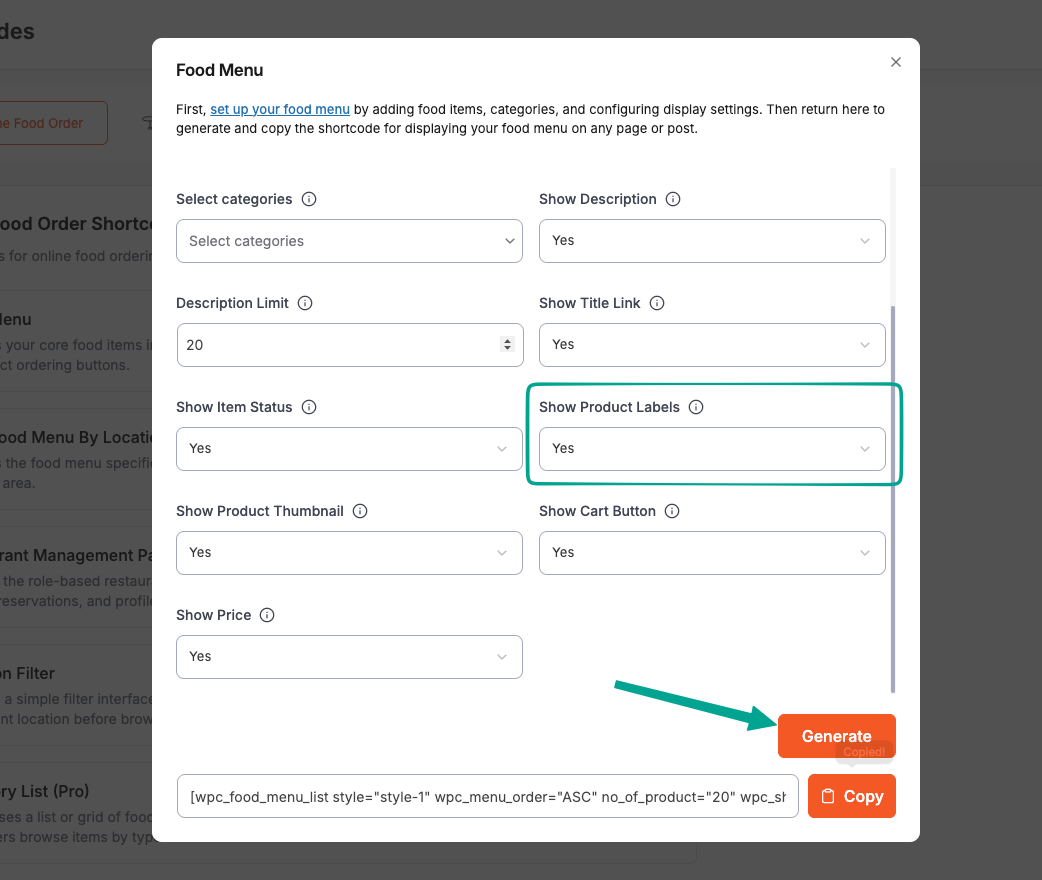
- Click the Generate Shortcode button to open the shortcode generation modal.
- Set the Show Item Label dropdown to Yes → click Generate.
- Paste the generated shortcode into any page and preview.
Step 6: Display in Elementor Widgets #
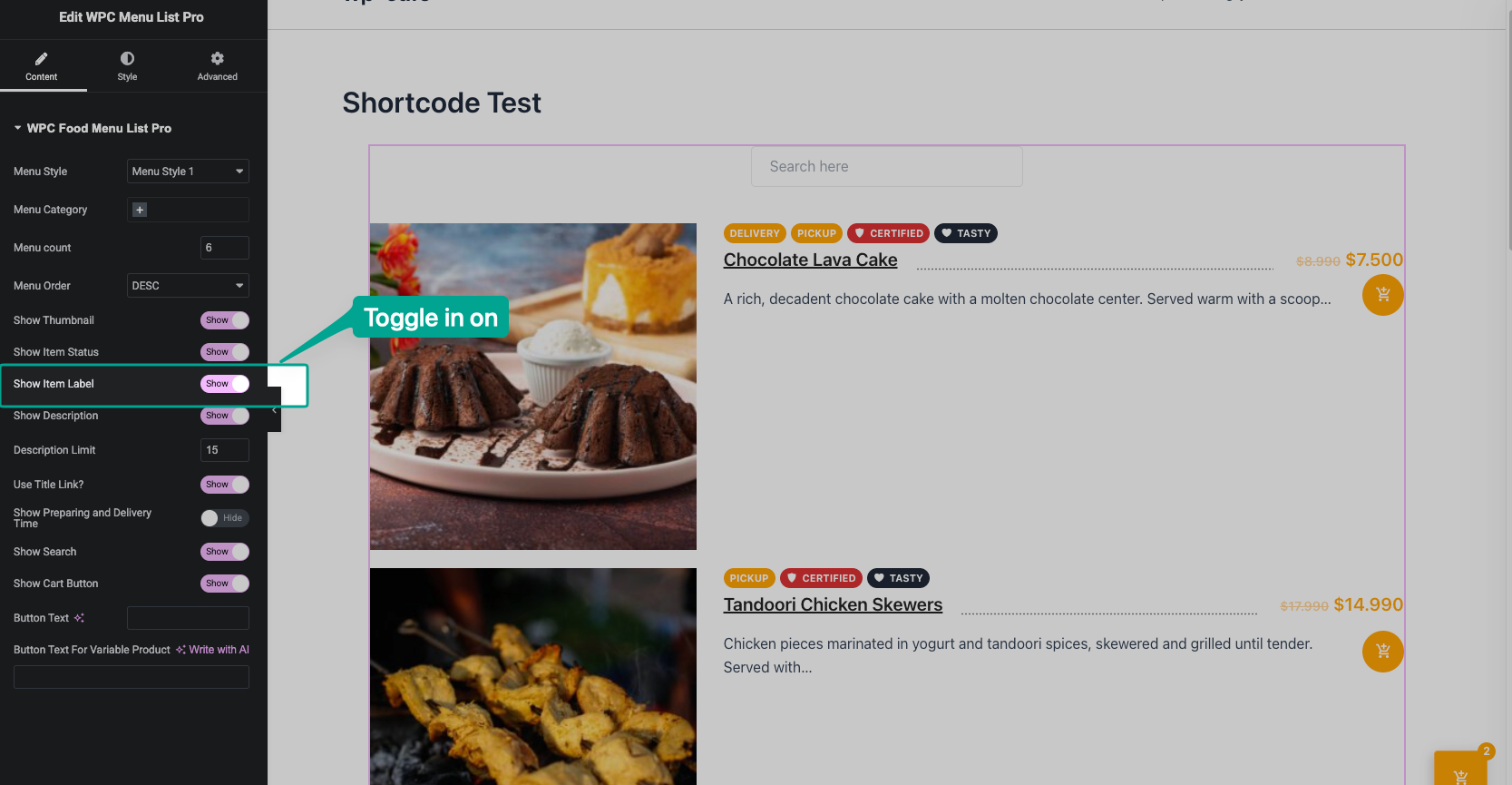
Every WP Cafe widget that renders product cards has a Show Product Labels switcher in its settings panel:
- Menus List
- Food Menu Tab
- Food Location
- Location Menu
- Food Menu Slider (pro)
- Menu Tab With Slider (pro)
- Food Menu Load More (pro)
Toggle it to Yes and labels appear immediately in the Elementor preview.
Frequently Asked Questions (FAQ) #
| Q1: I added show_item_label=”yes” but no badges appear. What’s wrong? The product probably has no Product Labels assigned. Open the product edit screen and add at least one label in the Product Labels metabox. Labels are also hidden if show_item_label is missing or set to "no" — the default is "no" so existing shortcodes don’t change behavior on upgrade. |
| Q2: Can I use the same label as a product tag and a product label? Yes — they are independent taxonomies. Tags render through show_item_status and labels through show_item_label. Both can be enabled together; they render side-by-side in the same row using the same pill style, with labels carrying their custom colors and icons. |
| Q3: My SVG icon isn’t showing up — only a colored circle. Why? SVGs must be uploaded to the WordPress media library and selected via the Custom SVG picker. If the icon URL fails to resolve (file deleted, missing attachment), the label silently falls back to the Name display mode so the card never breaks. Check the term in the editor and re-pick the SVG file. |


