
Zoho CRM Integration #
Connect your Eventin events to Zoho CRM and automatically send purchaser and attendee data to your CRM every time a ticket is sold. No manual imports, no API keys — just a simple webhook URL.
How to Set Up Zoho CRM Integration #
Step 1: Create a Webhook in Zoho Flow #
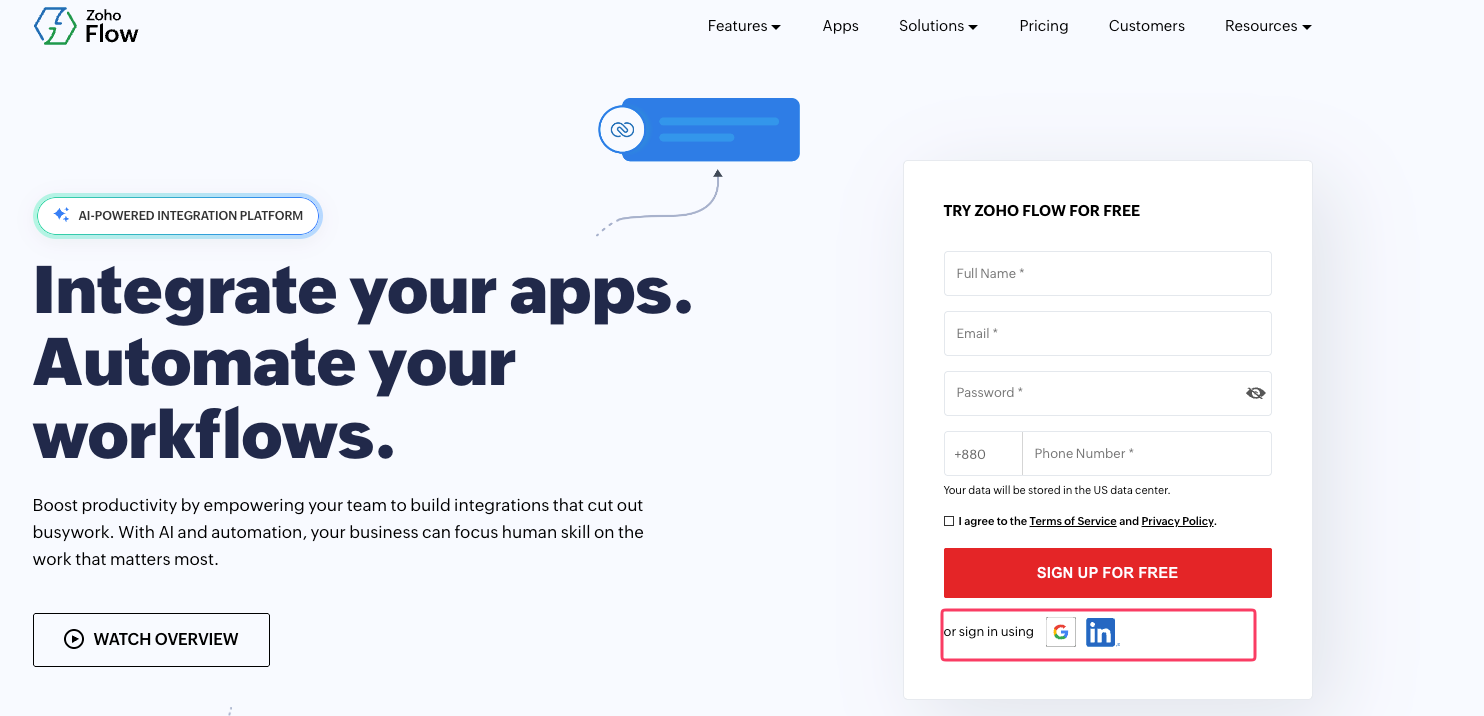
- Log in to your Zoho Flow account.
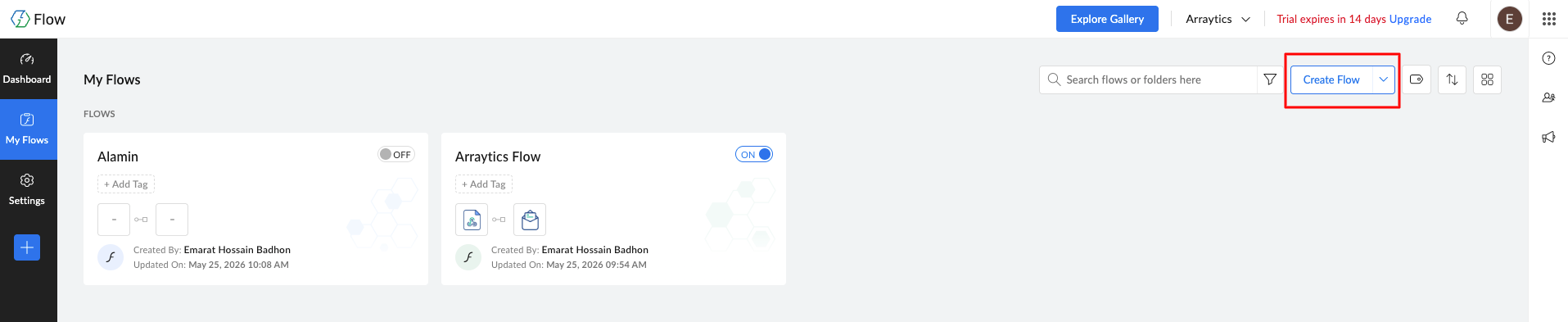
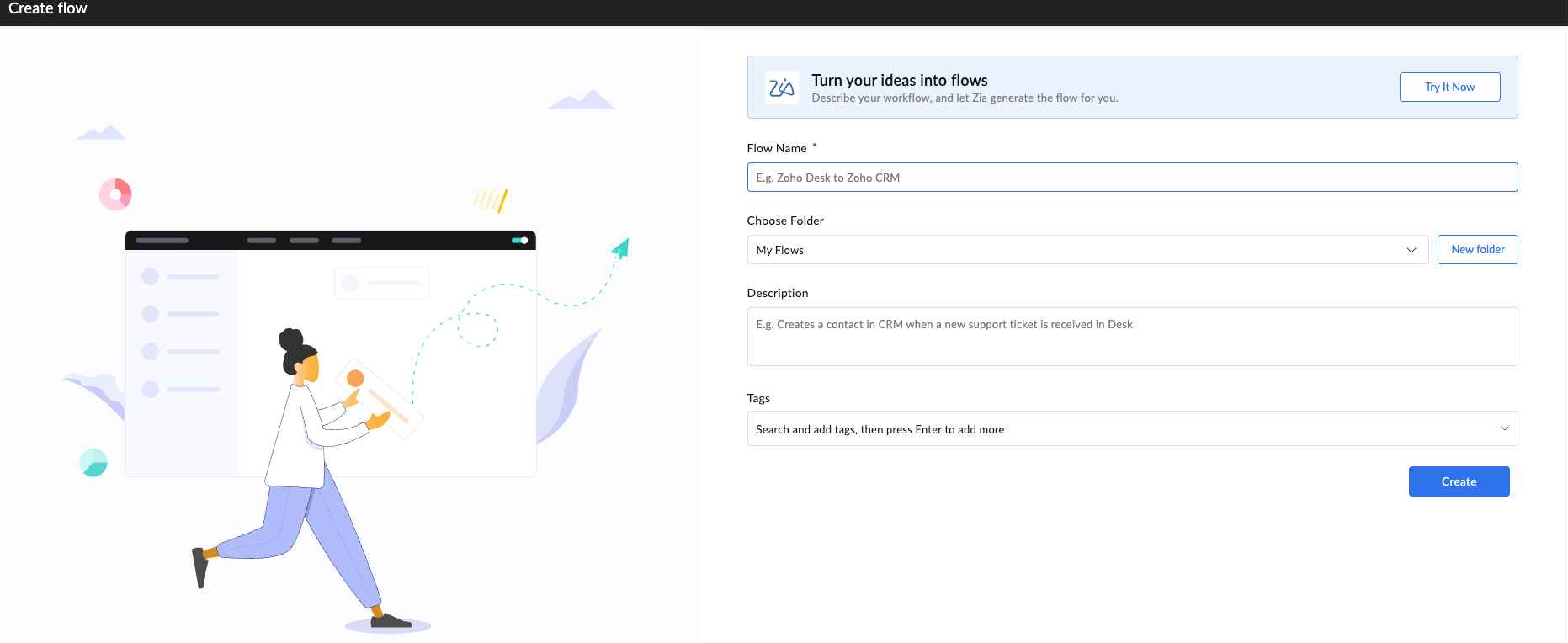
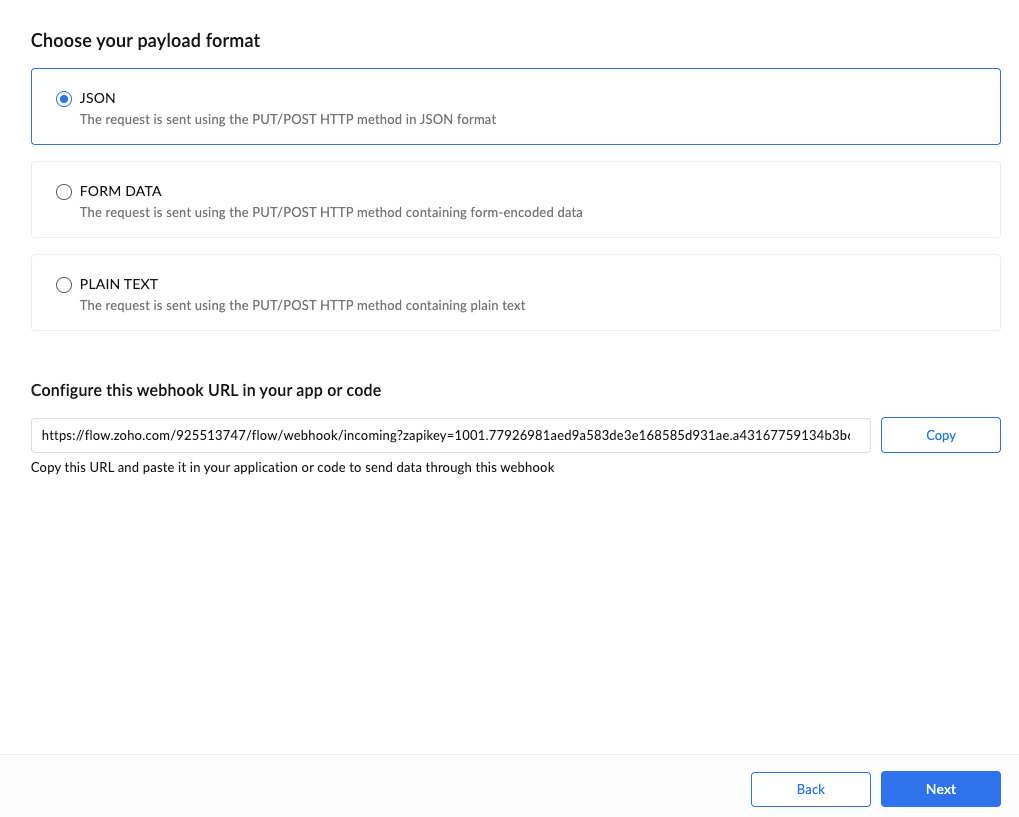
- Click Create Flow and choose Webhook as the trigger.
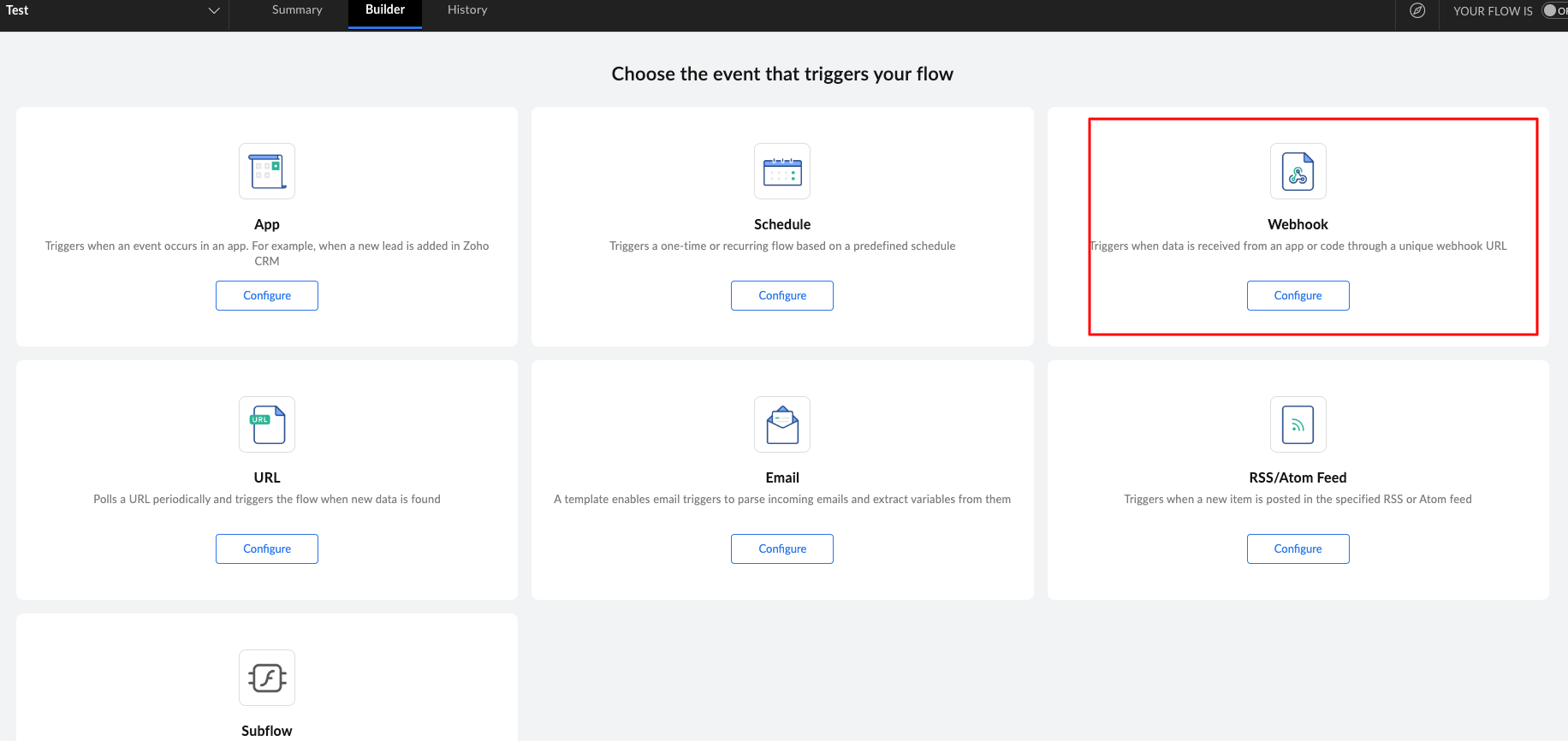
- Copy the generated Webhook URL — you’ll need this in the next steps.
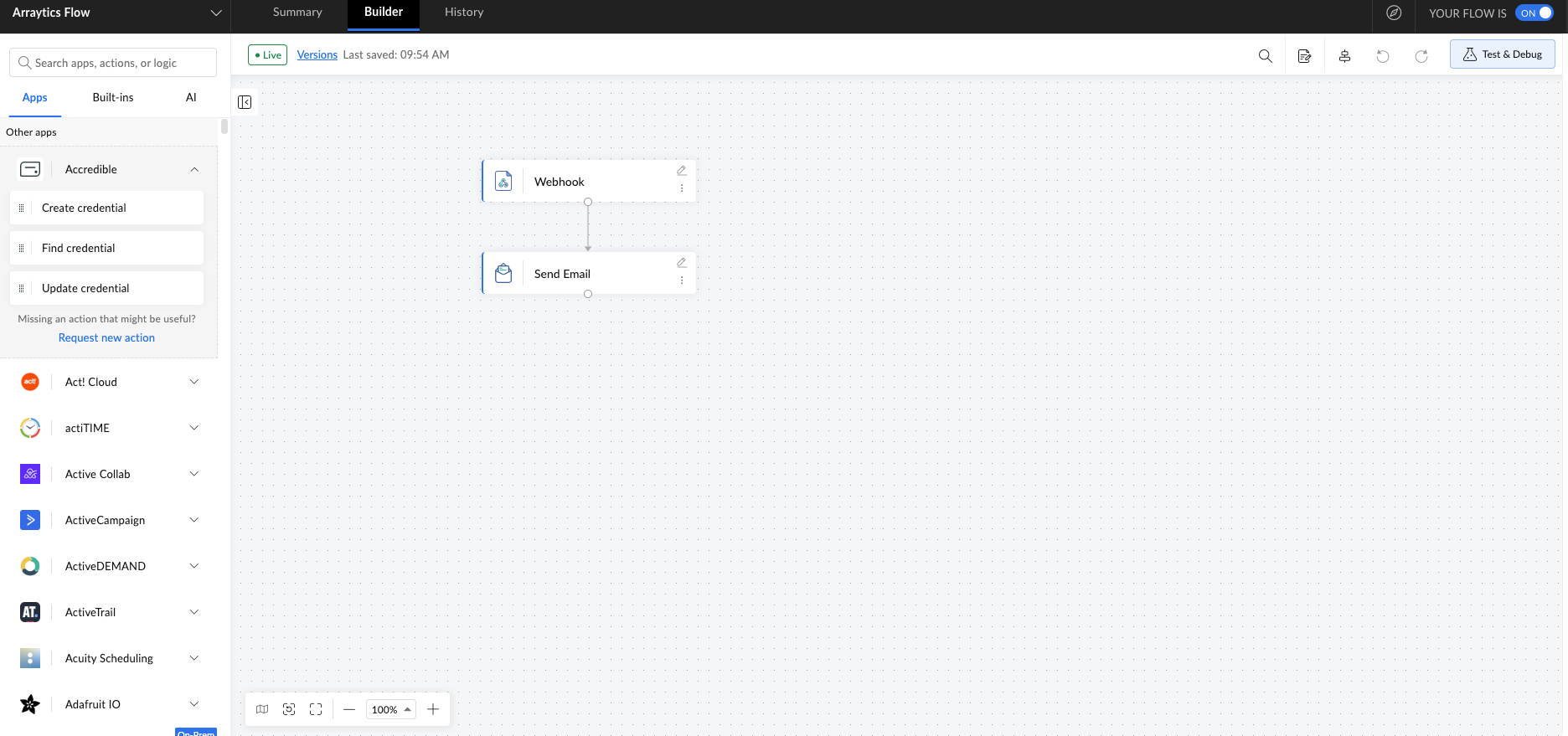
- Configure the flow actions to create or update contacts in Zoho CRM.
Step 2: Enable the Zoho CRM Extension in Eventin #
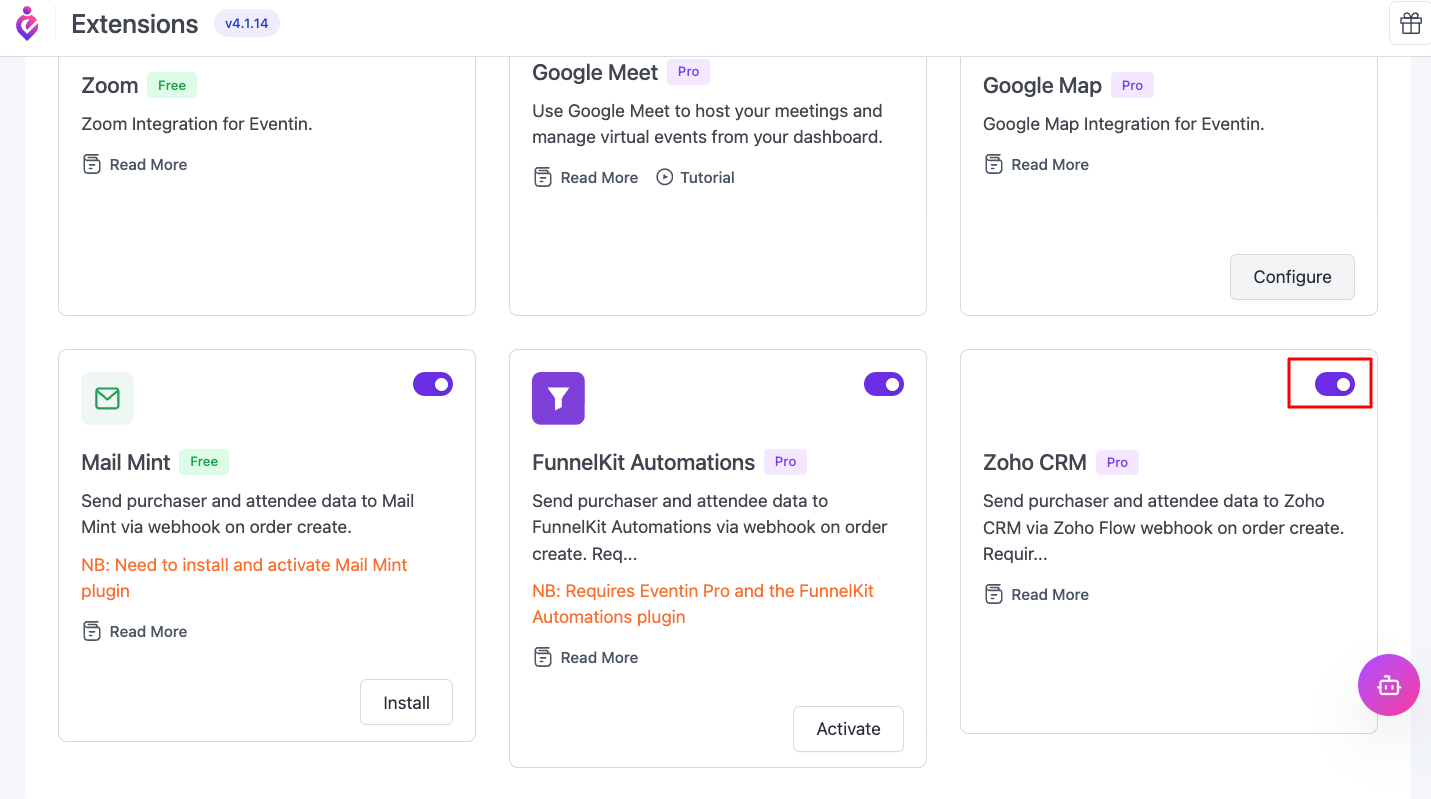
- In your WordPress dashboard, go to Eventin > Extensions.
- Find Zoho CRM in the integrations list.
- Toggle it On.
Step 3: Add the Webhook URL to Your Event #
- Open any event in the Eventin editor.
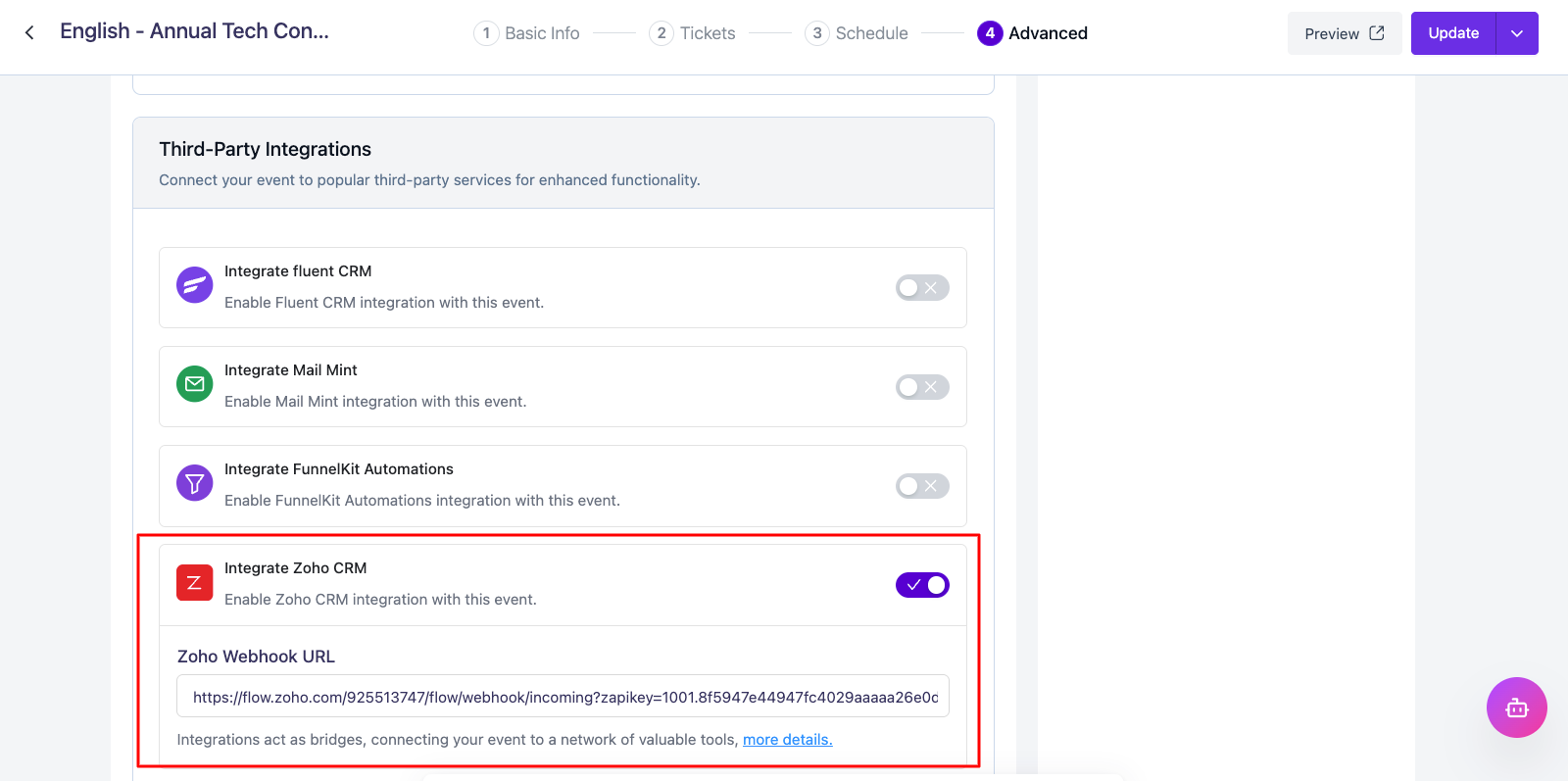
- Go to Advanced > Integrations.
- Toggle on Integrate Zoho CRM.
- Paste your Zoho Flow Webhook URL in the input field.
- Save the event.
Step 4: You’re Done! #
When a customer purchases a ticket for this event, their data is automatically sent to Zoho CRM — including email, name, phone, event title, order ID, and order total. Each attendee is sent as a separate contact with an “Eventin” lead source tag.
Free vs Pro #
The Zoho CRM integration is a Pro feature. Free users can see the option in the event editor but will need to upgrade to enable it.
Frequently Asked Questions #
1. Do I need a paid Zoho plan? You need a Zoho Flow account to create the webhook. Zoho Flow’s free tier is sufficient.
2. What data is sent to Zoho CRM? Purchaser email, first name, last name, phone, event title, order ID, order total, and lead source (“Eventin”). If multiple attendees are registered, each is sent separately.
3. What if the webhook fails? The customer’s order completes normally. Webhook errors never block a sale.
4. Can I use this with other integrations? Yes. Zoho CRM works alongside FluentCRM, MailMint, Zoom, and all other Eventin integrations.
5. Can I enable it for specific events only? Yes. The integration is configured per event — toggle it on or off individually.
6. How do I get support? Visit our Support Center for live chat, email, or one-on-one assistance.


