
Installing the WPCafe Restaurant Manager plugin is simple and does not require any programming experience. Follow the step-by-step guide below to get started quickly.
Requirements #
- WordPress Version: 5.2 or higher
- WPCafe Plugin (Free or Pro)
- PHP Version: 5.6 or higher
- PHP
memory_limit: 512M max_execution_time: 600
If you face any issues during installation, you can contact our support team via the ThemeWinter Support Center.
Installing and Activating WPCafe (Free) from Dashboard #
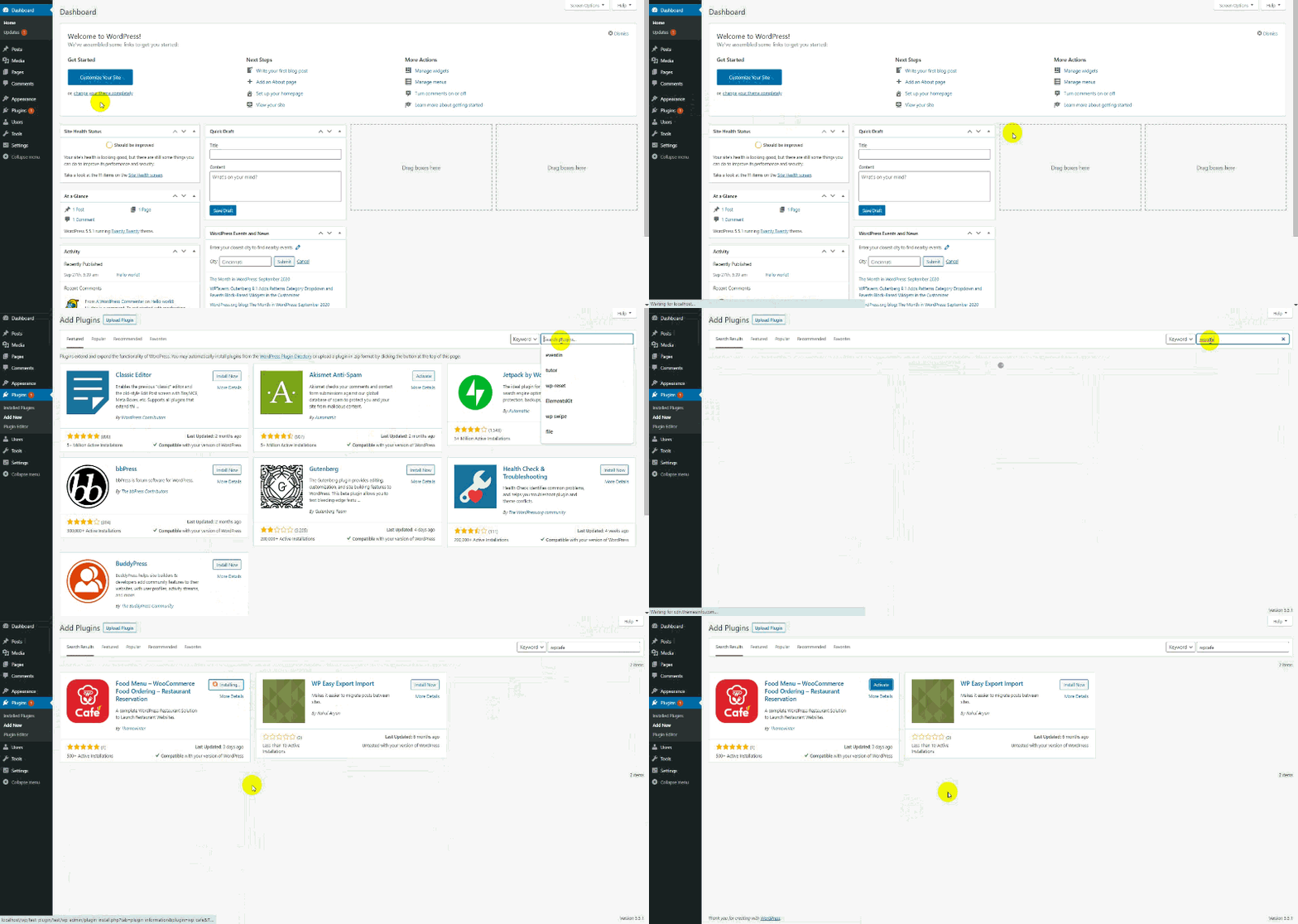
- Log in to your WordPress Admin Dashboard.
- Navigate to Plugins → Add New.
- In the search box at the top-right, type WPCafe.
- Click Install Now.
- Once the installation is complete, click Activate.
Installing and Activating WPCafe (Manual) #
From Dashboard (ZIP Upload) #
- Download the WPCafe ZIP file from WordPress.org.
- Go to Plugins → Add New → Upload Plugin in your dashboard.
- Click Choose File, select the ZIP file, then click Install Now.
- Once installed, click Activate Plugin.
Using FTP/SFTP #
- Download and unzip the WPCafe plugin on your computer.
- Connect to your site using FTP/SFTP (e.g., FileZilla).
- Navigate to
wp-content/pluginsand upload the WPCafe folder. - If updating, overwrite existing files—your settings remain safe.
- Go back to your WordPress dashboard and activate or update WPCafe.


